

Every file and picture, in one shared Drive.
Your workspace’s Drive is its media library. Photos, video, PDFs and Office files sit beside everything you make in Docsiv, ready to preview, share and use in any design.
 Behind the scenes.mp4
 0:42Retreat brochure.pdf
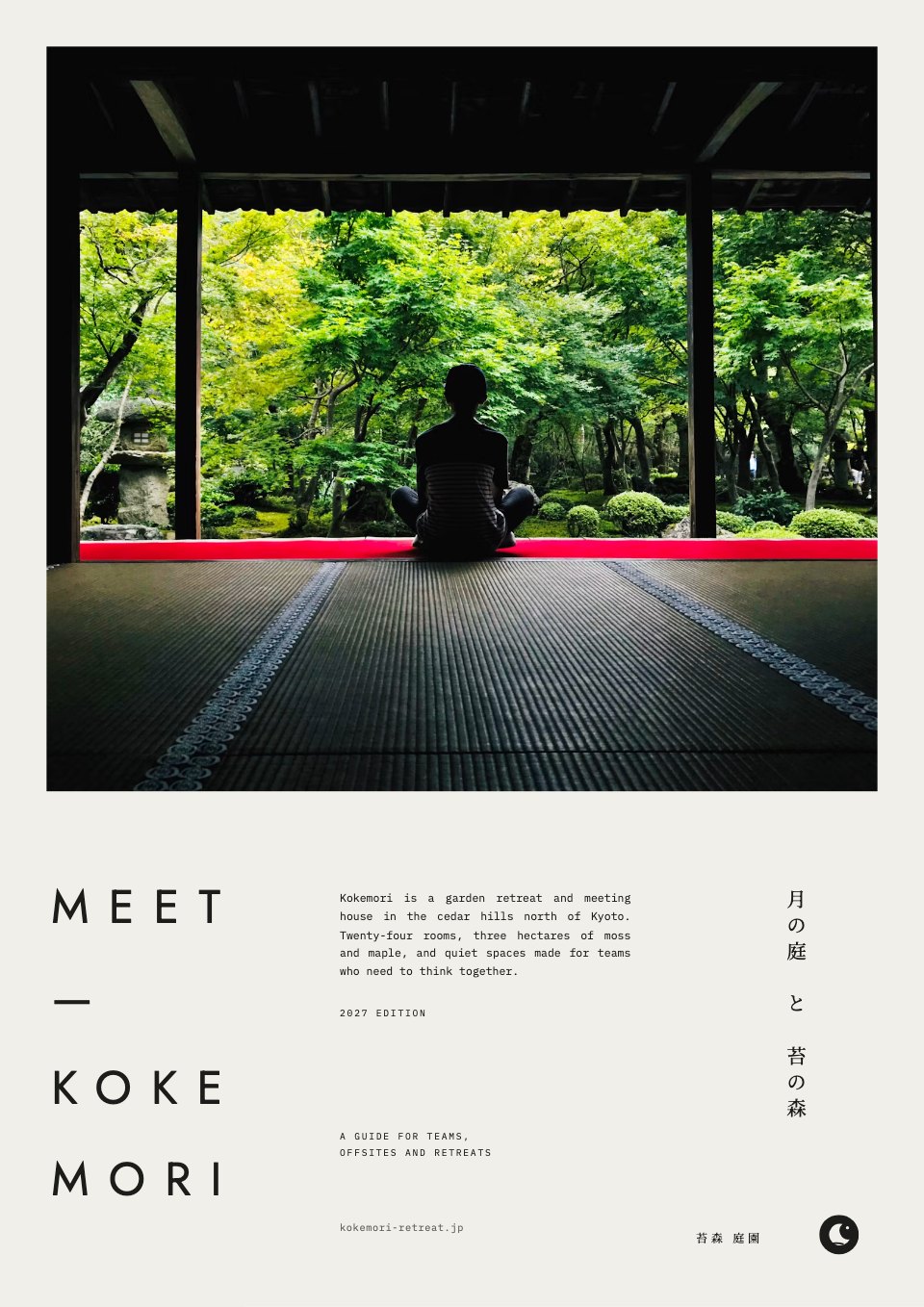 Tent interior.jpg
 Studio portrait.psd
 PSDFounder interview.m4aRidge panorama.jpg
 Team day.jpg

Bring it all in, however it arrives.
Uploads, files clients send you and the work you make all end up in the same place.
- Upload
Drop in files or whole folders
Drag them onto any folder, or pick them from your computer. Each upload shows its own progress.
- Request
Ask clients for their files
Send a link that drops files straight into a folder. No account needed, and nobody sees what others sent.
- Made here
Saved as you work
Decks, proposals and designs you make, and the pictures Docsiv AI creates, land in Drive on their own.

Find anything in a few keystrokes.
However big the Drive gets, the file you want is a search, a filter or a question away.
Search, then narrow it down
Search the whole Drive, then filter by type, app or owner. Starred, Recent and coloured folders keep the usual things close.
Or ask Docsiv AI
Describe the file and Docsiv AI finds it in Drive, reads it and works from it, without you opening a thing.
Open anything without downloading it.
Files open full screen right in Drive. When one needs changes, edit a copy in the app that suits it.
- PicturesJPG · PNG · WebP · SVG · GIFEdit a copy in Images
- VideoMP4 · MOV · WebM
- AudioMP3 · WAV · M4A · FLAC
- PDFsRead, then open in PDFsEdit a copy in PDFs
- Office filesDOCX · XLSX · PPTX · CSVEdit a copy in Documents
- Design filesPSD · DXF · fonts · ZIP
Your pictures, in every design.
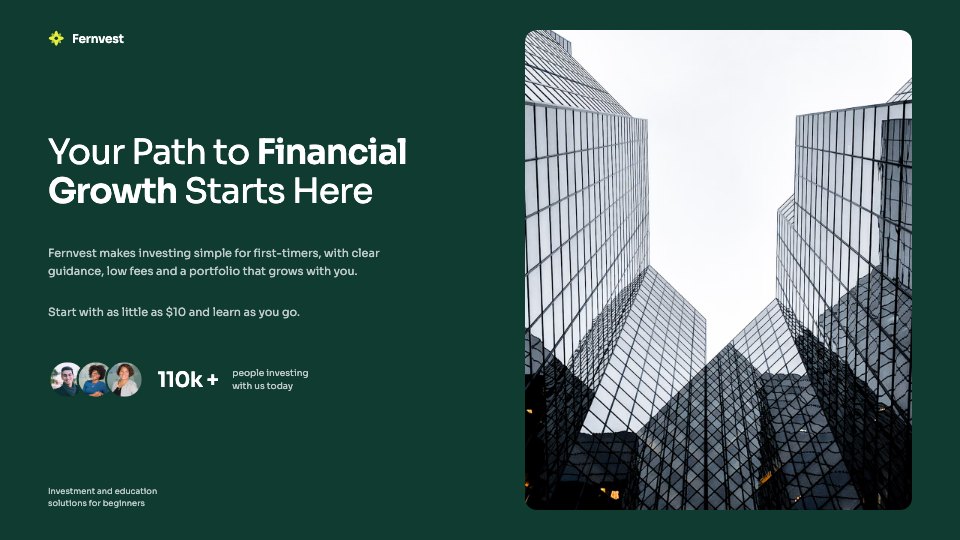
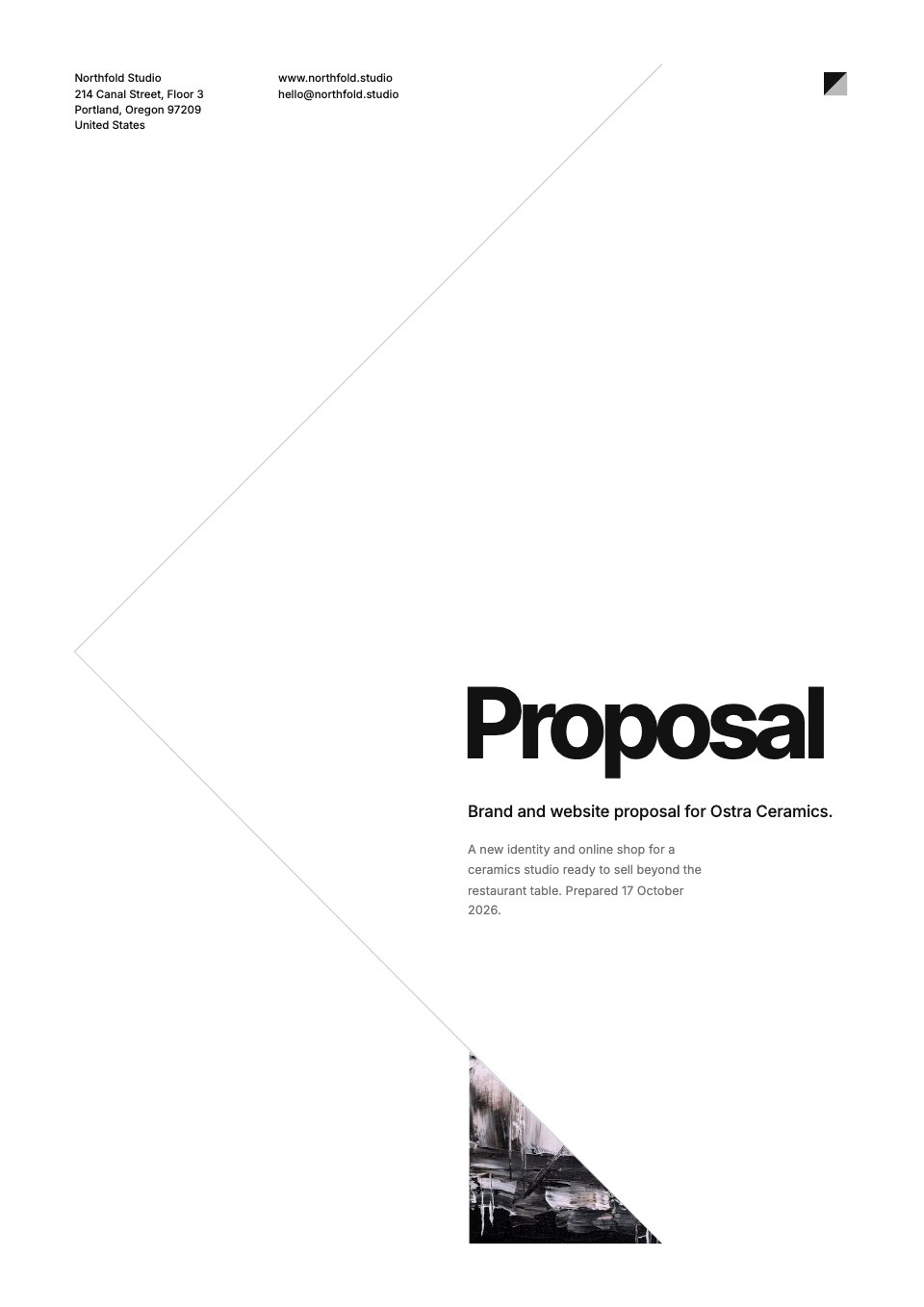
The image picker in Proposals, Reports, Decks, Designs and Forms opens on your Drive, with free stock photos a tab away.
Your files
Every picture in Drive, newest first. Upload a new one, or ask Docsiv AI to generate one for the spot you’ve selected.
Stock photos
Search free Unsplash photos, or browse by theme, and place one in a click.
Give clients and freelancers exactly the access they need, and take it back when the work is done.
Questions about Drive.
Something else on your mind? Ask us in the chat, bottom right of the page.
Is the media library the same as Drive?
Yes. Your workspace’s Drive is its library: the files you upload, everything you make in Docsiv’s apps and the pictures Docsiv AI creates, in one place your whole team shares.
What can I keep in Drive?
Any file, uploaded one by one or as whole folders. Pictures, video, audio, PDFs, Office files, Photoshop files, DXF drawings, fonts and zip archives open in the previewer without a download.
How do clients send me files?
Create an upload request on a folder and send its link. Anyone can add files through it without an account, and they can’t see what’s already there. Add a message and a deadline, and ask for their name if you like.
Can I use my Drive pictures in a design?
Yes. The image picker in Proposals, Reports, Decks, Designs and Forms shows your workspace’s pictures under Your files, next to free Unsplash photos under Stock photos. You can also upload one or ask Docsiv AI to generate one.
Who can see our files?
Everyone in your workspace. To bring in someone from outside, share a file or folder with them as a viewer, contributor or editor, or turn on its link.
What happens when I delete a file?
It moves to Drive › Trash, where you can restore it until you delete it for good.
How much storage do I get?
It depends on your plan, and Drive shows how much your workspace has used. The pricing page lists the storage on each plan.

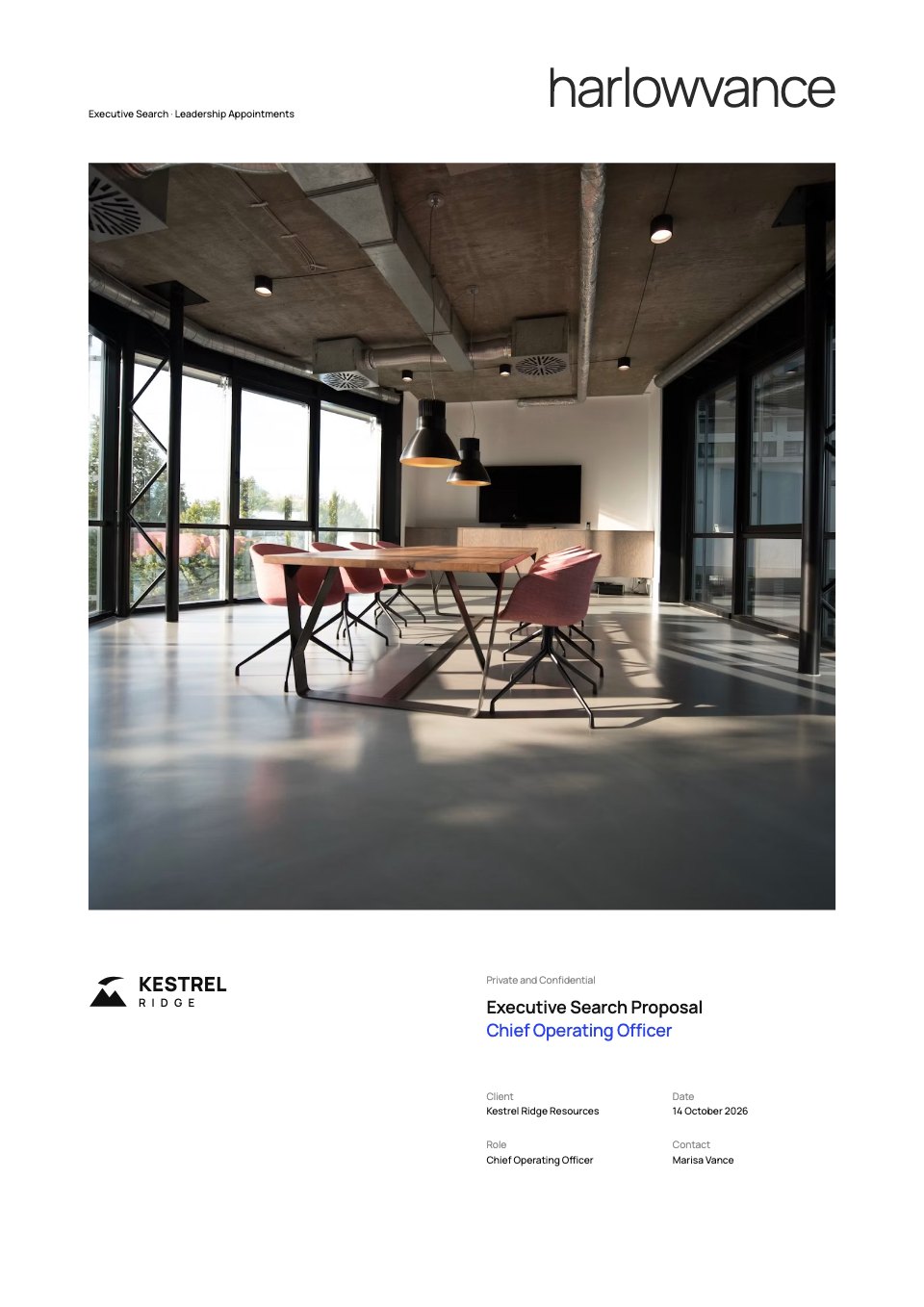












Put the files in your Drive to work
Ask Docsiv AI to turn what’s in your Drive into a deck, a report or a proposal.