

Every client project, together in one place.
A project gathers the files, Drive folders, templates and AI chats for one piece of work. Your whole team works in it, and every file keeps its comments and history.
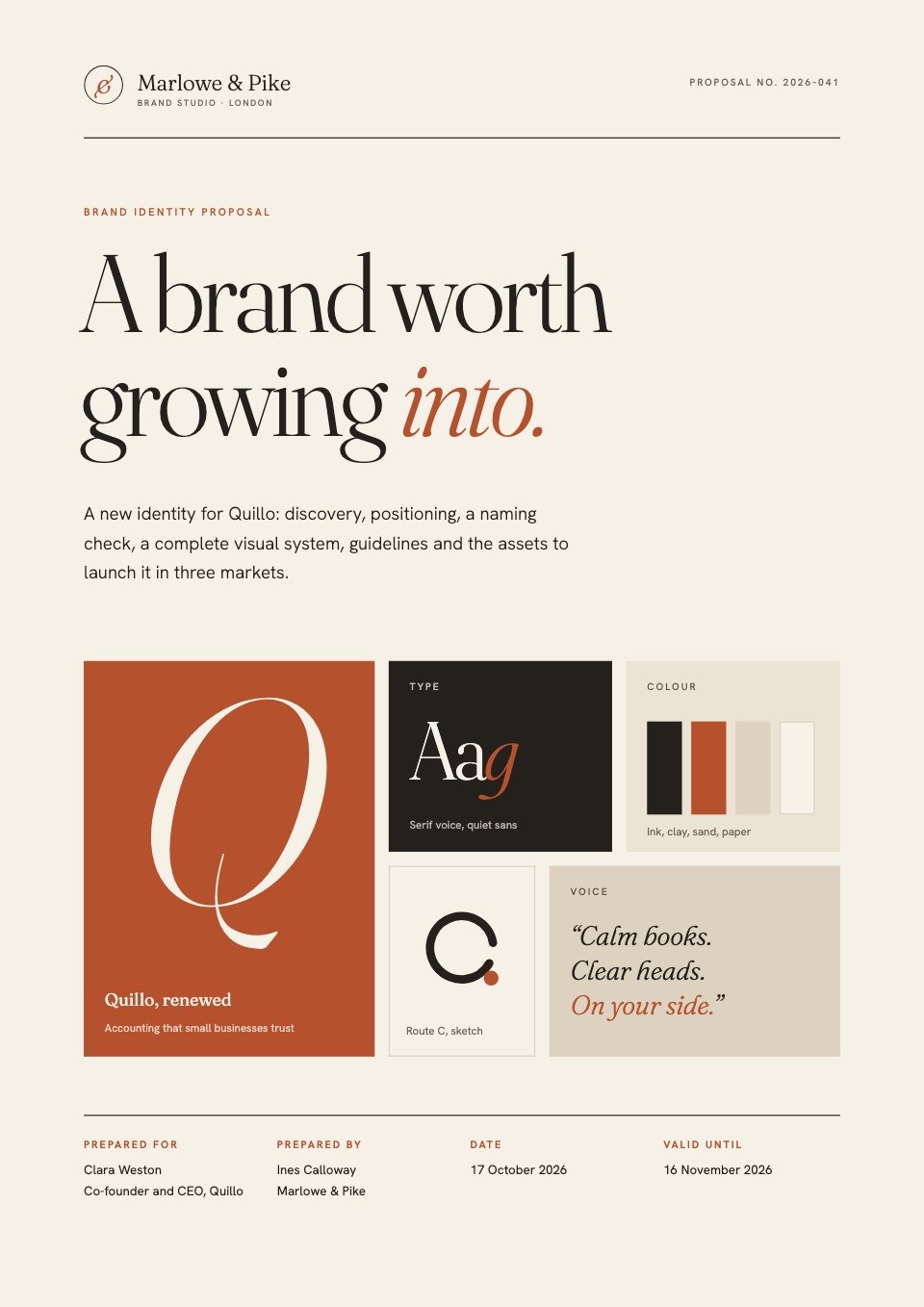
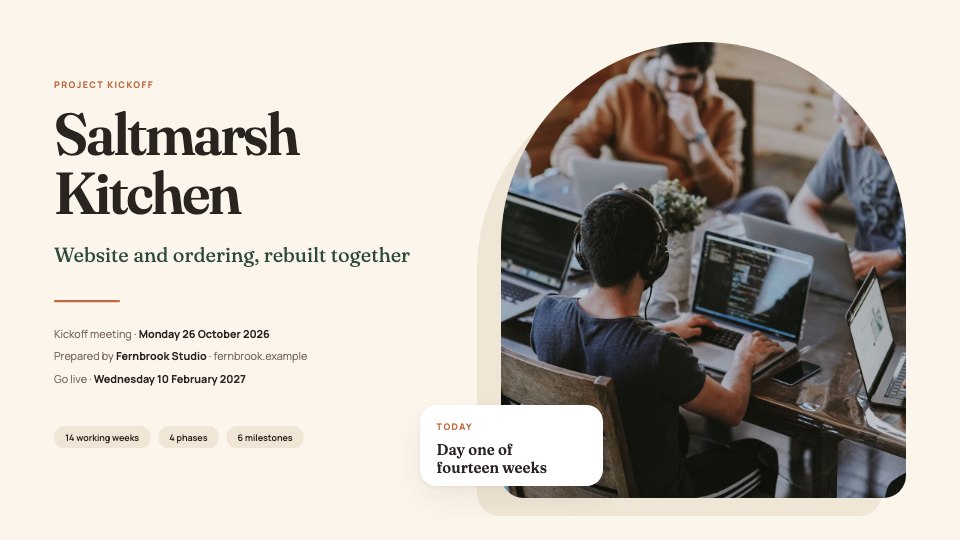
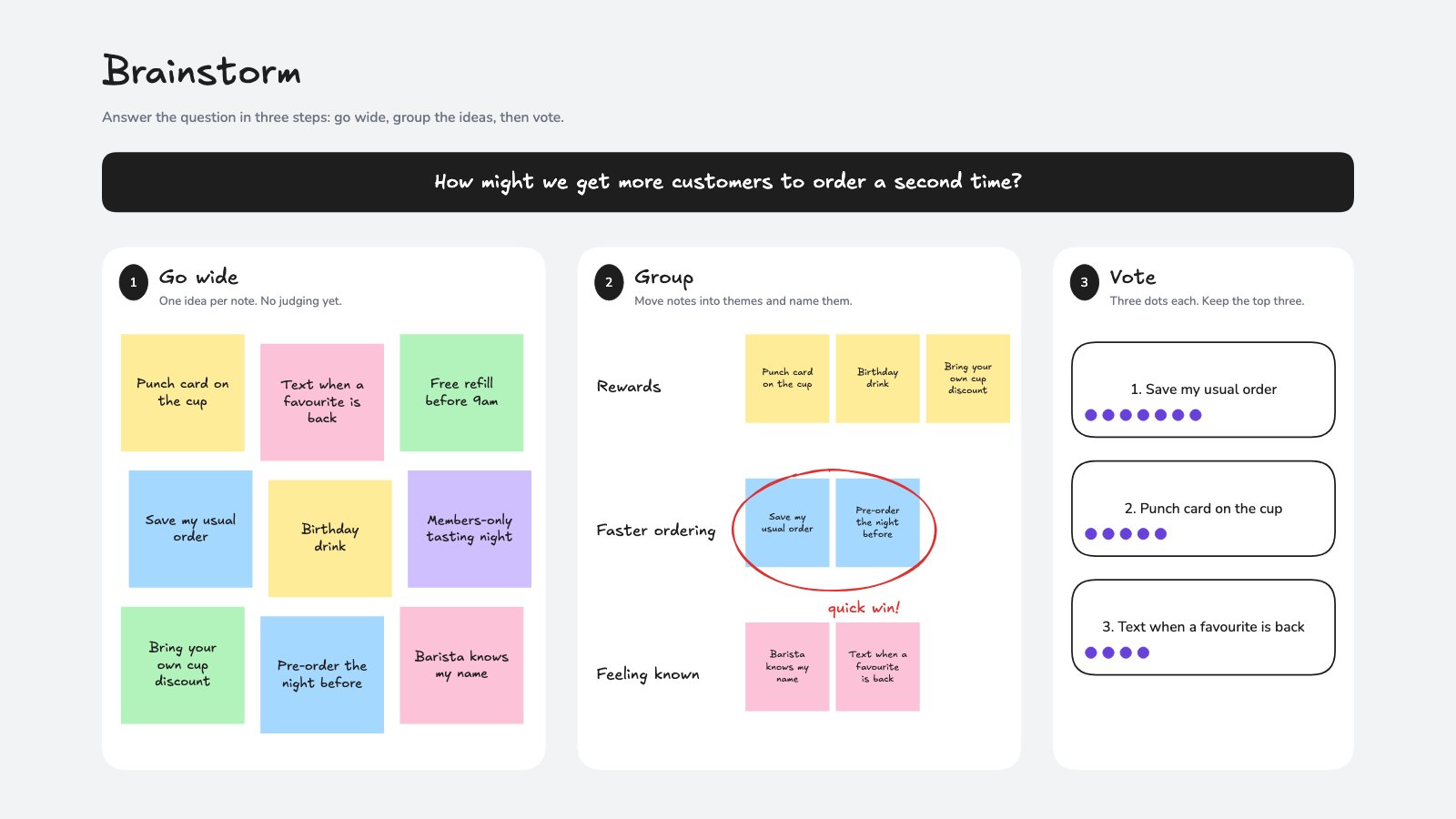
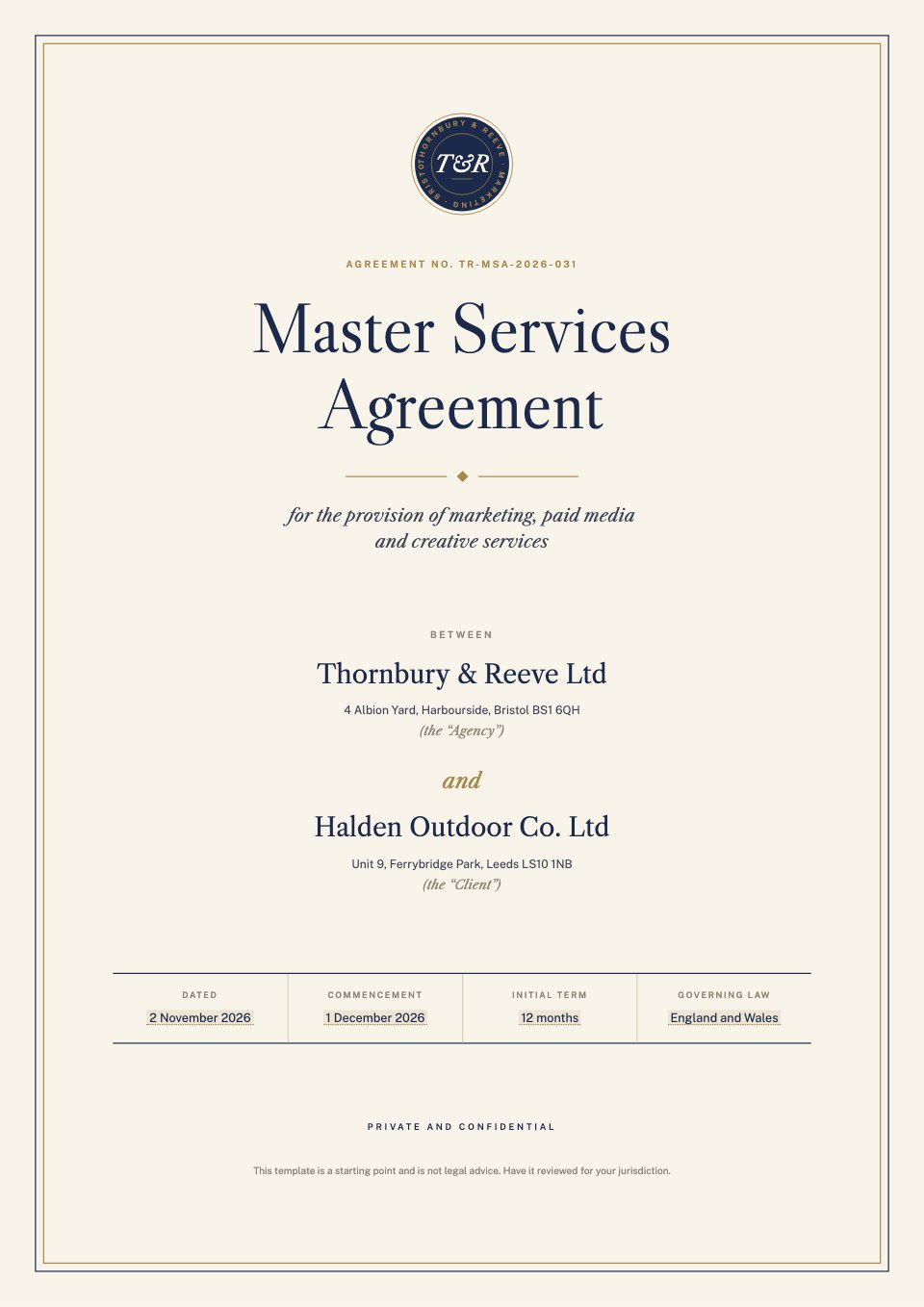
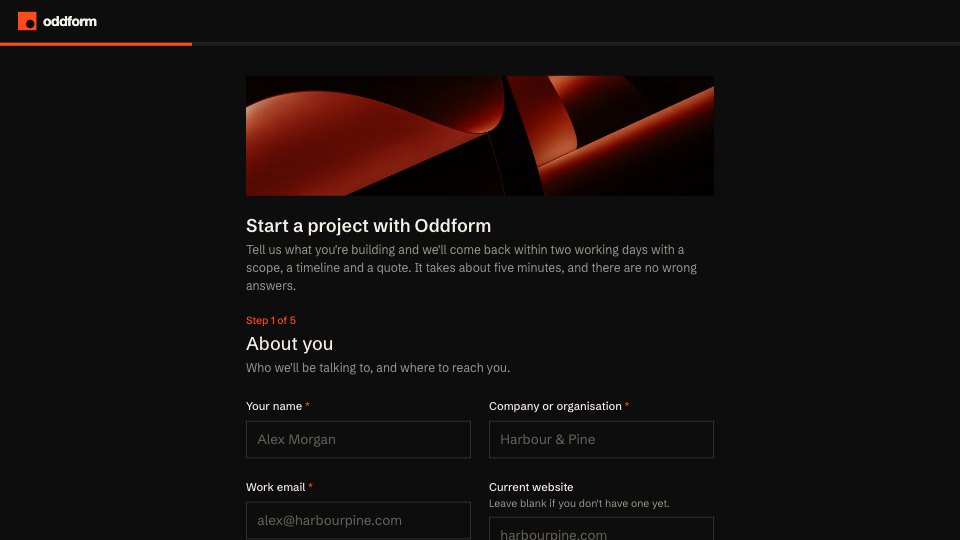
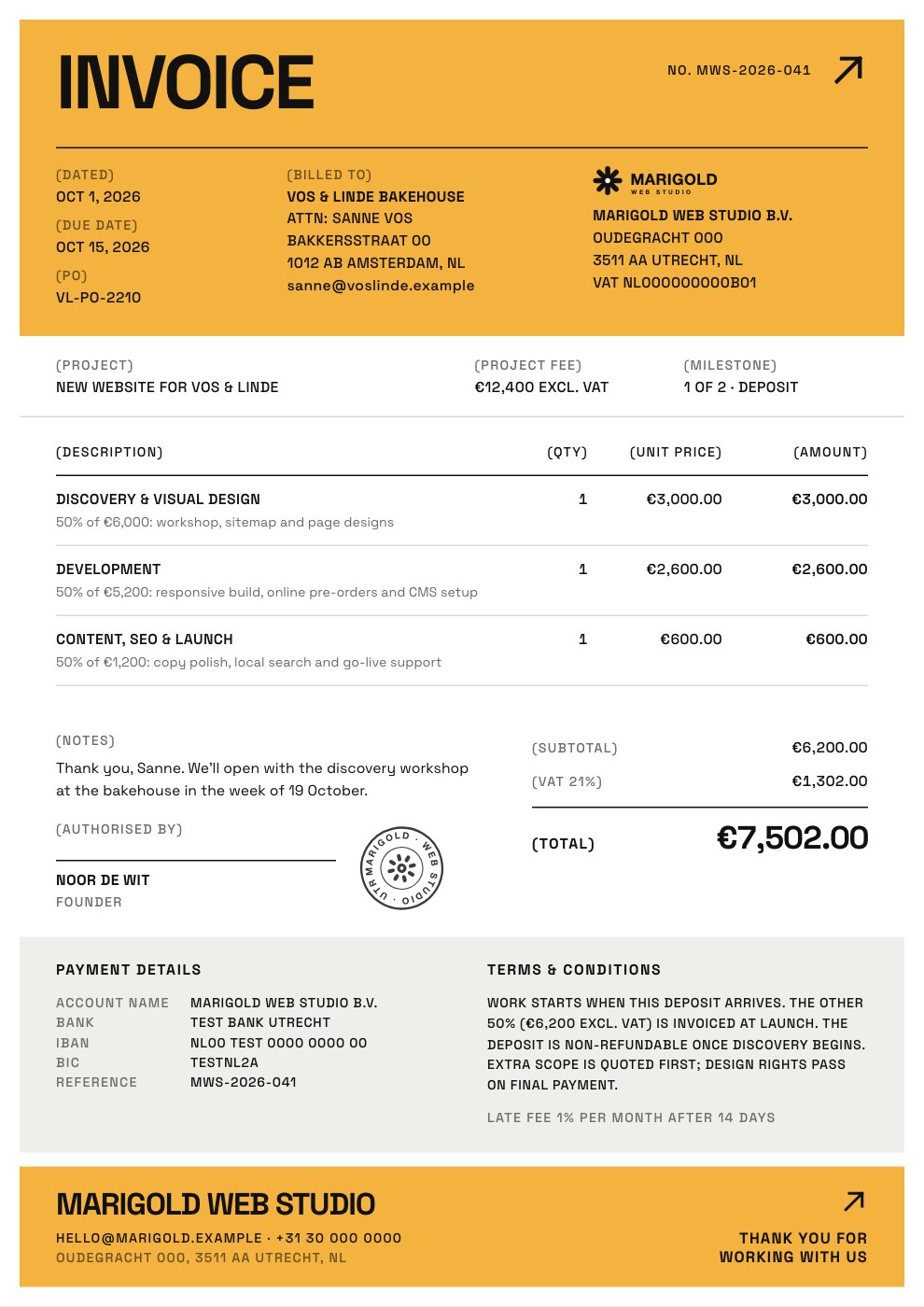
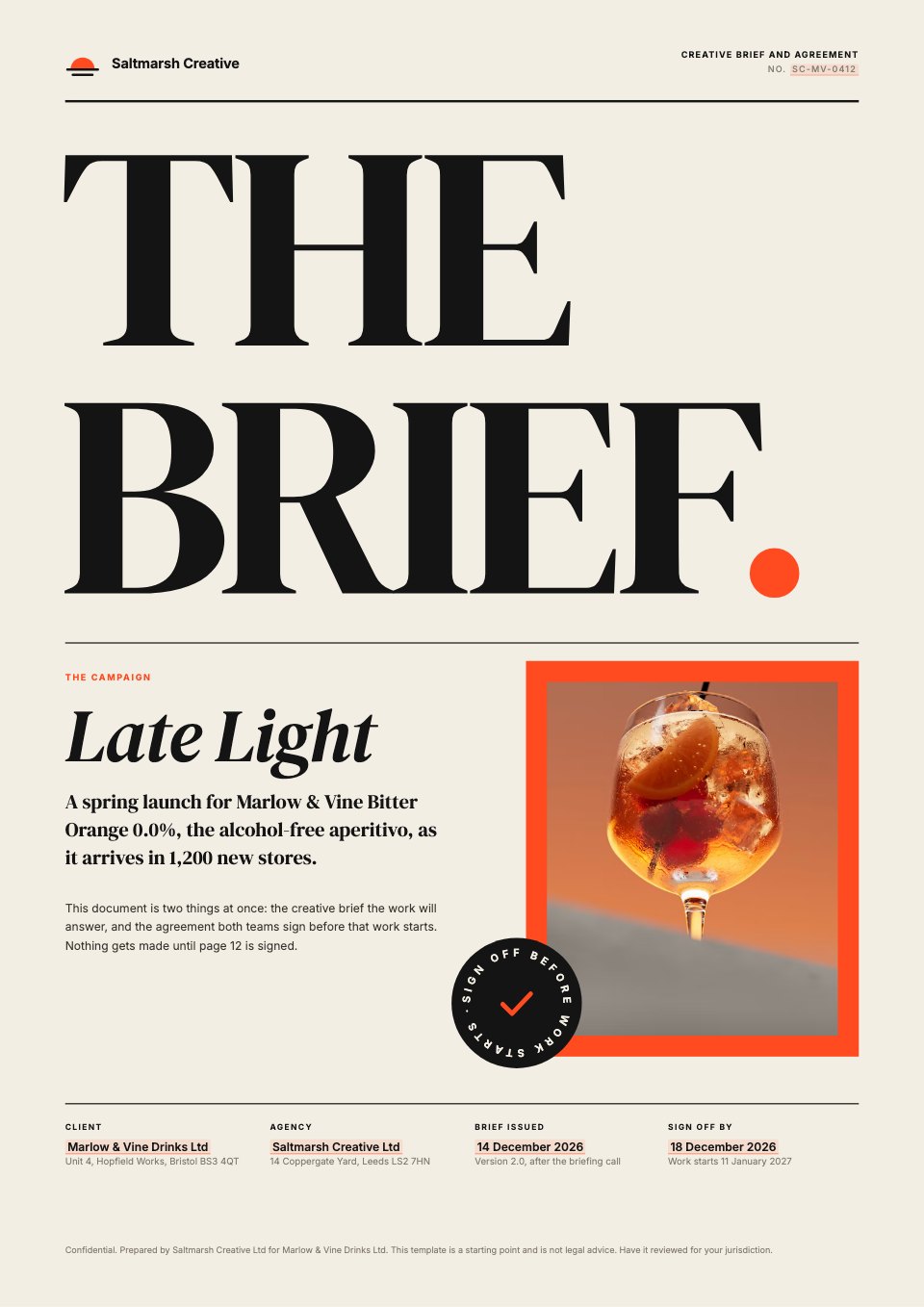
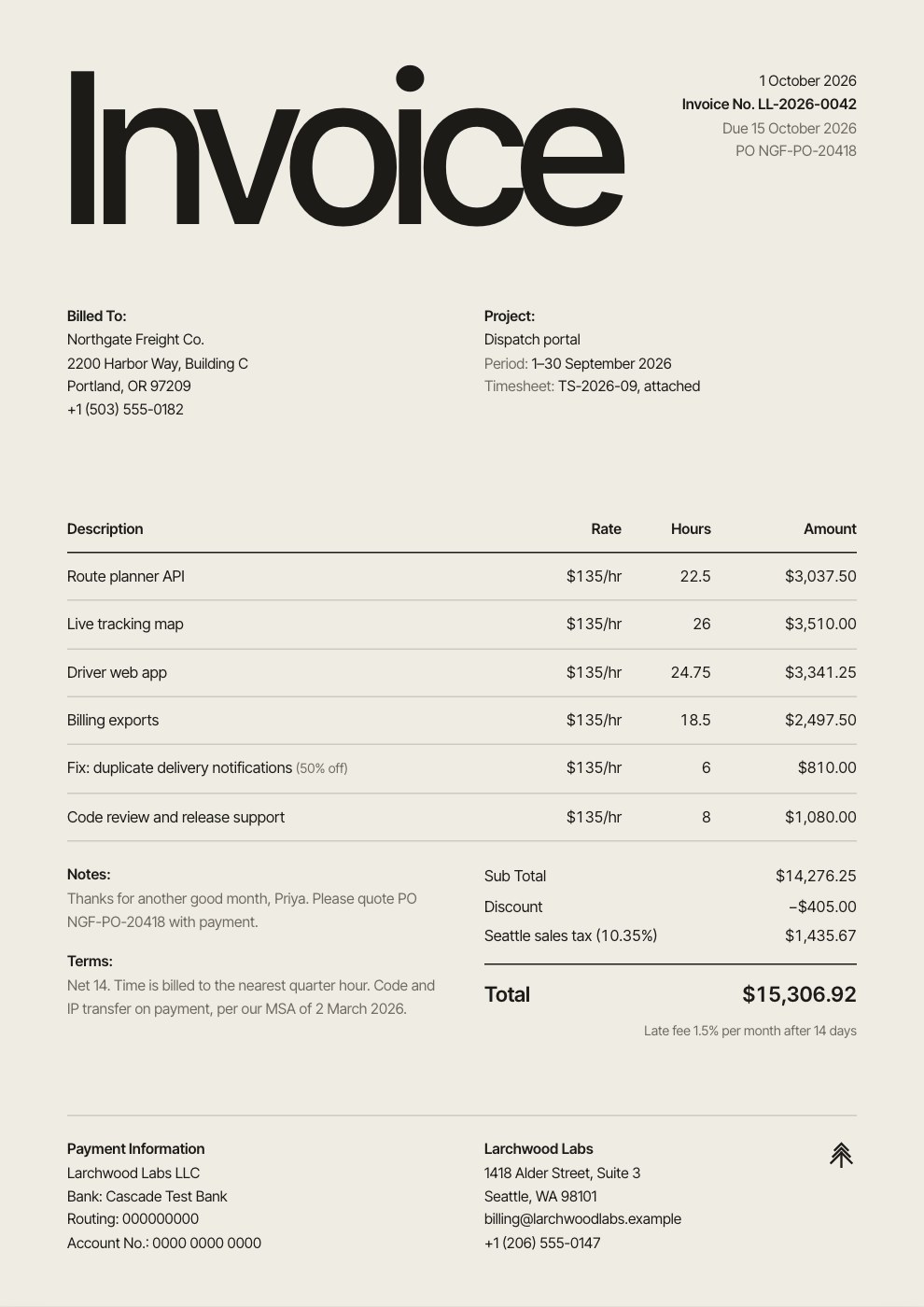
One project, everything the work needs.
Add anything from wherever you are, and keep it in as many projects as it belongs to.
Files from every app
Proposals, decks, invoices, forms and whiteboards, each opening in the right app.
Drive files and folders
The client’s brief, logos and photos, kept beside the work.
Templates
Start a file from one inside the project and it lands there.
Docsiv AI chats
Your conversations about the work, kept with it.
How a project comes together.
Start one in a few seconds, then let the work collect in it as you go.
- Step 1
Create the project
Give it a name, a colour and a line about the work, from Projects, Drive or the Create menu.
- Step 2
Add what you have
Pick files, templates and chats, drop files onto the page, or use Add to project on anything elsewhere.
- Step 3
Make the next file in it
Start from a template inside the project and the new file joins it, ready to edit.
- Step 4
Ask Docsiv AI
Start a chat from the project to draft, summarise or rethink, and it stays with the work.
Work on it together, not in circles.
Everyone in your workspace can open and edit the project’s files. These keep the team in step.
Open the same file at once and see who else is in it. Changes appear for everyone as they’re made, and nobody ends up with a conflicting copy.
Pin a comment to the spot it’s about, @mention a teammate, assign it, and mark it resolved. Internal threads stay with your team.
Every save is kept. Look back at any version, see who made it, and restore it in one click.
One log of what’s happened across the workspace: files made, edited, shared, published, restored, sent and signed.
Mentions, assignments, replies, shares, form responses and signatures come to you in one place.
Open the same file at once and see who else is in it. Changes appear for everyone as they’re made, and nobody ends up with a conflicting copy.
Pin a comment to the spot it’s about, @mention a teammate, assign it, and mark it resolved. Internal threads stay with your team.
Every save is kept. Look back at any version, see who made it, and restore it in one click.
One log of what’s happened across the workspace: files made, edited, shared, published, restored, sent and signed.
Mentions, assignments, replies, shares, form responses and signatures come to you in one place.
Bring the client in, on your terms.
Clients don’t need a seat in your workspace. Share exactly what they need, and see what happens next.
Share links
Invite a client to view, comment on or edit one file, or let anyone with the link open it.
Publish to web
Give a document its own page, on your own domain on paid plans.
File requests
Ask for logos and briefs with an upload link. What they send lands in your Drive folder.
Forms
Send an intake form or a brief, and read the answers as they come in.
E-signatures
Send the agreement for signature and follow it through to signed. On paid plans.
Document analytics
See who opened what you shared and how far they read. On Pro and Team.
In their own words.
What agencies and teams say after moving their client work into Docsiv.
The Boost GroupApsticVirtual XcellenceRecruit Hunt
“Proposals used to take a day across four tools. Now we send them branded from one place, and clients sign the same afternoon.”
“Our decks, proposals and reports live in one place now. The team works on the same files instead of passing versions around, and AI gets us to a first draft fast.”
“We replaced our proposal tool, our deck tool and our e-sign tool in one afternoon. Everything our clients see now goes out in our brand.”
RecruitHunt uses Docsiv for recruitment, staffing and AEC client work.
Questions about projects.
Something else on your mind? Ask us in the chat, bottom right of the page.
What is a project in Docsiv?
A place for one piece of work: the files you make for it in any app, files and folders from Drive, the templates it uses and your AI chats about it. Anything can belong to more than one project, and a project shows up in Drive as a folder too.
Does Docsiv have task boards, due dates or Gantt charts?
No. Docsiv keeps the work itself together rather than a task list. For review rounds, a comment can be assigned to a teammate, given a status and resolved, and the comments panel shows what’s assigned to you. If you plan work on a board, keep using the tool you plan in.
Who can see a project?
Everyone in your workspace. Files belong to the workspace, so your team can open and edit them without being invited one by one. People outside it see only what you share with them.
Can my client see the whole project?
No, and they don’t need an account to work with you. Share the files they need by link, to view, comment or edit; publish a document to the web; send a form or a file request; or send a contract for signature.
How do I add something to a project?
Use Add on the project’s page to pick files, templates and chats, drop files onto the page, or choose Add to project on a file, a template or a chat anywhere else. A file made from a template inside the project, and a chat started from it, join it straight away.
What happens to the files if I delete a project?
You choose. Move the project to Trash on its own and its files stay in the workspace, or send its files and chats with it. Restore the project and everything that went with it comes back.
How long is version history kept?
Seven days on Free, 30 days on Pro and 90 days on Team. Every save is kept for that long, and any version can be restored.
Do projects cost extra?
No. Projects come with every Docsiv account. Some things you’ll use around them are on paid plans: sending for signature, document analytics and your own domain.







Start your next client project
Describe the first thing you need, a proposal, a brief or a kickoff deck, and Docsiv AI drafts it. Then give the work a project and bring your team in.