


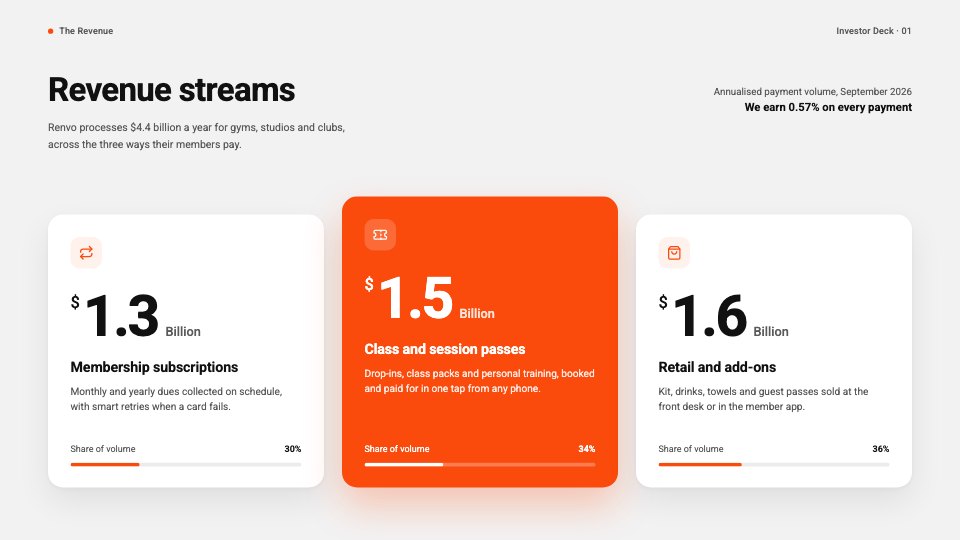
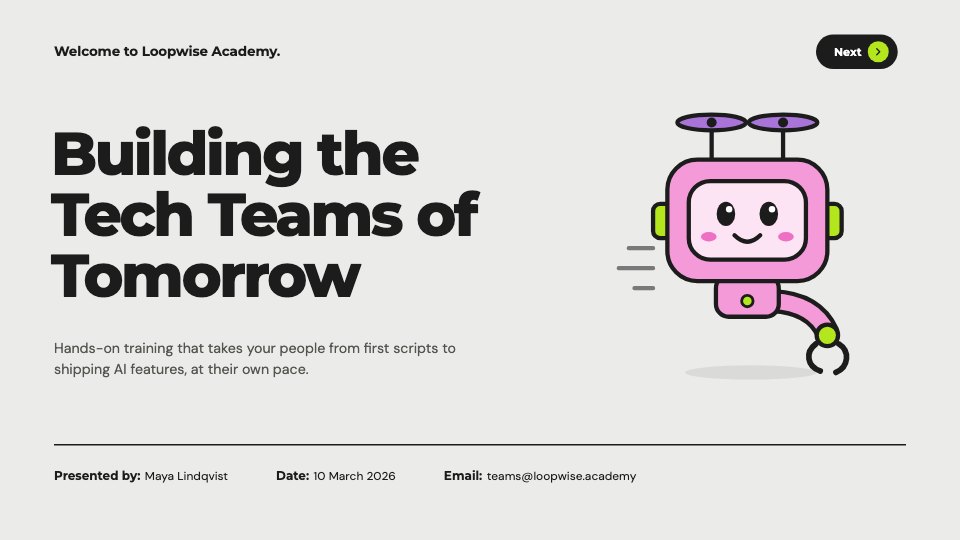

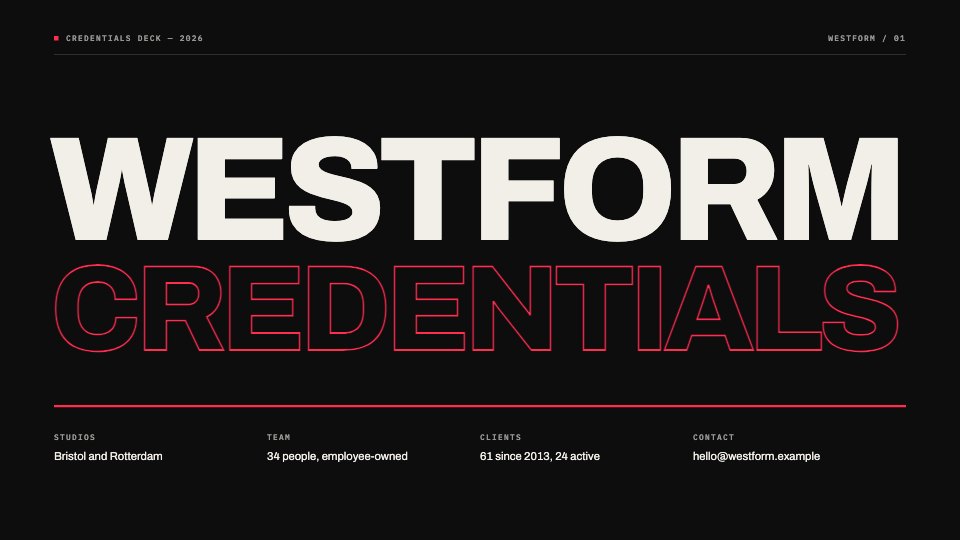
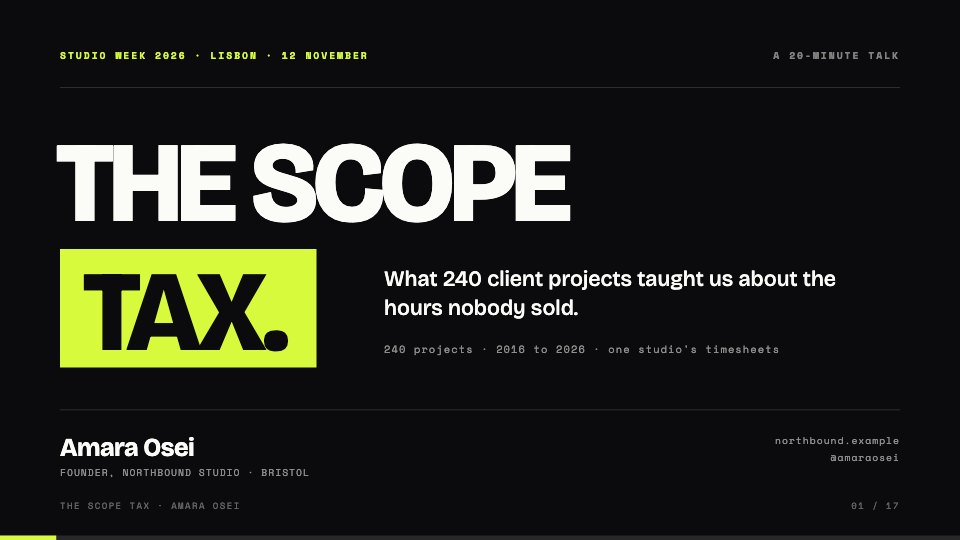

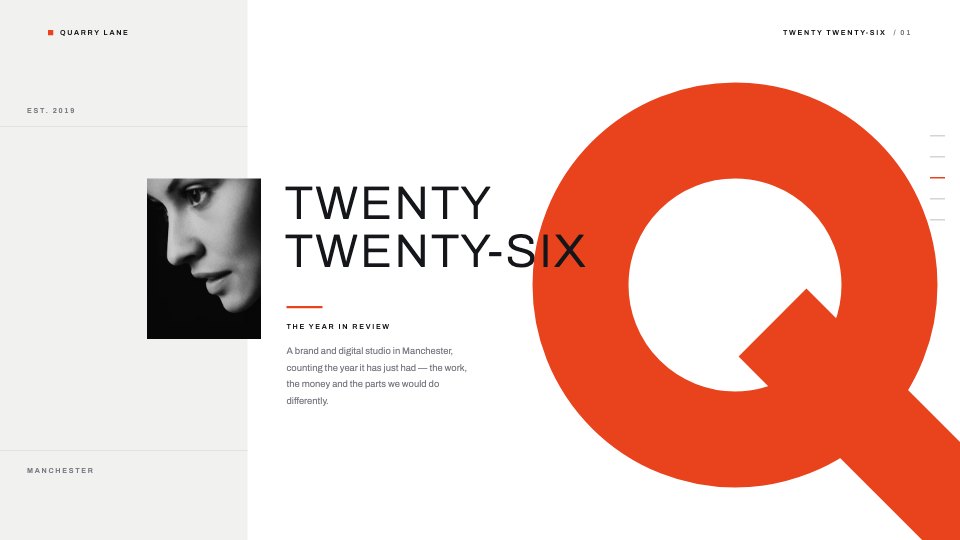
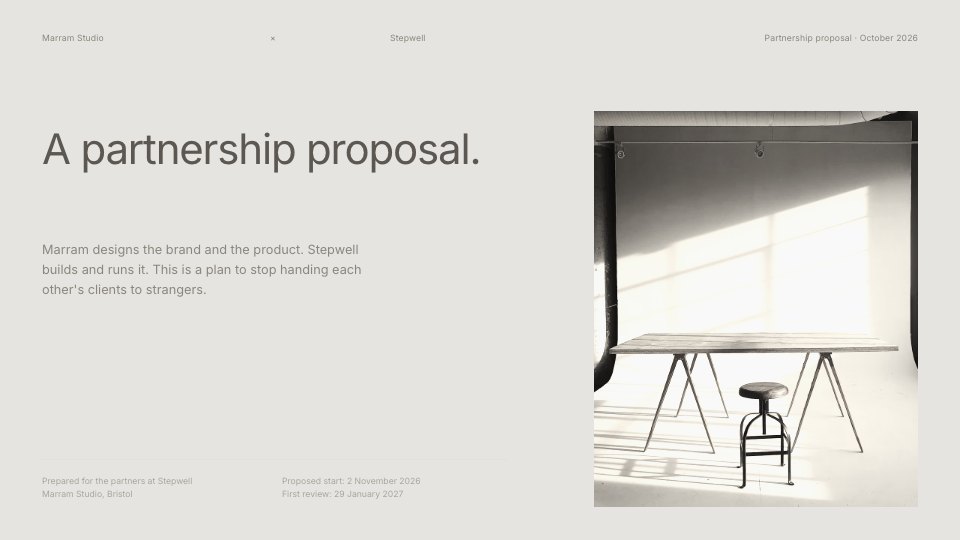
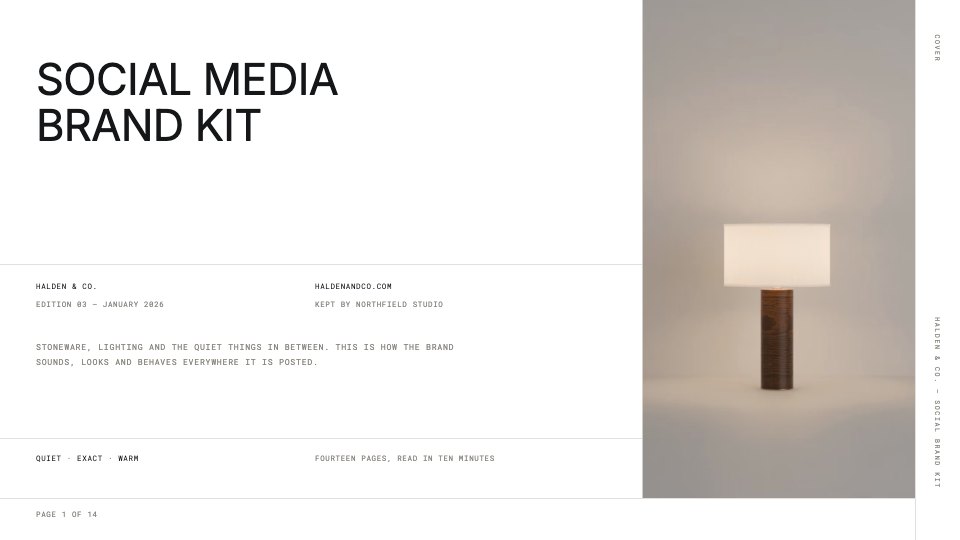
Open with the headline
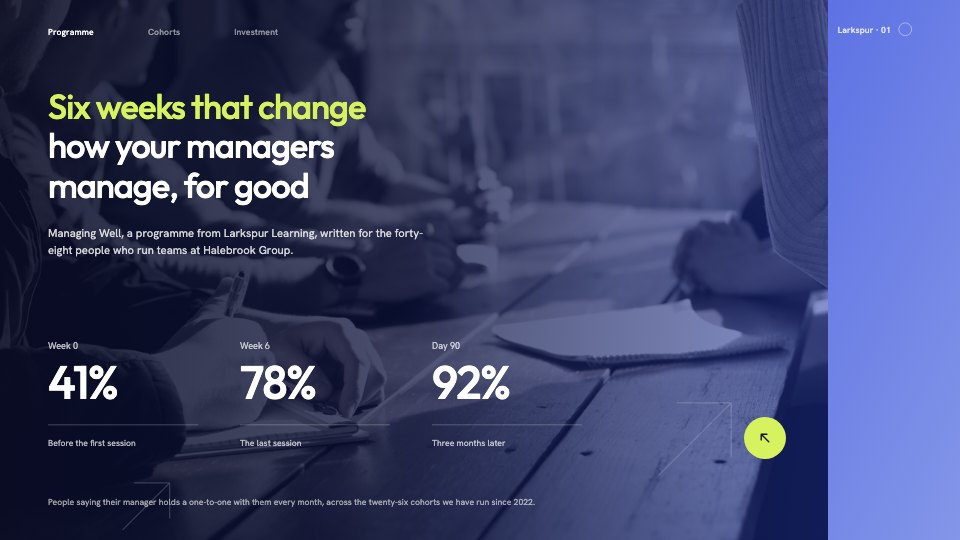
Lead with the one or two numbers or ideas you want the room to remember.

Describe what you’re presenting and get designed slides, then present them or export to PowerPoint or PDF.
Four steps from an idea to slides you can present, all with a free account.
Say what it’s about, who it’s for and how long you’ll have, or attach your notes.
The AI writes the slides into a designed deck. Prefer to start yourself? Pick a template instead.
Change anything yourself, or ask the AI: “turn these bullets into a chart”, “shorter titles throughout”.
Present full screen from the browser, or download a .pptx for PowerPoint, Keynote and Google Slides, or a PDF.
Bring in what you already have, keep it on brand, and work on it together.
Attach a PDF, a Word file or your notes, and Docsiv AI builds the deck from what’s in it. Needs a free account.
Change colours, fonts and photos to match your company. Signed in, your brand kit’s colours sit in every colour picker.
One link that always opens the latest version. Choose who can view, comment or edit. Needs a free account.
Your team and clients comment on the slide itself, and you see who else is in the deck as they edit.
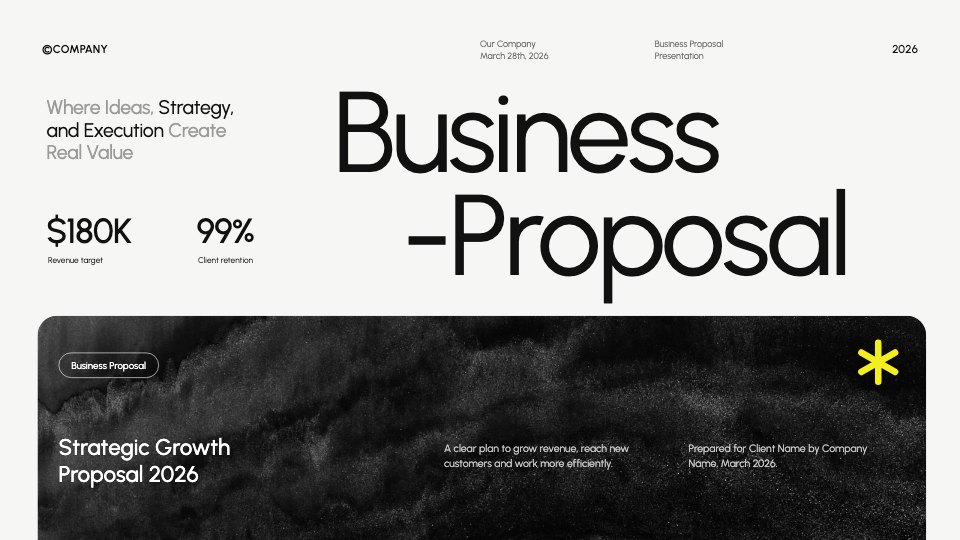
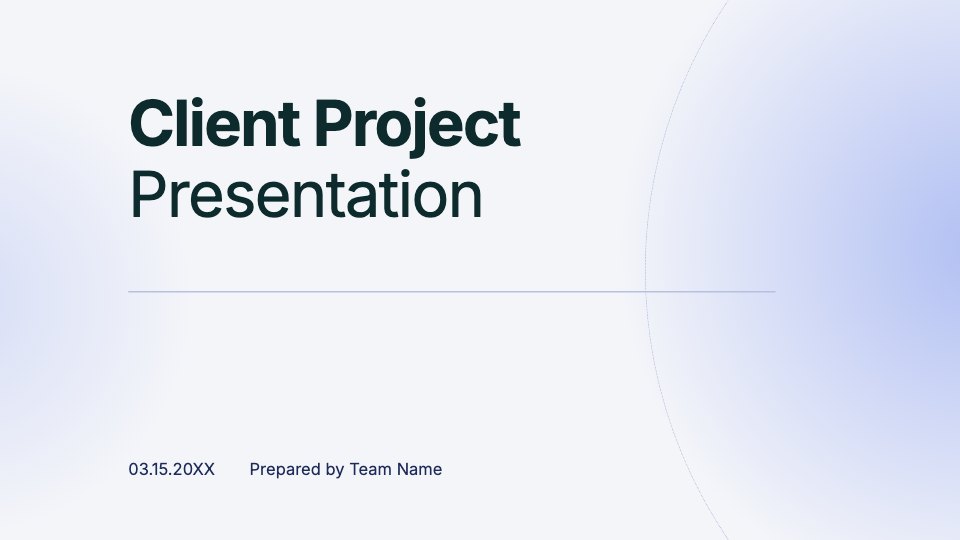
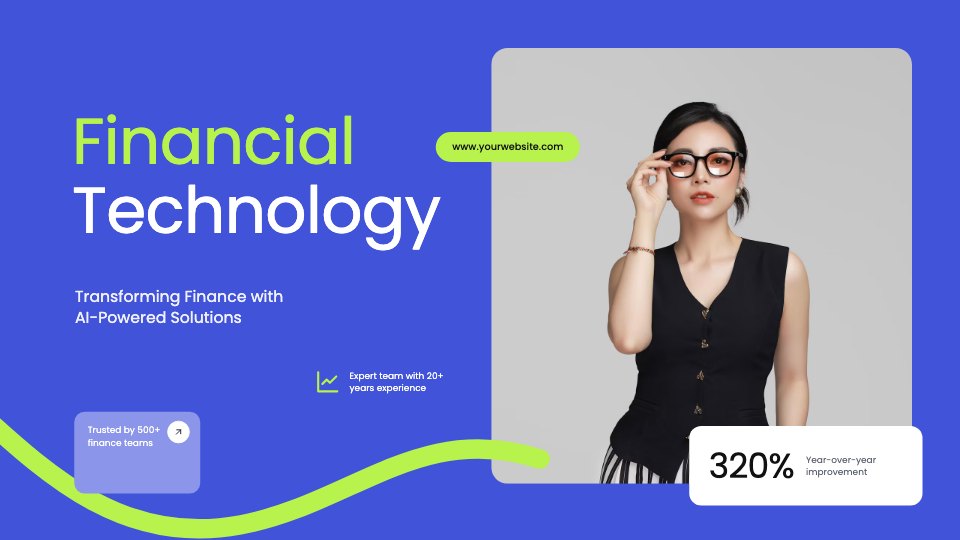
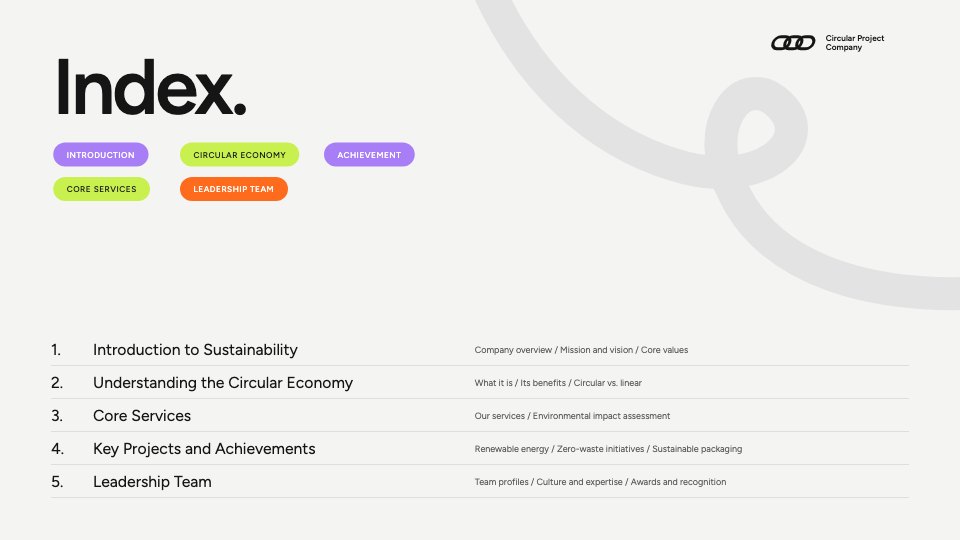
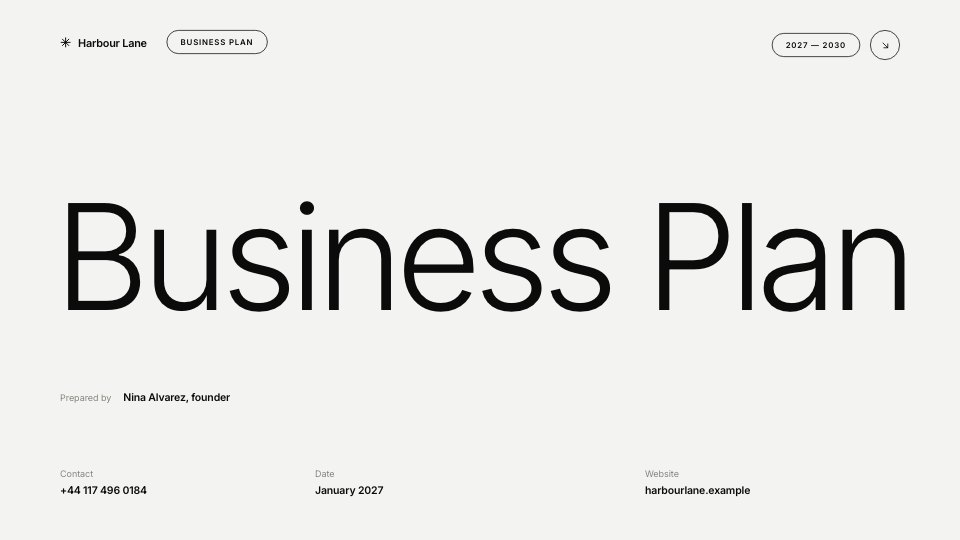
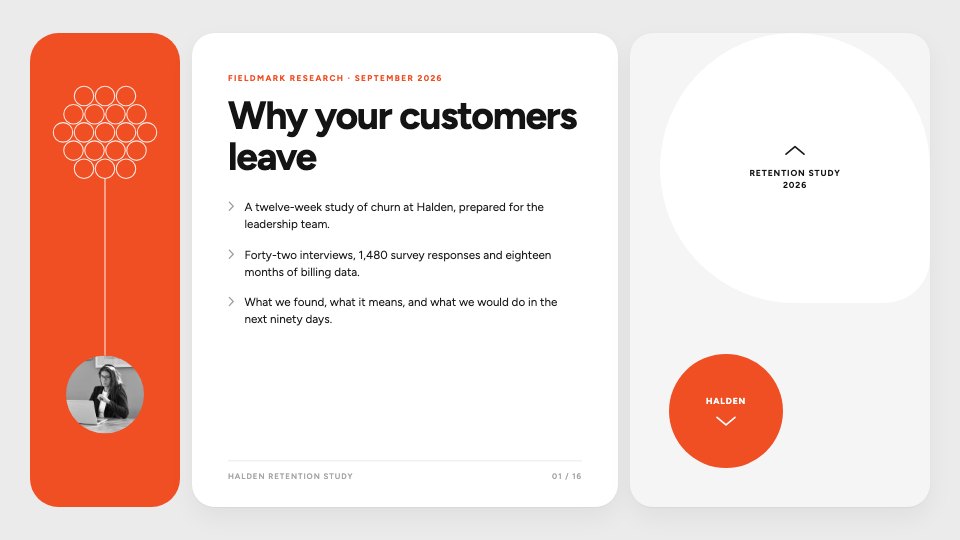
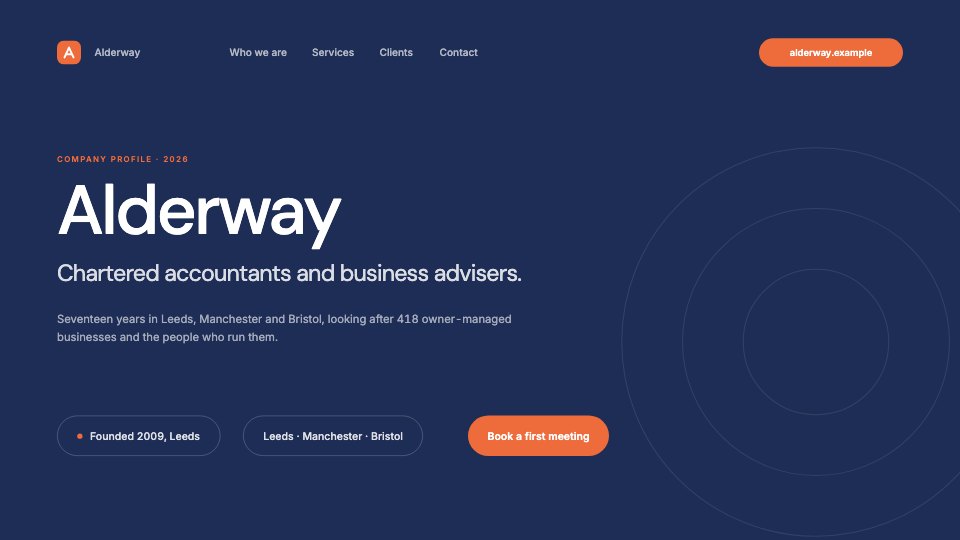
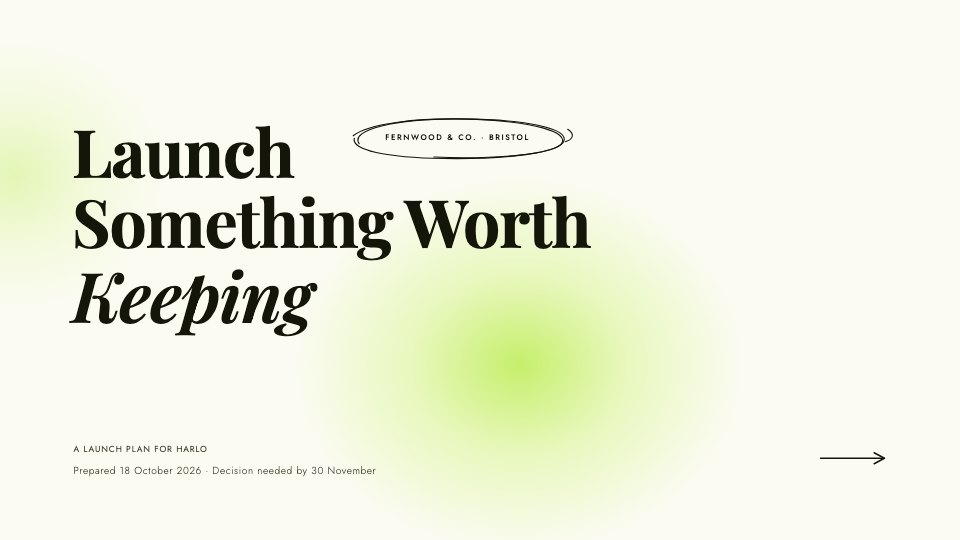
Whatever the subject, the same shape keeps a room with you: the headline, the plan, the short version, the evidence and where it leads. Shown on the Business Proposal template.
Lead with the one or two numbers or ideas you want the room to remember.
An agenda up front tells people where you’re going and how long it will take.
A summary before the detail, so every slide after it fills in a story they already know.
Make each point with a fact, a chart or a picture rather than more bullets.
Finish with the goals or next steps you want agreed, and leave them on screen.
Lead with the one or two numbers or ideas you want the room to remember.
An agenda up front tells people where you’re going and how long it will take.
A summary before the detail, so every slide after it fills in a story they already know.
Make each point with a fact, a chart or a picture rather than more bullets.
Finish with the goals or next steps you want agreed, and leave them on screen.
Client meetings, talks, kickoffs and launches: each starts from a template built for the job.
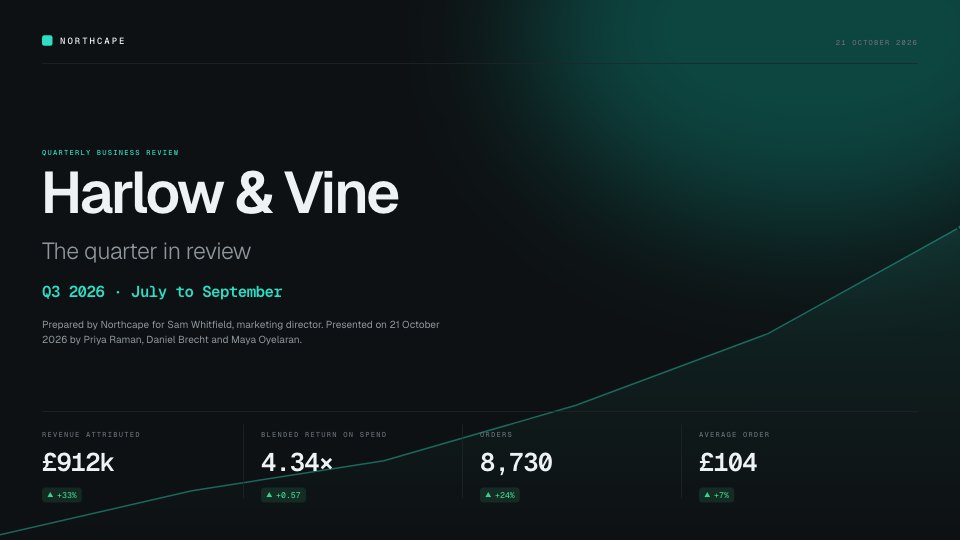 Client reviewsQuarterly results, what worked, what didn’t and what’s next, in a deck the client can follow without you.Quarterly Review
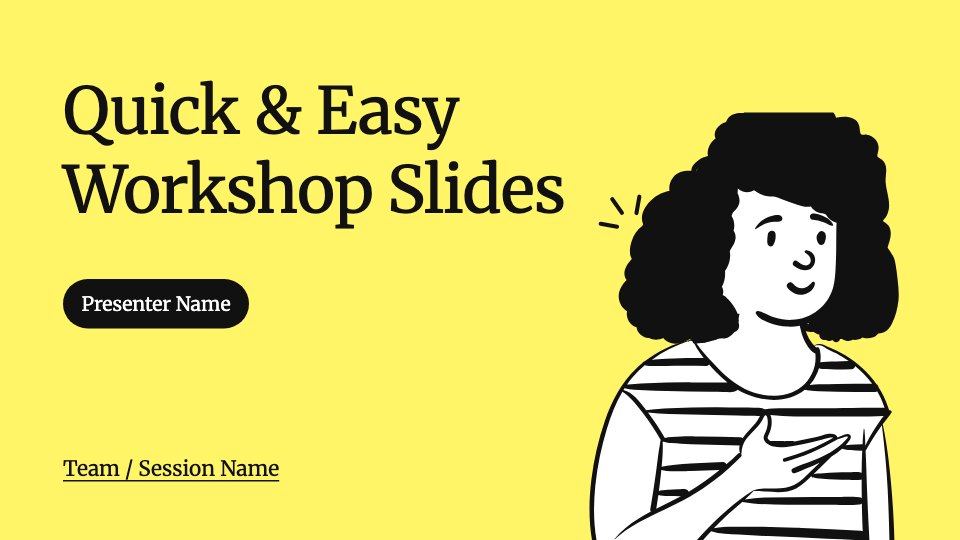 Workshops and trainingClear, visual slides for a session, presented from any computer with a browser.Workshop Slides
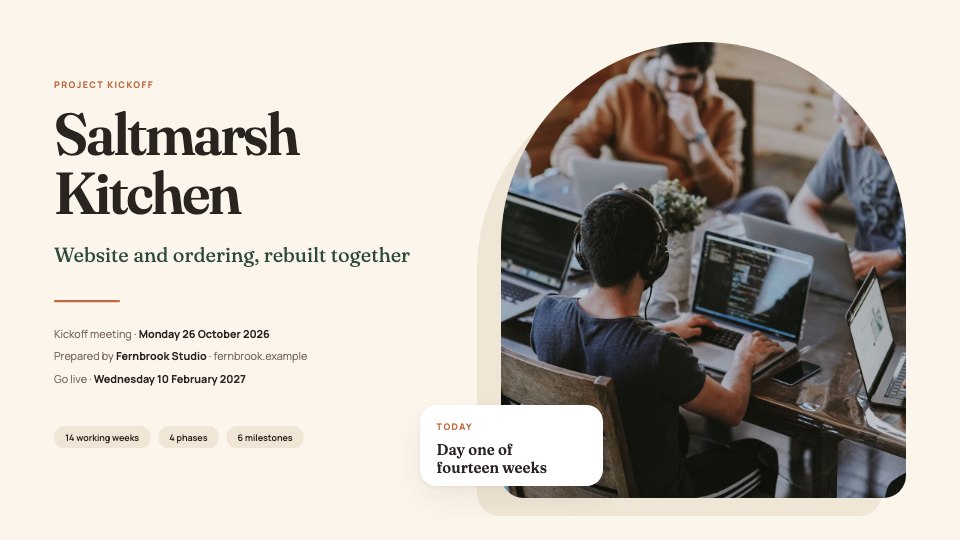 Project kickoffsScope, timeline, team and how you’ll work together, so a project starts with everyone agreed.Kickoff Deck
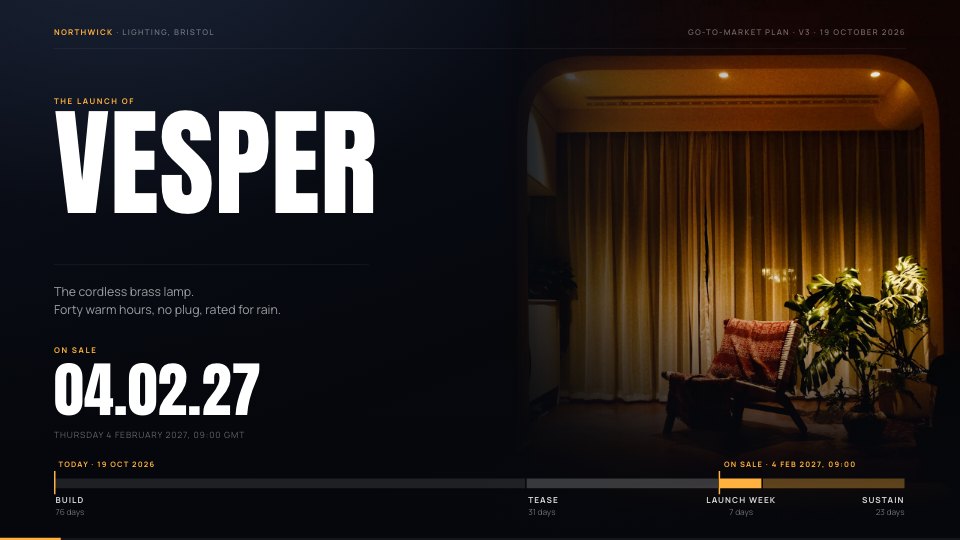 Product launchesThe story of what’s new, who it’s for and when it lands, for customers, press or your own team.Product Launch
Find the right starting point, or describe yours and let Docsiv AI draft it.
Explore all templatesWhat agencies and teams say after moving their client work into Docsiv.
The Boost GroupApsticVirtual XcellenceRecruit Hunt
“Proposals used to take a day across four tools. Now we send them branded from one place, and clients sign the same afternoon.”
“Our decks, proposals and reports live in one place now. The team works on the same files instead of passing versions around, and AI gets us to a first draft fast.”
“We replaced our proposal tool, our deck tool and our e-sign tool in one afternoon. Everything our clients see now goes out in our brand.”
RecruitHunt uses Docsiv for recruitment, staffing and AEC client work.
Something else on your mind? Ask us in the chat, bottom right of the page.
Yes, with a free account: the slide editor, presenting and exports are free, and the account includes AI credits.
Yes. Export to .pptx for PowerPoint, Keynote and Google Slides, or to PDF.
Yes. Present opens the deck full screen in the browser.
Tell it your colours and fonts, or start from a deck already in your style, and it follows them. With an account you can keep brand kits in Docsiv.
Tell it who the audience is, what you want them to do afterwards and how long you’ll have, and attach the notes or report the deck is based on. Ask for an outline first if the subject is new. Then work slide by slide: “make this slide one idea”, “turn these bullets into a chart”. Check any facts and figures it writes before you present.
The deck is yours to use. Check AI-written facts and figures before you present them.
Describe it and get a designed first draft, or start from a template. Then present it, share it or export to PowerPoint.