

Develop your photos online
A free Lightroom alternative in your browser: rate and sort a set of photos, develop them with curves, masks and presets, and export the finished set.
A photo library and a developer, in one window.
The photo you’re working on in the middle, the Edit panel’s sliders and histogram beside it, and the rest of the set along the filmstrip.
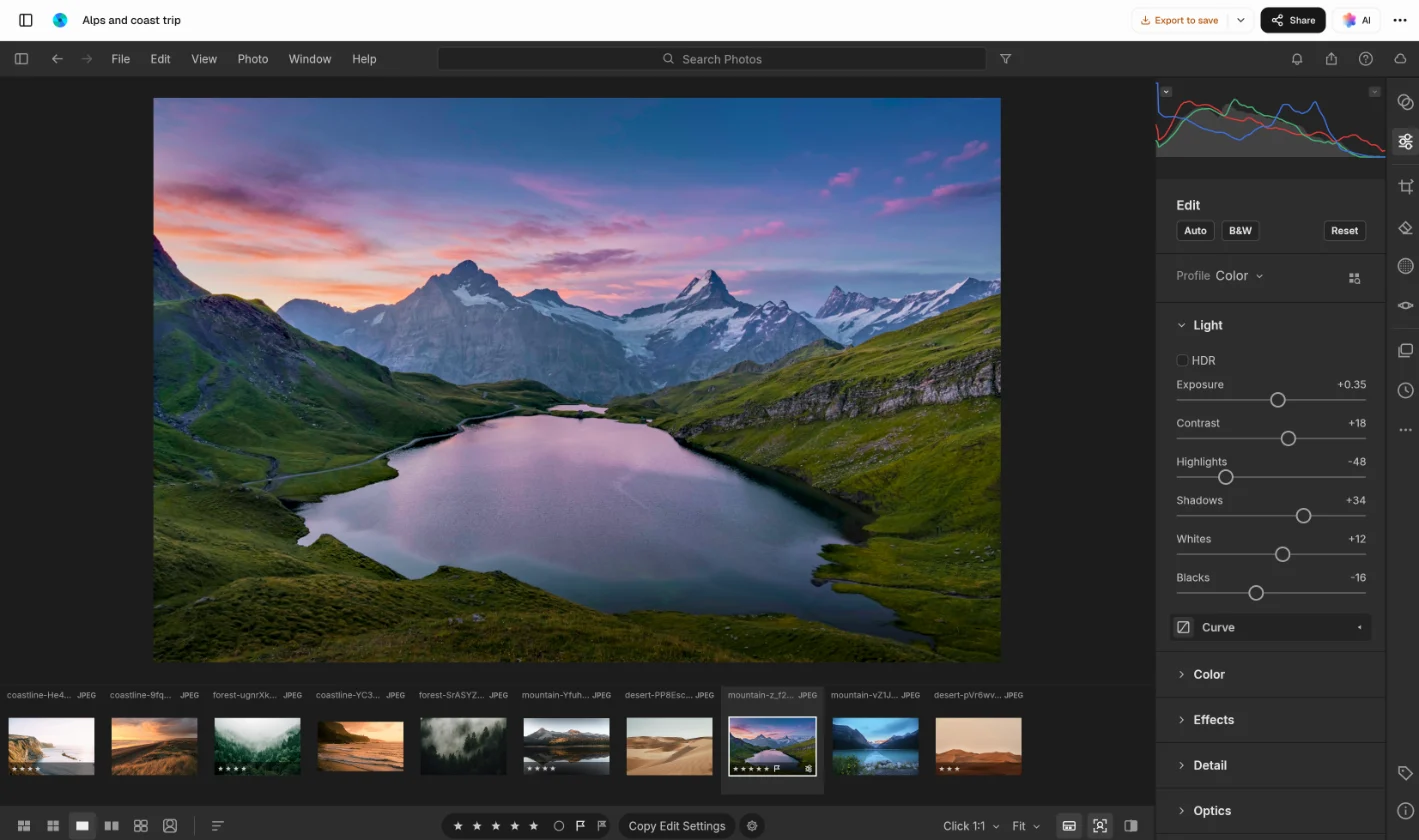
Develop a photo without changing it.
Every slider is a setting kept beside the photo, so the original stays as it was. Drag across the photo to compare.
From a card of photos to the finished set.
How a shoot usually goes: bring everything in, keep the best, develop one and carry it across the rest.
- Step 1
Import
Choose Import Photos or drop a card’s worth on the window, raw files included.
- Step 2
Pick the keepers
Rate with stars, flag picks and rejects, and compare shots side by side.
- Step 3
Develop one, sync the rest
Get the best shot right, then copy its settings across the set so it looks consistent.
- Step 4
Export the set
JPEG, PNG, TIFF or WebP, full size or resized, downloaded in one go.
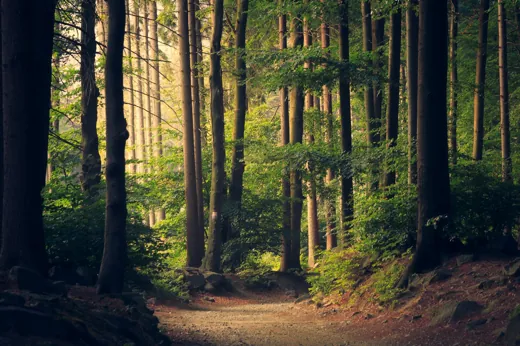
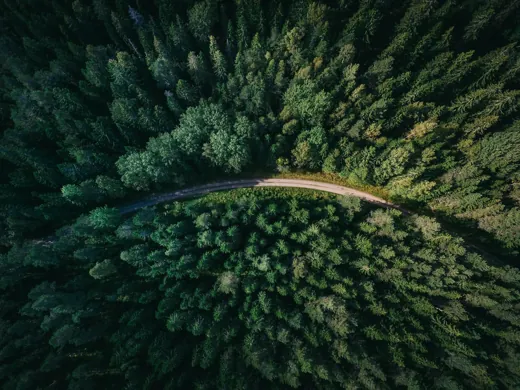
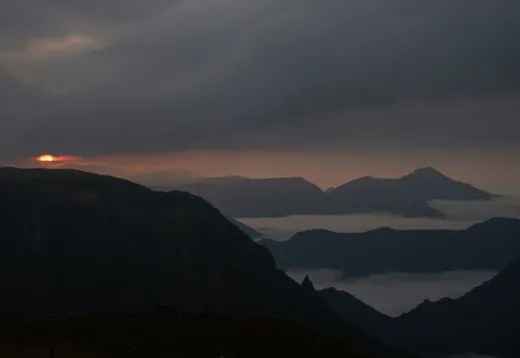
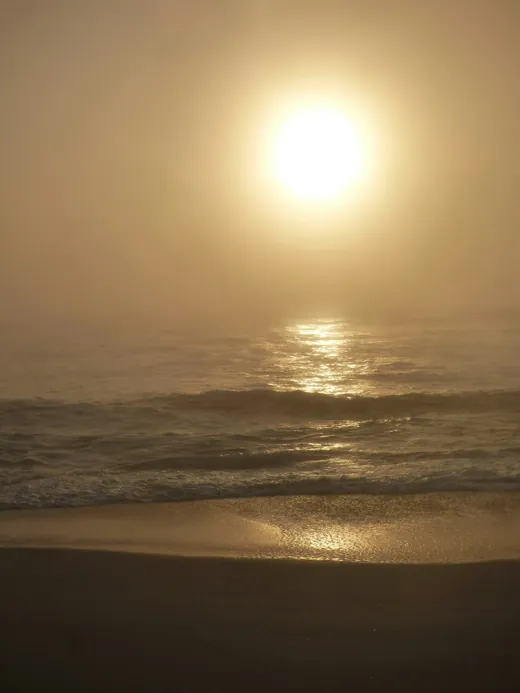
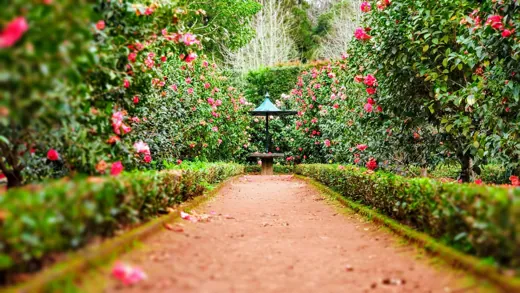
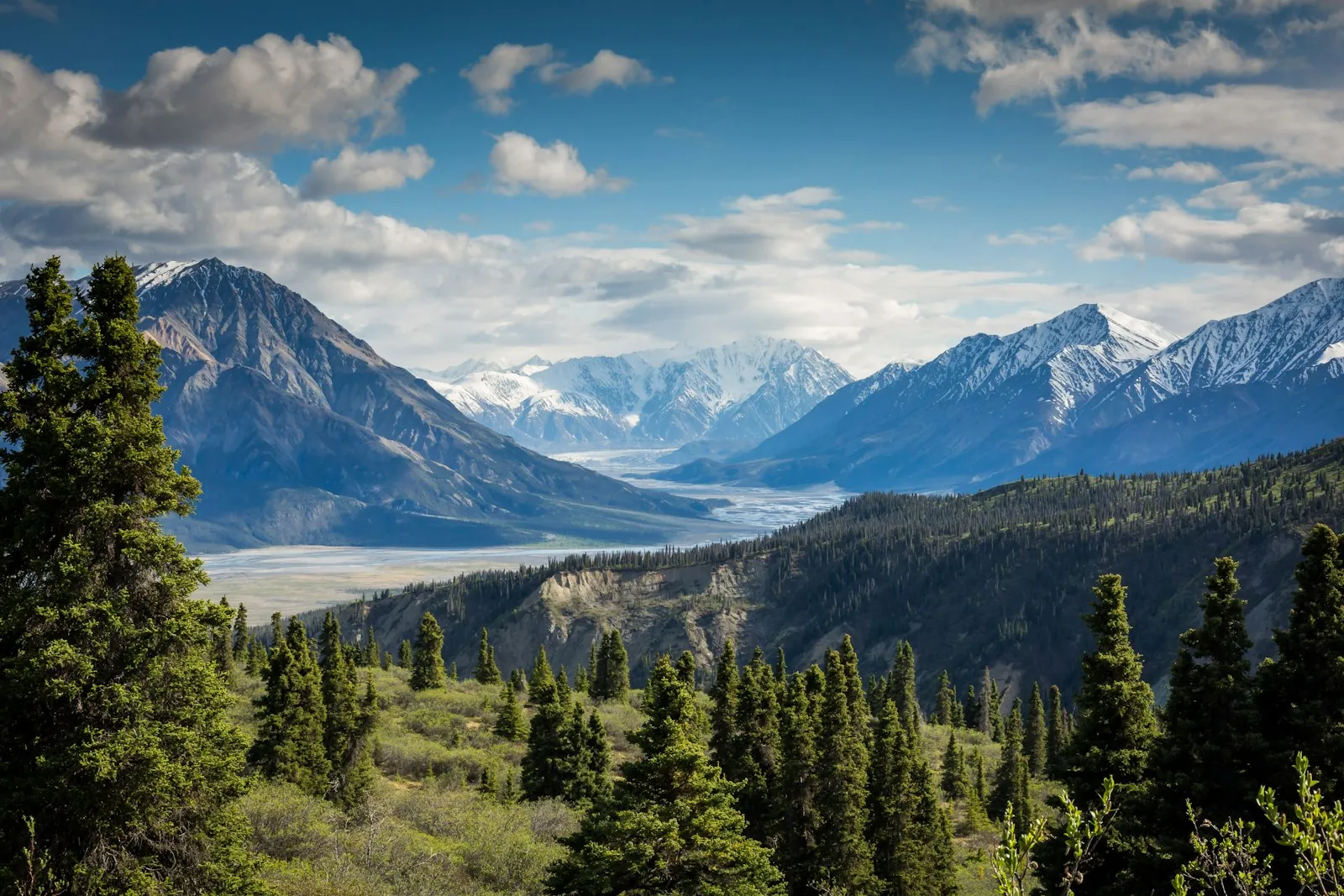
The controls a Lightroom user reaches for.
Grouped as you’d expect, from the first exposure tweak to the last local fix.
Light, colour and effects
Exposure to blacks, white balance with an eyedropper, vibrance, clarity, dehaze and grain, each one a slider.
Curves and colour grading
A tone curve by region or by channel, a mixer for eight hues, and wheels for shadows, midtones and highlights.
Masks for part of the photo
Sky, Subject and Background masks find their area for you; gradients, a brush and range masks cover the rest.
Presets and profiles
41 built-in presets and 22 profiles to start from, each turned up or down with Amount, or save your own.
Common questions.
Something else on your mind? Ask us in the chat, bottom right of the page.
Is it really free?
Yes. The library, every develop control and exporting are included on the Free plan, with no subscription. You need a free Docsiv account to open it.
Can it replace Lightroom?
For sorting and developing a set of photos, it covers the essentials: albums, star ratings, flags and keywords, and a non-destructive developer with the light, colour, curve, mask and geometry controls you know. It isn’t Adobe’s software and doesn’t read Lightroom catalogues or preset files. Your library stays in one browser rather than syncing between devices, and there’s no AI noise reduction.
Does it open RAW files?
Yes. Import Photos takes DNG, Canon CR2, Nikon NEF and Sony ARW raw files, as well as JPEG, PNG, TIFF, WebP, JPEG XL and PSD. Raw files from other cameras, such as Fujifilm, Panasonic or newer Canon bodies, can be dropped onto the window; how well they open depends on the camera, and some show only the preview inside the file. HEIC photos can’t be opened.
Are my edits non-destructive?
Yes. Every edit is kept as a setting beside the photo, never written into it, so you can change or reset anything later, compare with the original, and keep versions or virtual copies of the same photo.
Where are my photos kept?
In this browser, on this device: Photography keeps its library and your original photos in the browser’s own storage, not in your Docsiv Drive. Exported photos download to your computer. To keep a copy or move to another computer, use File › Back Up Library, which downloads the library as a zip, and Restore Library from Backup to bring it back. Clearing your browser’s stored data for Docsiv removes the library, so back it up first.
Can I edit many photos at once?
Yes. Develop one photo, then copy its settings and paste them onto others, choosing which groups of settings to include, or sync them across a selection. Then export the whole set in one go as JPEG, PNG, TIFF or WebP, full size or resized, with an optional watermark and location data removed.
Should I use this or the photo editor?
Photography is for a set of photos and a consistent look. To fix one picture, cut out its subject, add text or work in layers and save a PSD, use the free photo editor instead, which is made for single images.
Can Docsiv AI edit my photos?
Yes, once your photos are in the library. Ask in your own words, such as “darken the sky and add a subtle vignette” or “a moody black-and-white”, and Docsiv AI sets the sliders, masks and crop on the photo you have open, ready for you to fine-tune. It can’t import photos for you.
Ready to work through your next set of photos?
Open Photography with a free account, import the photos, pick the best and develop them. Docsiv AI can set the sliders for you.