

Design user interfaces online
Lay out app and website screens with auto layout, components and colour variables, link them into a clickable prototype, and export PNG, SVG or PDF.
An editor made for app and website screens.
Layers on the left, frames on the canvas, properties on the right. If you’ve used Figma, you’ll find your way around.
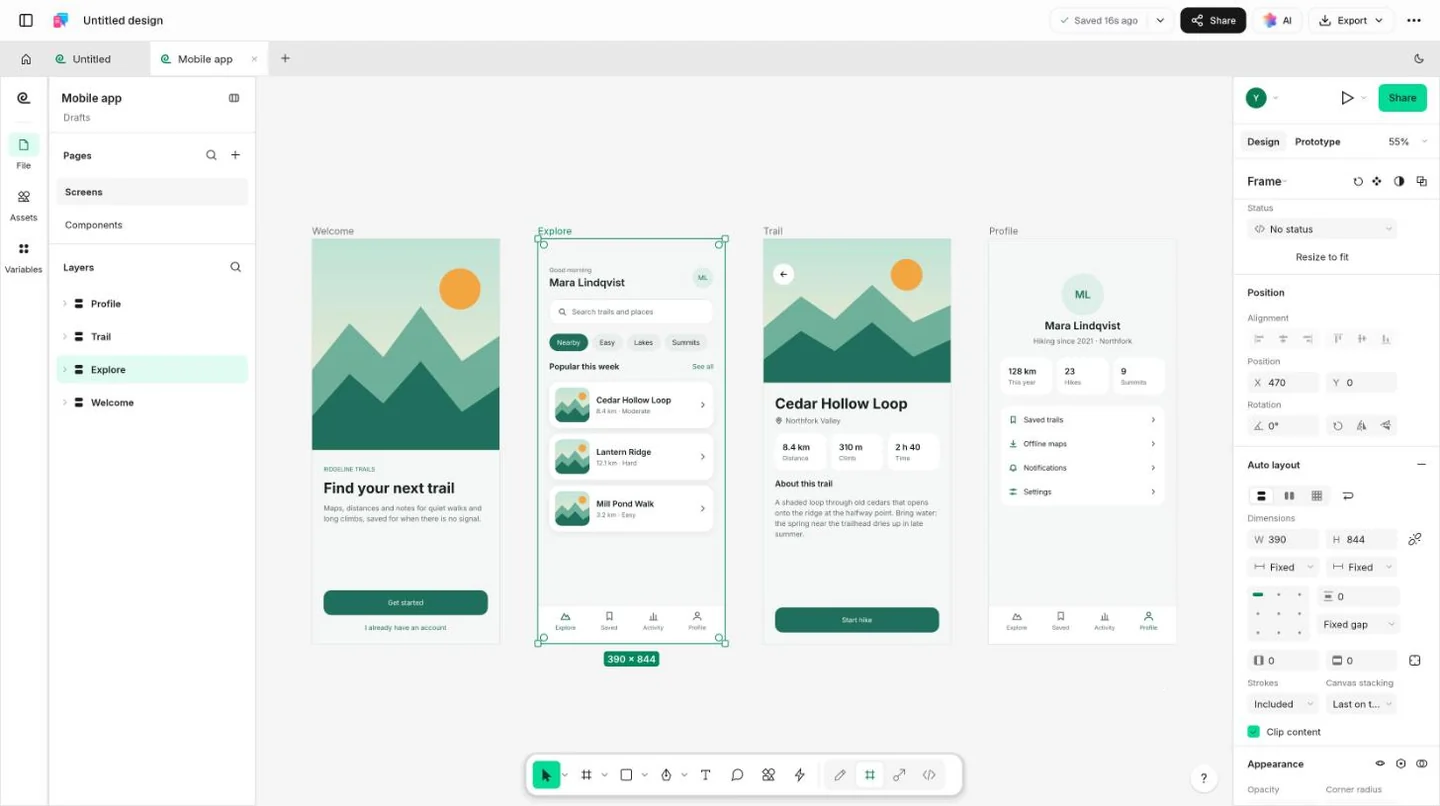
Start from a template, an empty frame or a description of the screen.
Open the editorFrom wireframe to clickable prototype.
The usual path for a new app or website, in four steps. Skip the ones you don’t need.
- Step 1
Sketch the flow
Block out each screen in greyscale, so the layout is agreed before anyone picks a colour.
- Step 2
Build it with auto layout
Stack, wrap or grid what’s inside each frame, so cards reflow and buttons grow with their labels.
- Step 3
Style it with variables
Keep colours in variables with a Light and a Dark mode, and switch a whole screen in one step.
- Step 4
Link the screens
Connect a button to the next screen, choose a transition and click through the flow in the preview.
Try the parts that do the work.
Auto layout, variables and components are what make a design quick to change. Have a go with each here; the editor works the same way.
Contents that reflow
This frame lays out its tags with auto layout, set to wrap. Narrow it and they move to the next line on their own, keeping the same gap and padding.
Auto layout Horizontal · Wrap · Padding 16
Start from a draft, not an empty frame.
Describe the screen or pick a starter, then make it yours.
Ask Docsiv AI for a first draft
Describe a screen and it’s built as real frames, auto layout, components and variables, not a flat picture.
Eight starter templates
Mobile app, landing page, dashboard, design system and more, each ready to change to fit your product.
Bring in a Figma file, export what you need.
Open a .fig to carry on with it here, and export each design for where it goes next.
Open a Figma file
Pages, layers, auto layout, components and styles come in as a new design. Your .fig stays as it was.
Export PDF, PNG or SVG
Export a frame, a selection or the whole page, ready for a hand-off, a slide or a site.
Common questions.
Something else on your mind? Ask us in the chat, bottom right of the page.
Is the UI design tool free?
Yes. Designing, prototyping and exporting are included on the Free plan, along with saving to your workspace Drive and the AI credits every free Docsiv account comes with.
What can I design with it?
App screens, websites and landing pages, dashboards, design systems, wireframes, social posts, slides and icon sets: anything laid out in frames. The editor comes with eight starter templates for these.
Can I make a clickable prototype?
Yes. Connect a layer to another frame with an interaction, such as On click → Navigate to, open an overlay, scroll to a section or go back, pick a transition such as Smart Animate, then click through it in the editor’s preview.
Does it have components and variables?
Yes. Components with variants and properties, instances you can override and swap, paint, text and effect styles, and colour, number, text and true-or-false variables with modes, so one design can switch between Light and Dark.
Can I open Figma files?
Yes, on a best-effort basis. Pages, layers, auto layout, components, styles, variables, prototype links and images are read; sticky notes, tables and connectors come in as plain frames, and video isn’t brought in. It hasn’t been tried on every kind of Figma file, so check the result before you rely on it. Your .fig is left as it was, and your work saves as a new design.
Which formats can I export?
A PDF with each top-level frame of the page on its own page, a PNG at twice the size and an SVG, of the selection or the whole page. There’s also an experimental Figma (.fig) export: open it in Figma and check it, as some features may be left out.
Can Docsiv AI design screens for me?
Yes, with a free account. Describe the screen and Docsiv AI builds it in the editor: frames with auto layout, components, colour variables with Light and Dark values, and prototype links between screens. It can also start from any of the eight templates. AI use draws on your credits.
Which fonts can I use?
Inter, the one font available in the browser version. A file designed with other fonts won’t look exactly like the original, so check its text after you open it.
Have a screen in mind?
Describe it and Docsiv AI lays it out in the UI design app, with auto layout, components and colour variables you can keep editing.