
Free account
Sign it yourself
Add your signature, initials, ticks and dates, then download the signed PDF. It’s saved to your workspace Drive, private until you share it.

Open the PDF you were sent, draw or type your signature, place it on the line and download the signed copy.
No printer and no scanner. Sign up free and it all happens in the editor.
Drop it in the box at the top of the page. Once you’re signed in, it opens in the editor.
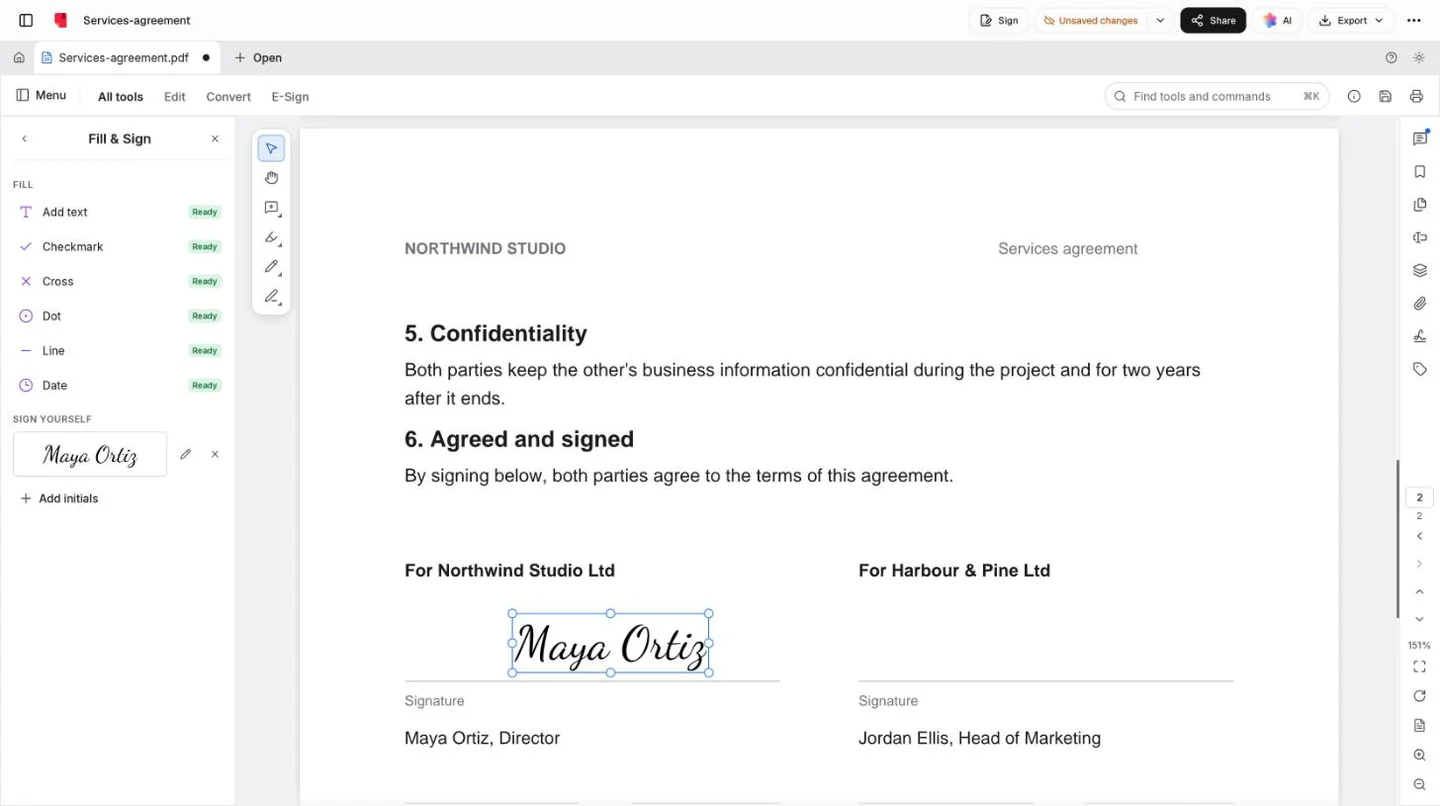
In Fill & Sign, choose Sign, then draw it, type it or use a picture of it.
Click where it goes and resize it to fit. Add the date and your initials the same way.
Flatten your marks into the page as you save, then send the PDF back.
Three ways to make your signature, and the same three for your initials.
Draw your signature above the line.
Fill & Sign puts text, ticks, initials and dates on any page, including scans with no form fields.
Type a name, an address or a reference on any line of the page.
Mark the boxes that apply, even ones that are only printed.
Initial each page where it asks, and add today’s date in one click.
Mostly the paperwork that arrives by email and wants a signature by the end of the day.
Your own signature is free. When other people need to sign, that’s Docsiv’s e-signature, on paid plans.
Add your signature, initials, ticks and dates, then download the signed PDF. It’s saved to your workspace Drive, private until you share it.
Place fields for each signer and they sign from a link in their email. Everyone gets the signed PDF and a certificate of completion.
See plansSomething else on your mind? Ask us in the chat, bottom right of the page.
Yes. Opening a PDF, creating your signature, adding initials, dates, ticks and text, and downloading the signed copy are included on the Free plan. Your download is the PDF you opened with your marks on it, nothing added.
Signing needs a free account, and when you save, the PDF goes to your Docsiv workspace Drive. Only people in your workspace can open it until you share a link.
Open Fill & Sign and choose Sign. Draw it with a mouse, trackpad or finger, type your name and it’s set in a handwriting font, or use a picture of your signature (a PNG or JPEG up to 4 MB; transparency is kept). Initials work the same way.
Turn on “Flatten Fill & Sign when saving” and your text, marks and signature become part of the page instead of objects that can be dragged about. That isn’t a lock: a PDF can always be edited by someone determined. When you need proof of who signed and when, send it for e-signature instead, which comes back with a certificate of completion.
Yes, on a paid Docsiv plan. You place signature, initials, date, name, text and checkbox fields for each signer, they sign from a link in their email, and everyone gets the signed PDF with a certificate of completion and its audit trail. The free plan covers signing a PDF yourself.
Often, yes: many countries accept an electronic signature for everyday agreements. Rules vary by country and by document, though, and some need a witness, a notary or a qualified signature. This isn’t legal advice, so when it matters, ask the other party or a lawyer.
An electronic signature is your mark on the page: drawn, typed or an image. A digital signature is certificate-based and shows whether the file changed after signing. Fill & Sign makes the first kind. If you have a digital ID file, the editor’s Certificates tools can apply the second.
Yes, the editor runs in a mobile browser and you can draw your signature with a finger. Placing small marks precisely is easier on a larger screen.
Describe it and Docsiv AI drafts it as a simple PDF with the signature lines in place. Or open the PDF you were sent at the top of the page.