

Free online SVG editor
Open an SVG and change its shapes, colours and text as vectors, then export SVG, PDF, PNG or Illustrator.
Edit the drawing, not the code.
An SVG is paths, points and layers. Here you work on those directly, as you would in a desktop design app, and a clean SVG is written for you.
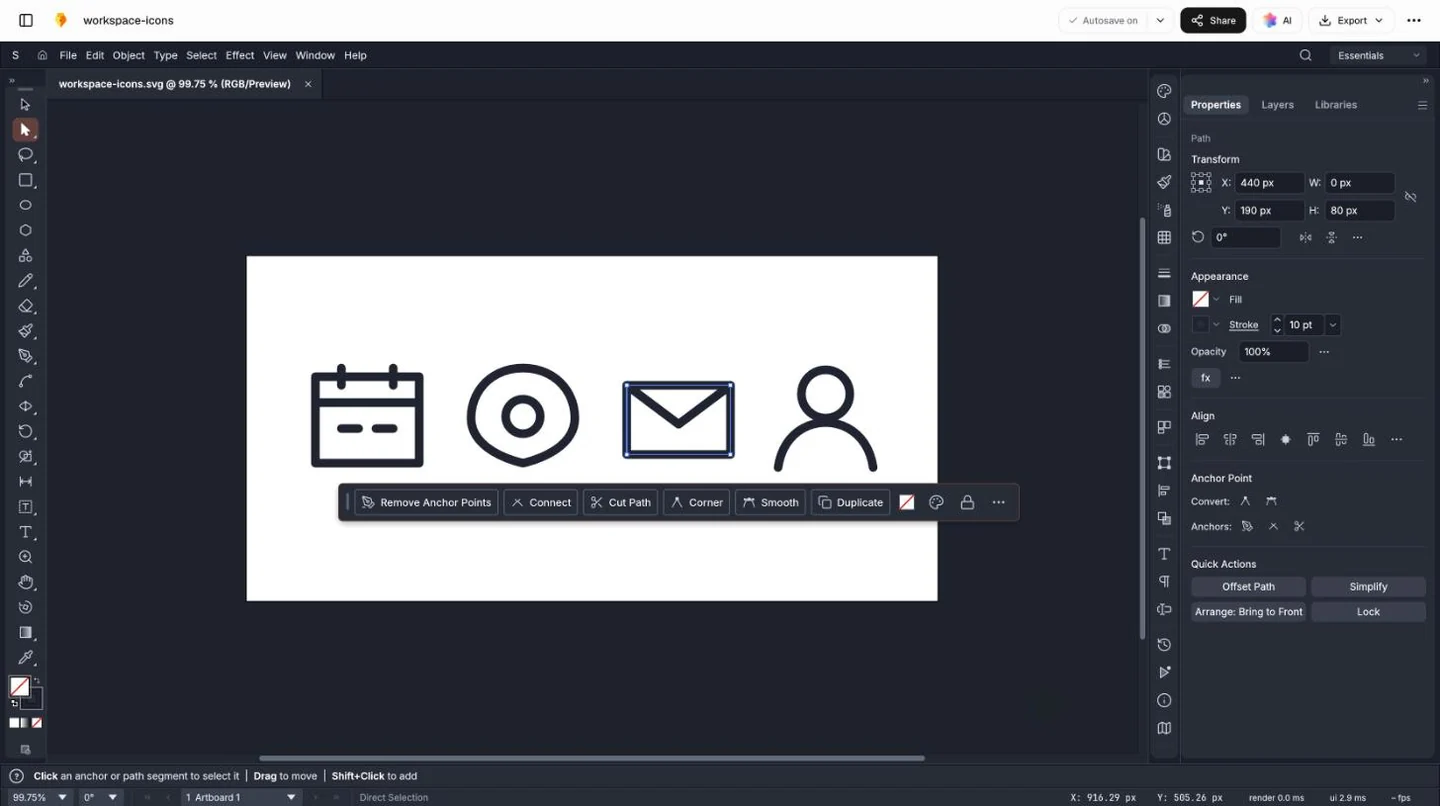
The small jobs SVGs arrive needing.
Icons and illustrations from clients and stock libraries often want a minute’s work before they fit. These are the usual ones.
Recolour icons for a dark background
Select the set and change the stroke colour once. Every icon follows, ready for a dark header or a dark mode.
Match an icon to the rest of the set
One icon drawn heavier than the others? Set its stroke width to match, and round its ends the same way.
Take out what you don’t need
Select the backdrop behind an illustration and delete it. The rest of the artwork stays as it was.
Fit the artboard to the icon
Trim the empty space around a drawing, so the icon sits at the size your app or website expects.
How to edit an SVG online.
Nothing to install. Sign up free and the file opens in your browser.
- Step 1
Open your SVG
Choose an .svg file in the box at the top of this page, or start with a blank artboard.
- Step 2
Select what to change
Click a shape to select it, or drag around several. Groups select together.
- Step 3
Change it
Recolour fills and strokes, drag anchor points, edit text, or combine shapes with Pathfinder.
- Step 4
Download or save
Download an SVG, PNG, PDF or .ai, or save it to your workspace Drive to come back to.
Common questions.
Something else on your mind? Ask us in the chat, bottom right of the page.
Is the SVG editor free?
Yes. Opening, editing and exporting are included on the Free plan, along with saving to your workspace Drive, sharing by link and Docsiv AI.
Do I need to know SVG code?
No. You edit the drawing, not the markup: select a shape, drag its points, change its colour, then export. A clean SVG is written for you.
How do I change the colours of an SVG?
Select the shape (or a whole group) and pick a new fill or stroke colour in the panel. Recolouring a logo for a dark background usually takes a minute.
Which formats can I export?
SVG for websites and apps, PDF for print, PNG for slides, documents and social profiles, and Illustrator (.ai) for a designer who works in Illustrator.
Does it keep layers and groups?
Groups from your SVG open as groups, and you can arrange objects in layers to keep a logo or an icon set tidy.
Can it edit animated or interactive SVGs?
No. Animation, scripts and styles that come from a web page aren’t kept. Most SVGs saved from design tools open cleanly.
Where is my SVG kept?
In your workspace Drive when you save it, where only your workspace can open it until you share it by link.
Can I draw a new SVG from scratch?
Yes. Choose Start blank for an empty artboard and draw with the pen and shape tools, or, with a free account, describe it and Docsiv AI draws it as shapes you can edit.
Need a logo or an icon that isn’t drawn yet?
Describe it and Docsiv AI draws it in the vector editor, as paths you can reshape, recolour and export as SVG.