

One space for each client, in your brand.
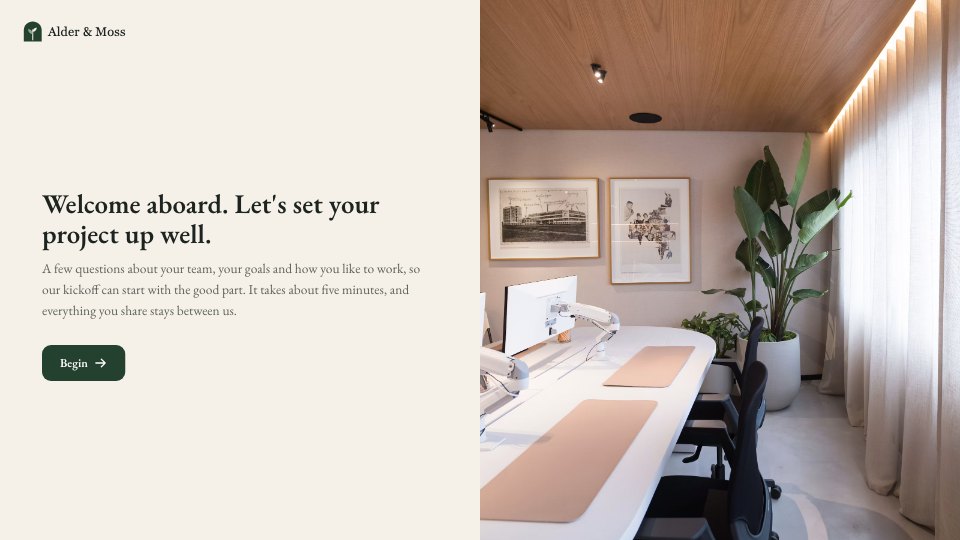
Everything you share with a client, documents to approve, files to send, things to sign and pay, in one place that opens from their email. No passwords, nothing to install.
 Apstic
What your client sees.
A space is built for the person opening it from an email on their phone: what needs them first, the rest a tap away.
- Step 1
Sign in with a code
The email carries a six-digit code and a link. Either one opens the space, with no password to make or remember.
- Step 2
See what needs them
The space opens on what’s waiting: things to sign, approve or send, soonest due first, then every document you’ve shared.
- Step 3
Approve or request changes
A document opens with Approve and Request changes beside it. Either one is recorded against that version, with their name and the time.
- Step 4
Send files
A request lists what you asked for, and they drop the files in line by line. What they send lands in your Files, in the client’s folder.
Add from where you already work.
There’s no portal to fill in on the side. The space is one more place the things you already share can go.
- The share dialog
Share a document into the space
Next to the people and the link, the client’s space is one more place a document can go, with approval asked for if you want it.
- Files
Add any file from Files
Add to client space on any file or folder, and it appears in the space with the rest, ready to open or download.
- Send for signature
Show what needs signing
When you send a document for signature, switch on the client’s space and they sign there, already signed in.
Sign, fill, approve, pay.
The whole back-and-forth of a piece of client work, in the one place they already open.
Sign without a second code
Documents sent for signature show up in the space with their fields, and the client signs there, already signed in.
Fill in a brief or a form
Send an intake form or a brief into the space. The answers come back to you beside the rest of the client’s work.
Approve a version, not a file
Each approval or request for changes is pinned to the version it was about, so a new version asks again and the history stays clear.
Pay, or say they have
Invoices show in the space with Pay and “I’ve paid”. A claim comes to you to confirm, and the invoice shows as paid for both of you.
Know when they looked.
The Clients page shows every space’s health at a glance, so the follow-up happens before the deadline, not after.

Waiting on client · 2 overdue
Every space says whose turn it is and what’s past its date, so you know who to nudge before the week slips.
Last seen 9 days ago
See when someone from the client last opened their space, and who it was, from the Clients page.
Opened, downloaded, approved
Each thing their people do is on the space’s activity, with the person and the time. You hear about the ones that need you.
Your brand, your address.
Clients open the space under your logo, on your own domain, with your colour on every button.
Your logo and your colour
The space takes your workspace’s brand: your logo at the top and your accent on every button.
Your own address
With your domain connected in Settings › Domains, each space opens under it, and your sign-in codes and updates are sent from it too.
Nothing of ours in the way
Clients see your name, your work and what they need to do. Docsiv stays behind the scenes.
Featured reviews.
A few words from the agencies and teams running their client work in Docsiv.
“Proposals used to take a day across four tools. Now we send them branded from one place, and clients sign the same afternoon.”
“We replaced our proposal tool, our deck tool and our e-sign tool in one afternoon. Everything our clients see now goes out in our brand.”
RecruitHunt uses Docsiv for recruitment, staffing and AEC client work.
“Our decks, proposals and reports live in one place now. The team works on the same files instead of passing versions around, and AI gets us to a first draft fast.”
Humiqo planned its product launch in Docsiv: the audit, the user journeys, the sitemap and the task board on one project canvas.
Each part of the job, in detail.
Proposals, signatures, onboarding and reporting, each with its own page.
Win the work
Run the work
Questions about client spaces.
Something else on your mind? Ask us in the chat, bottom right of the page.
Do clients need an account?
No. A client signs in with a code from their email, or with the link in it, and lands in their space. There are no passwords and nothing to install. Someone with a Docsiv account on the same email can enter with one click.
Is it on the Free plan?
Client spaces are on paid plans. Everything in a space, including approvals, requests and signing, comes with the plan; the people you invite never need one.
Can one person be in several spaces?
Yes. A contact can belong to as many spaces as you like, and when they sign in they see each one they have access to.
Does it work on a phone?
Yes, it’s built for it. The space, its documents, requests and approvals all work from a phone, which is where most clients open their email.
What can clients see?
Only what you add to their space: the documents, files, requests and signing you choose to share. Never your workspace, your other clients or your team’s comments.
How do I add something to a space?
From the share dialog on any document, from a file’s menu in Files, or when you send a document for signature. Each has the client’s space as one of the places it can go.



























Give each client one place to look
Start with the proposal or brief the work needs, drafted by Docsiv AI, then open a space for the client and share it there.