Plan a project’s work on a task board
Add a task board to a project, assign tasks and move them from To do to Done.
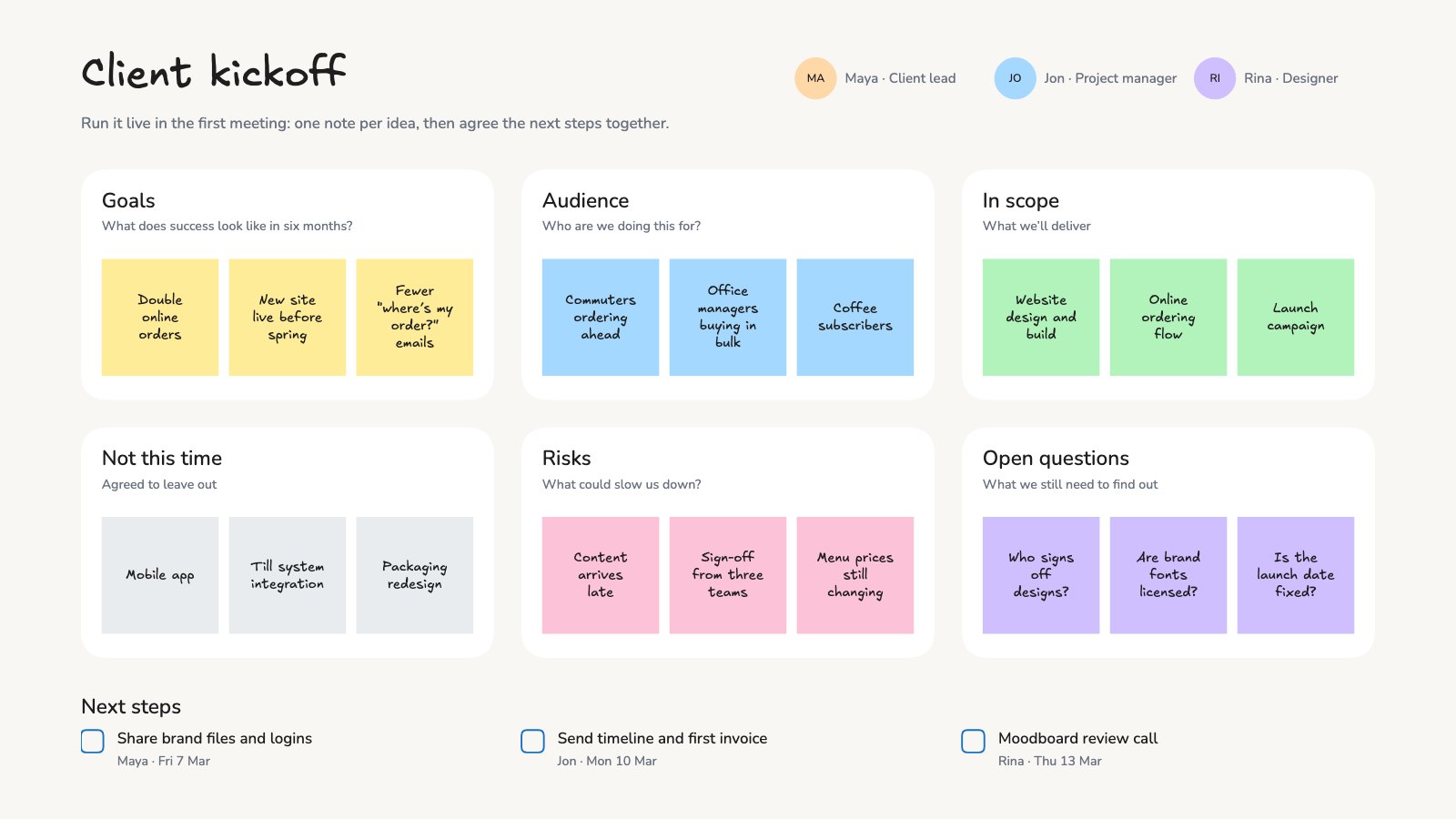
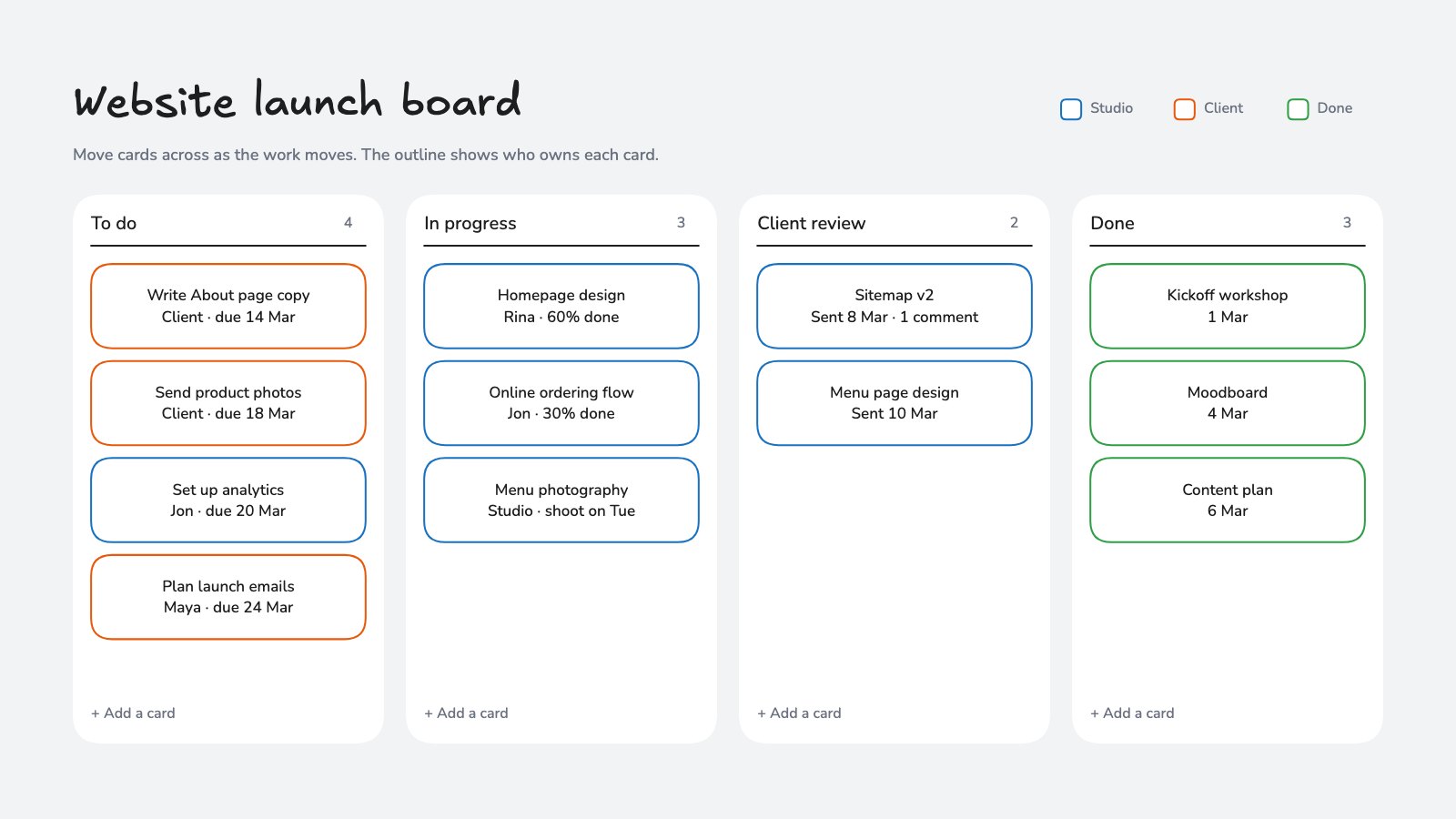
Every project can have one task board: stages you name, tasks you assign, and a count of what’s done. Everyone on the project sees changes as they happen.
Add the board
- Open the project from Projects.
- In the Files view, find Tasks and select Add a task board. On the canvas, use the + tools and choose Task board.
A new board starts with three stages: To do, In progress and Done.
Add and move tasks
- Select Add a task under a stage, type what needs doing and press Enter.
- Drag a task to another stage as the work moves on. The board shows how many are done.
- Open a task’s menu to choose who it’s Assigned to, or to remove it. Set a Due date on the task.
- Select Add a stage for steps of your own, such as “Review”. Rename, move or delete a stage from its menu.
Let Docsiv AI plan it
Select Plan the tasks with Docsiv AI (it becomes Add tasks with Docsiv AI once there are some), describe the work, and Docsiv AI adds a task for each step to the first stage. In any chat about the project you can also ask it to add, assign, move or finish tasks.
Who can change it
Workspace members and the project’s editors can change the board; viewers and commenters can read it. To remove the board, open its ⋯ menu and choose Remove the task board. Its tasks are deleted for everyone on the project.