Work on a project’s canvas
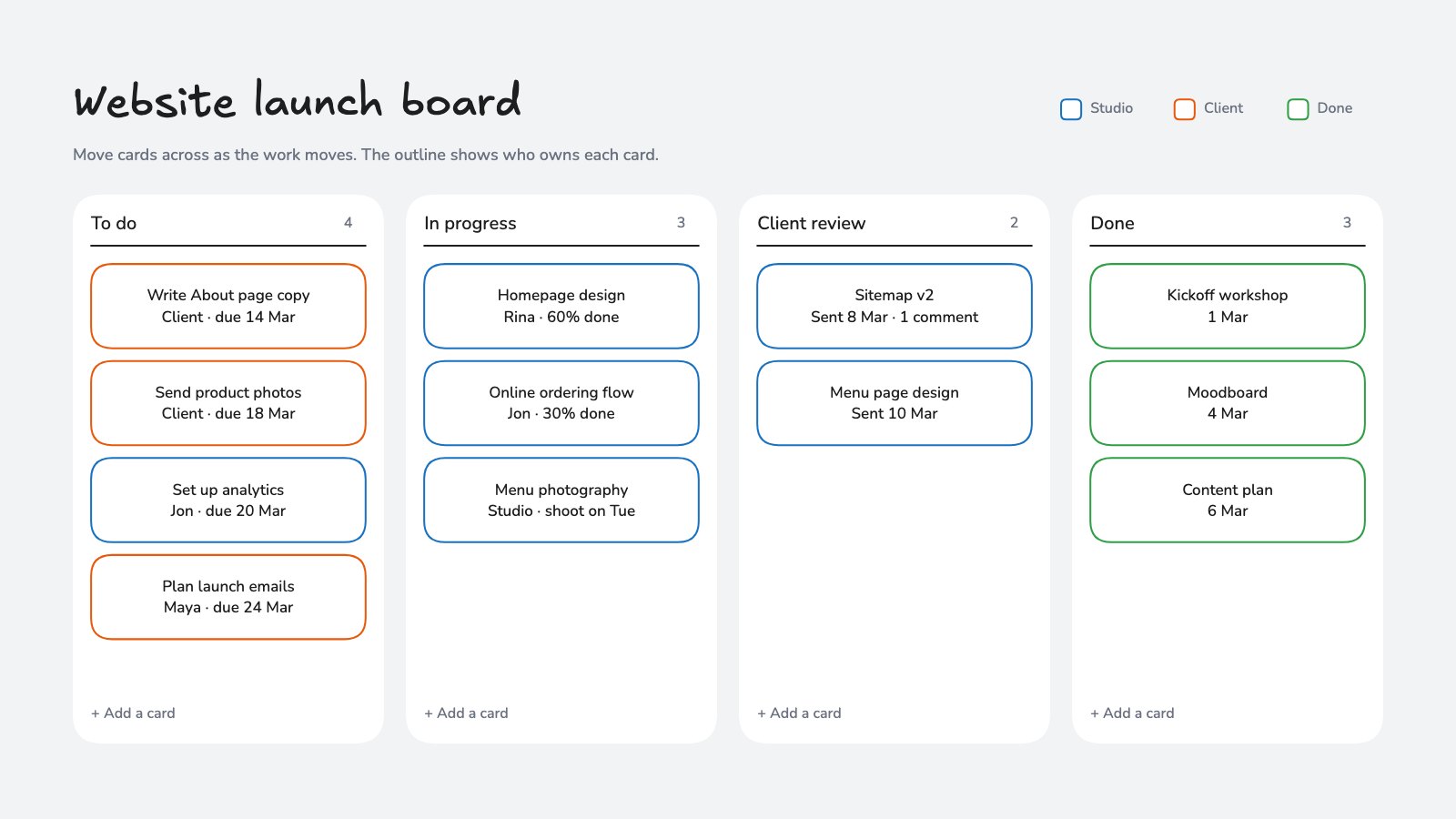
See a whole project on one board: files in frames, apps that open on the board, notes, comments and Docsiv AI.
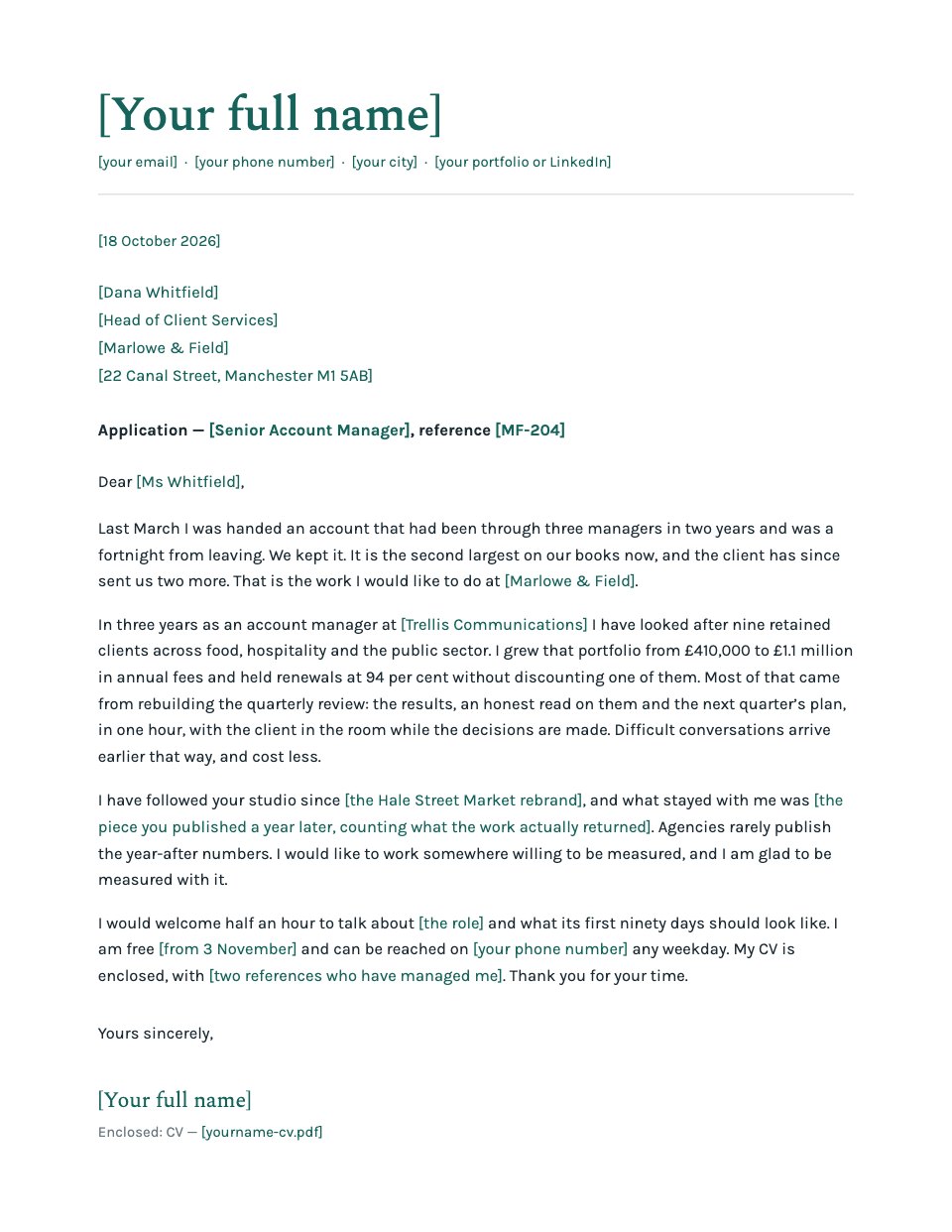
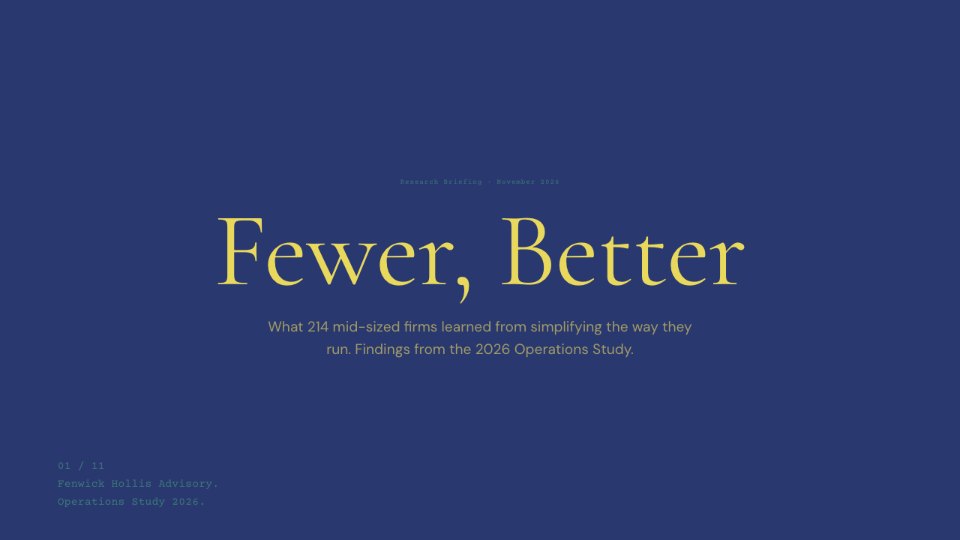
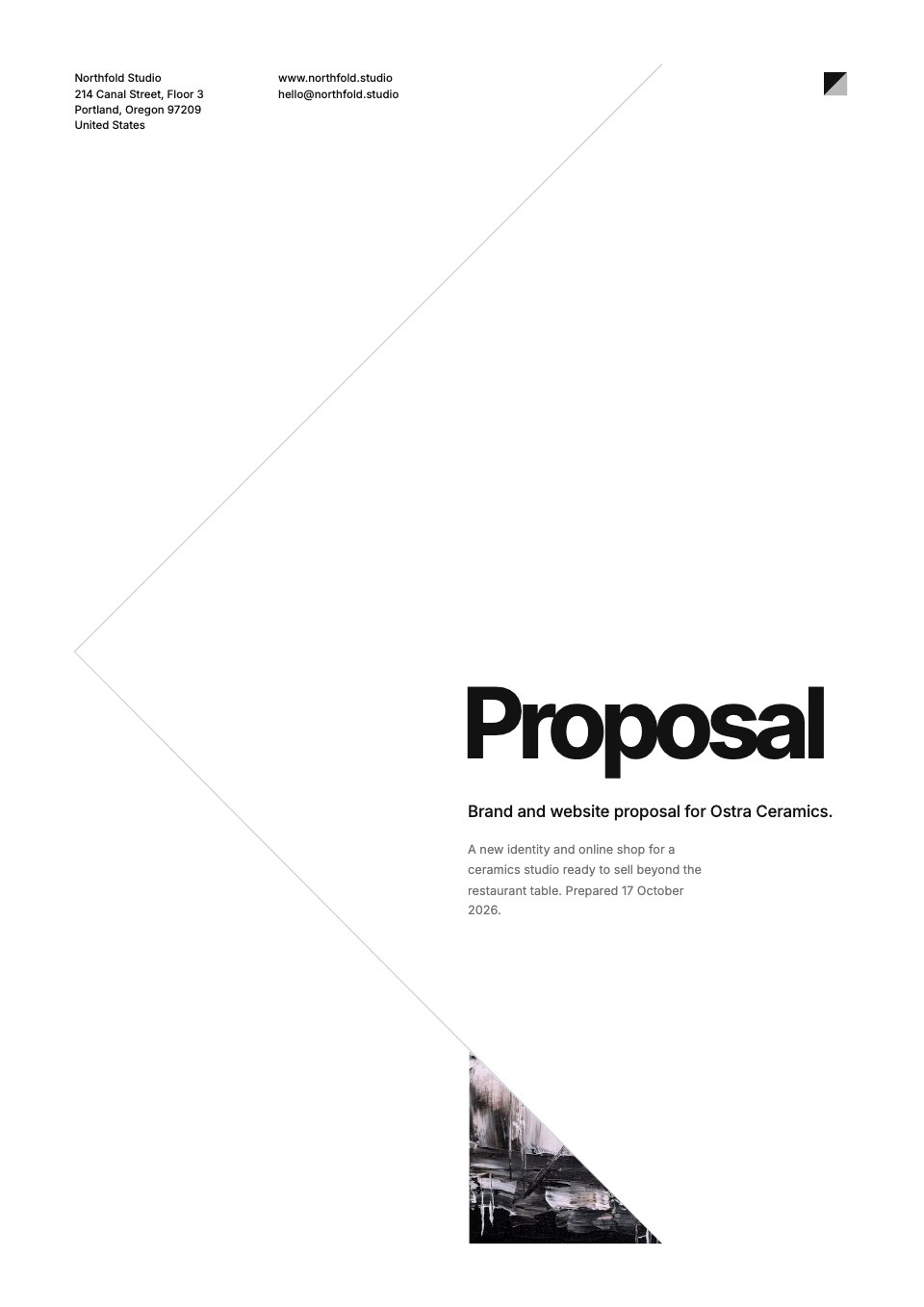
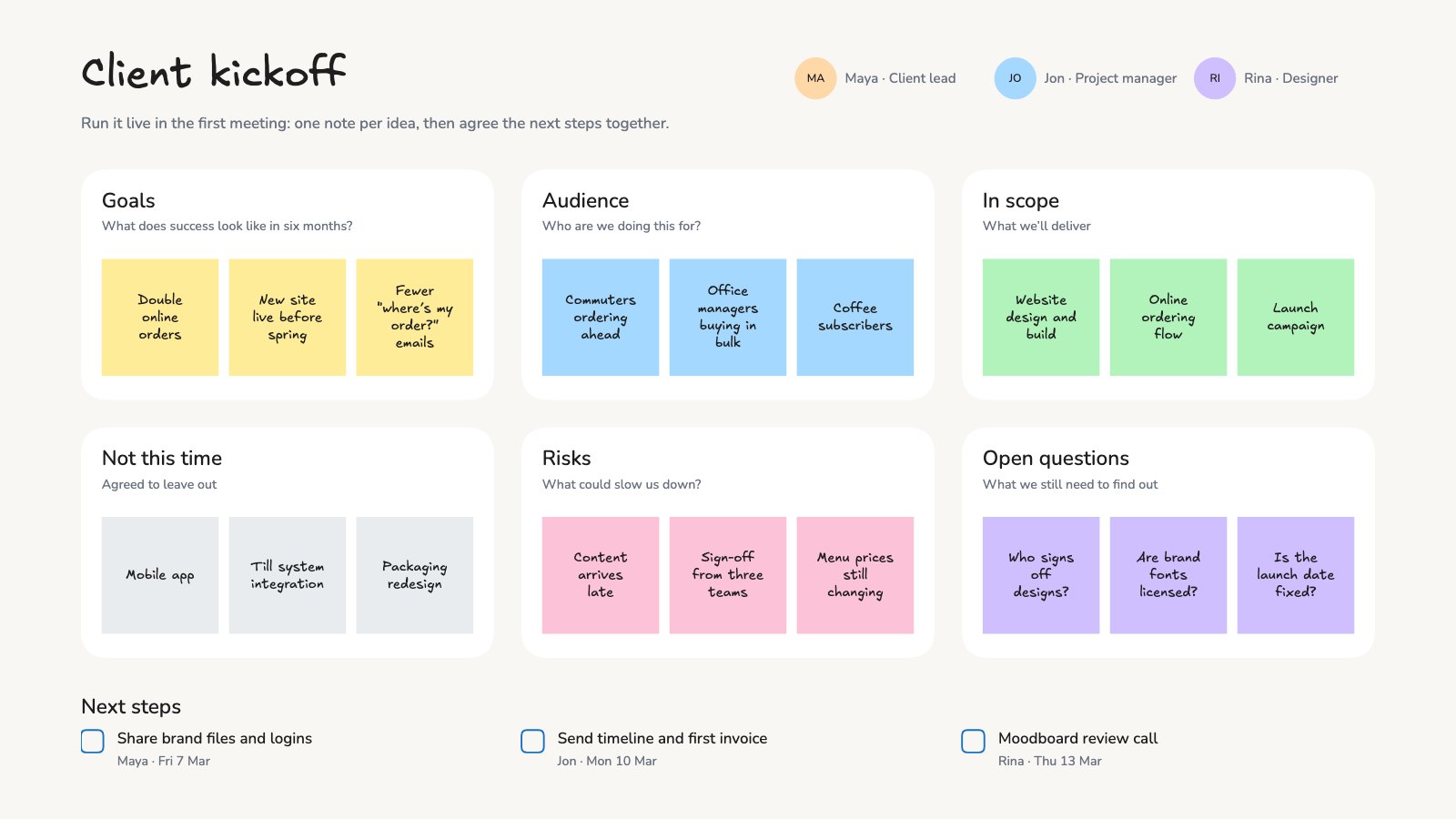
A project can open as one canvas: its files as cards in coloured frames, apps that open in windows right on the board, and Docsiv AI beside you.
Open the canvas
- Open a project from Projects.
- Use the Canvas | Files switch at the top right. New projects open on Canvas, and Docsiv remembers the view you used last for each project.
The first time, Docsiv sorts the project’s files into frames: Brand, Proposals, decks & reports, Notes & forms, Files & media and Contracts & invoices.
Find your way
- Drag to move around, and scroll or pinch to zoom.
- Overview (⇧1) fits everything on screen, and the Frames menu jumps to any frame.
- Tidy up the canvas straightens each frame into a grid. You can undo it.
- Press
?to see every keyboard shortcut.
Make and add things
Select + in the tools on the left (or press N), or right-click the canvas, to add:
- A new file in any app, or From a template…. It opens in a window on the canvas and joins the project.
- Add existing files… from Files.
- A Sticky note, Text, shapes and Frame for your own notes and sections.
- A Task board, Upload files… or Add a link….
You can also drop pictures, videos, audio, PDFs and links straight onto the canvas. Double-click a card, or press Enter, to open its file in a window.
Ask Docsiv AI
Pick cards or a frame, then select Ask Docsiv AI (⌘J). With nothing picked, it uses the frame you’re looking at. New files it makes open beside the ones it used.
Comment and work together
Press C and click to leave a comment on the canvas or a card, reply in its thread, and resolve it when it’s done. Teammates’ pointers move live as they work.