Use Docsiv from Claude, ChatGPT or Cursor
Connect an AI app to your workspace so it can find, read, write and share your files as you.
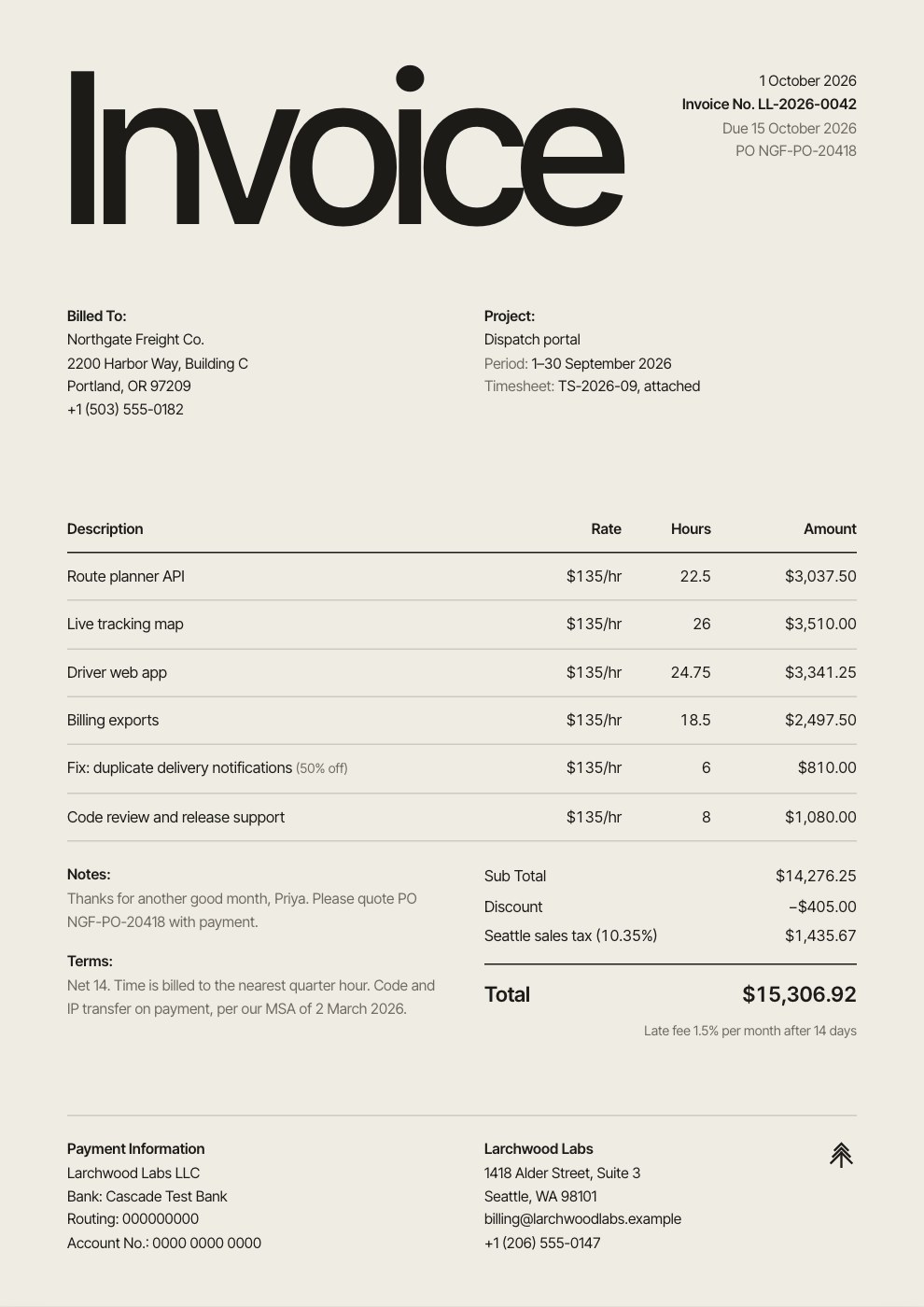
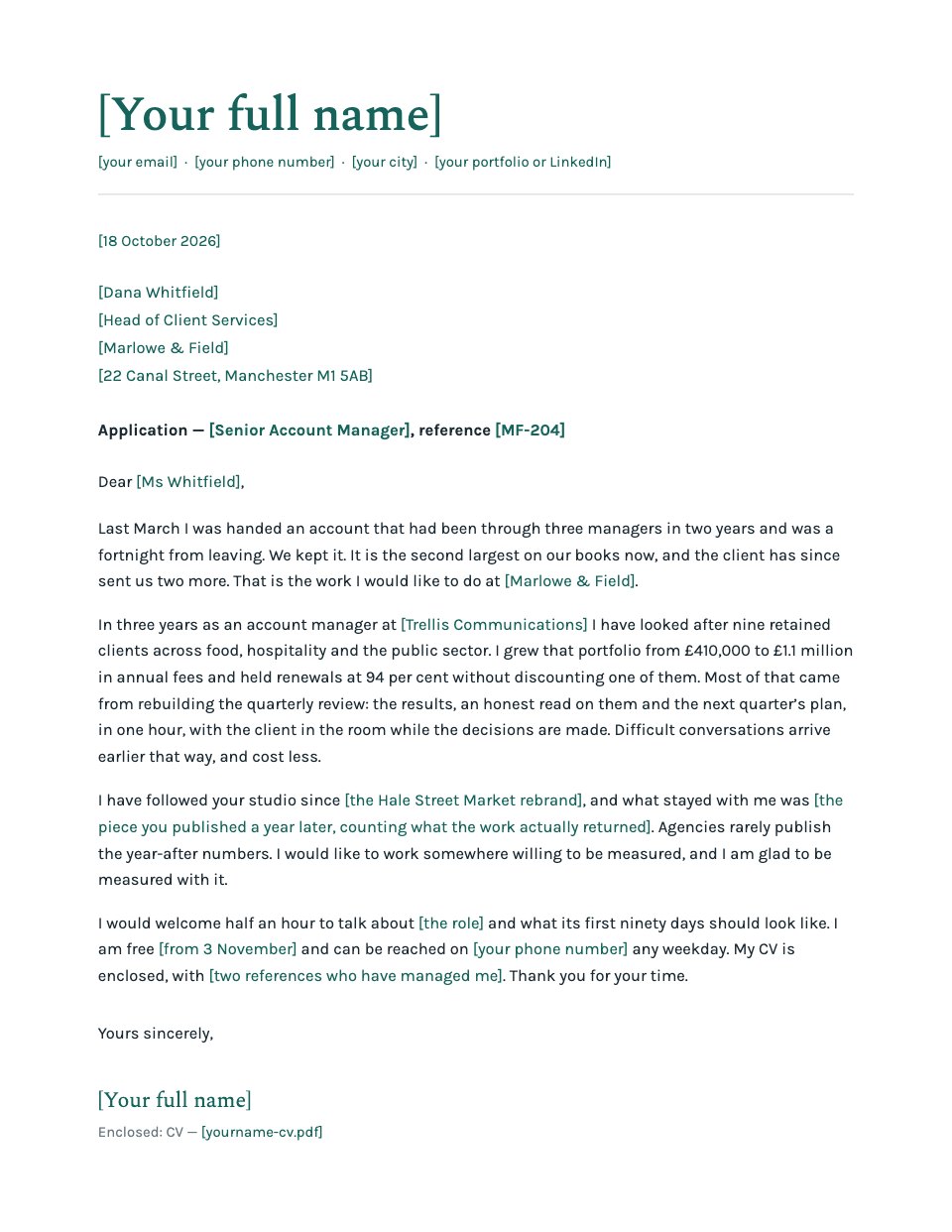
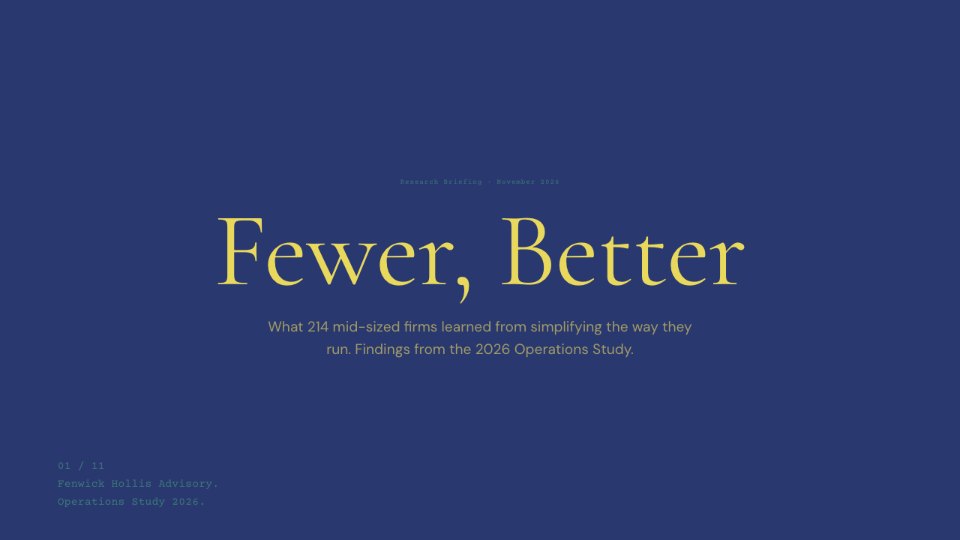
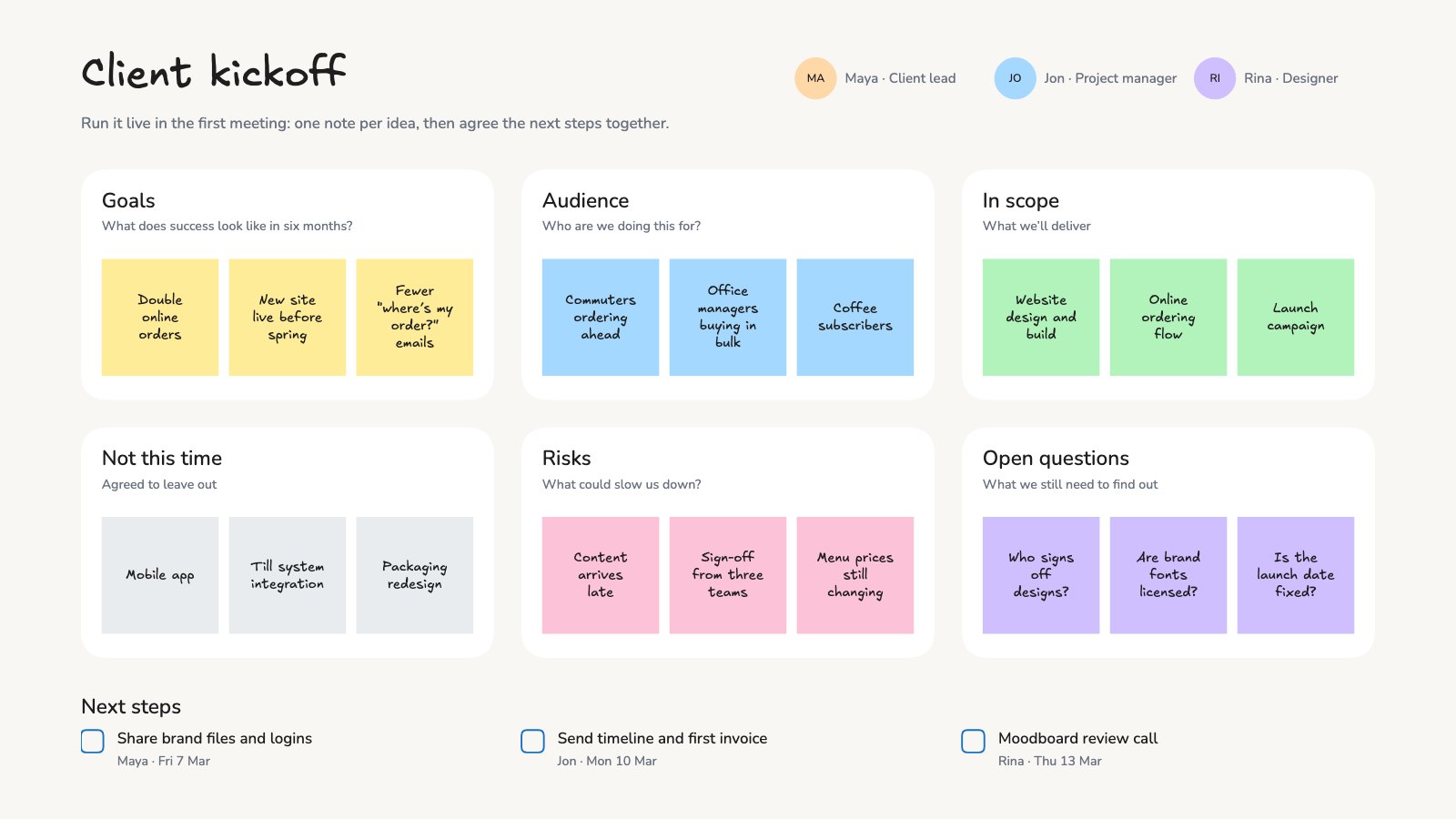
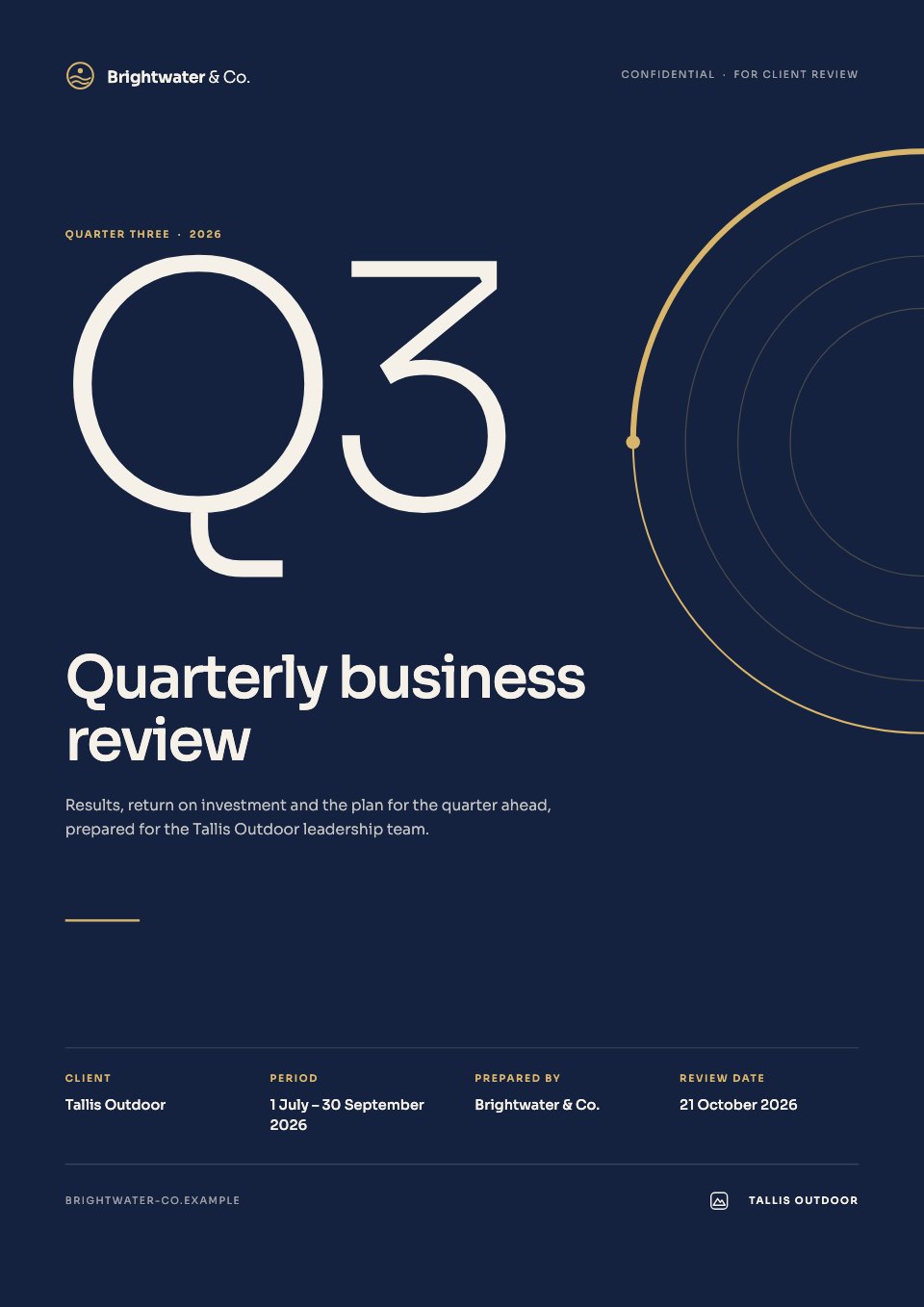
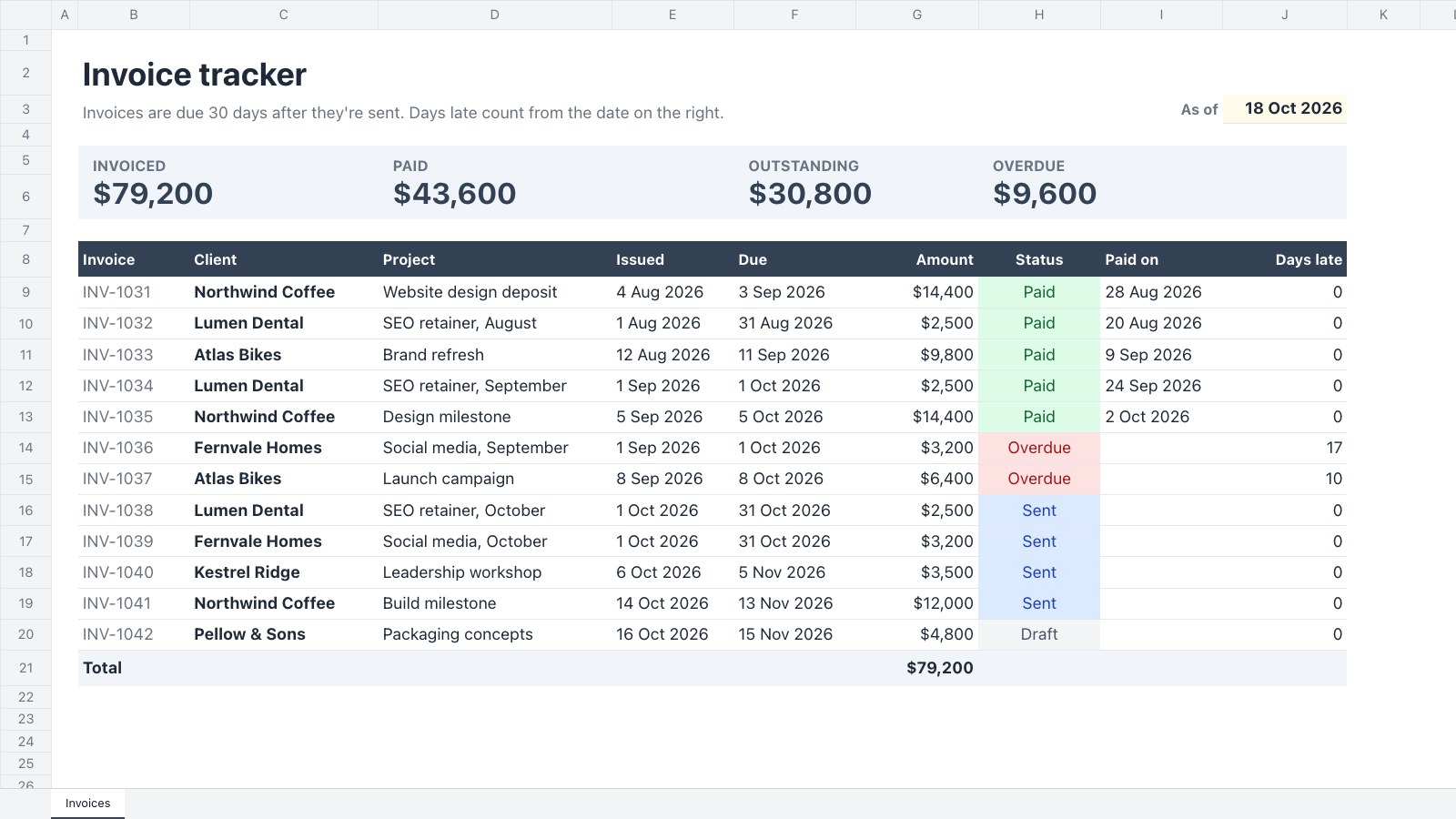
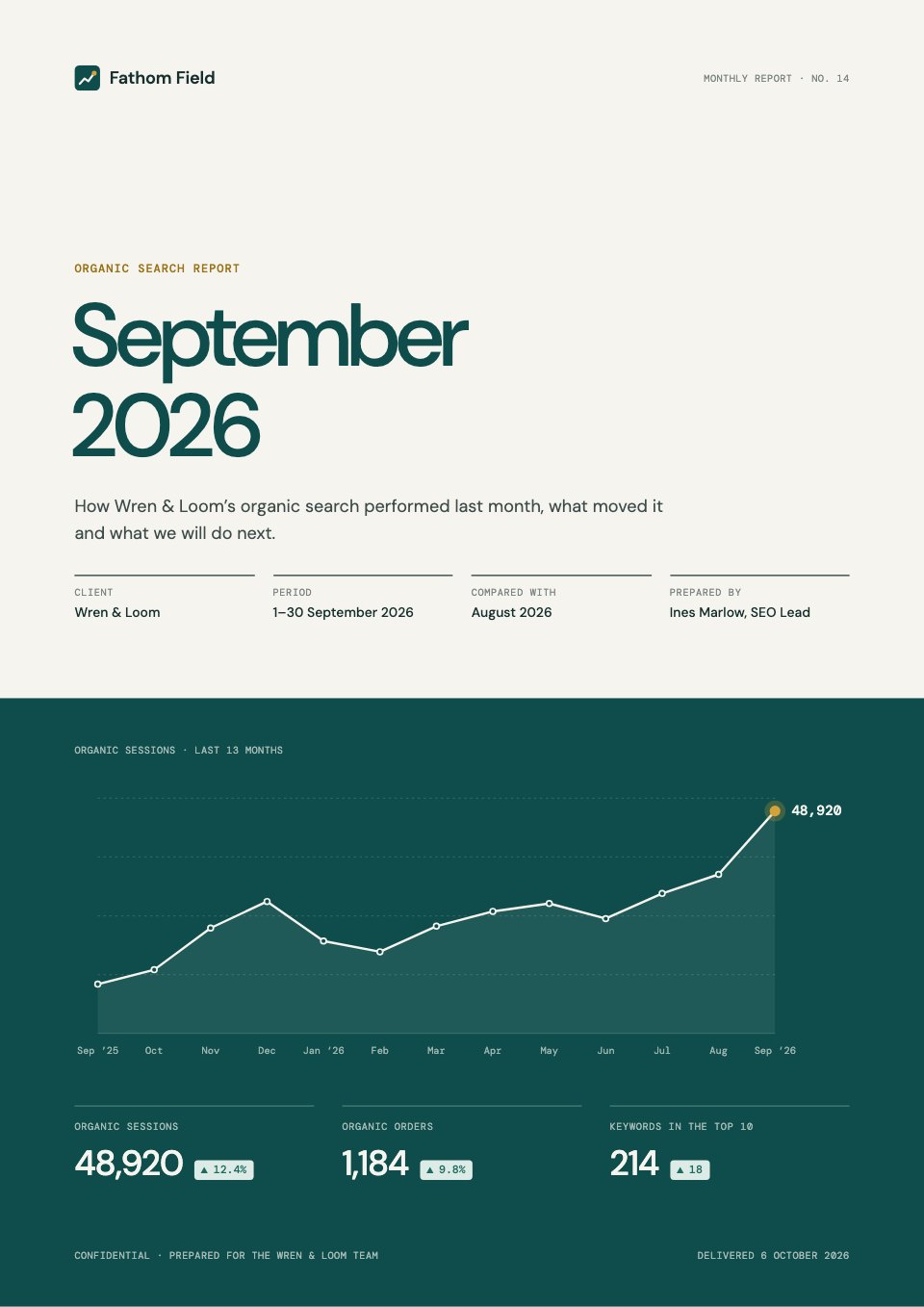
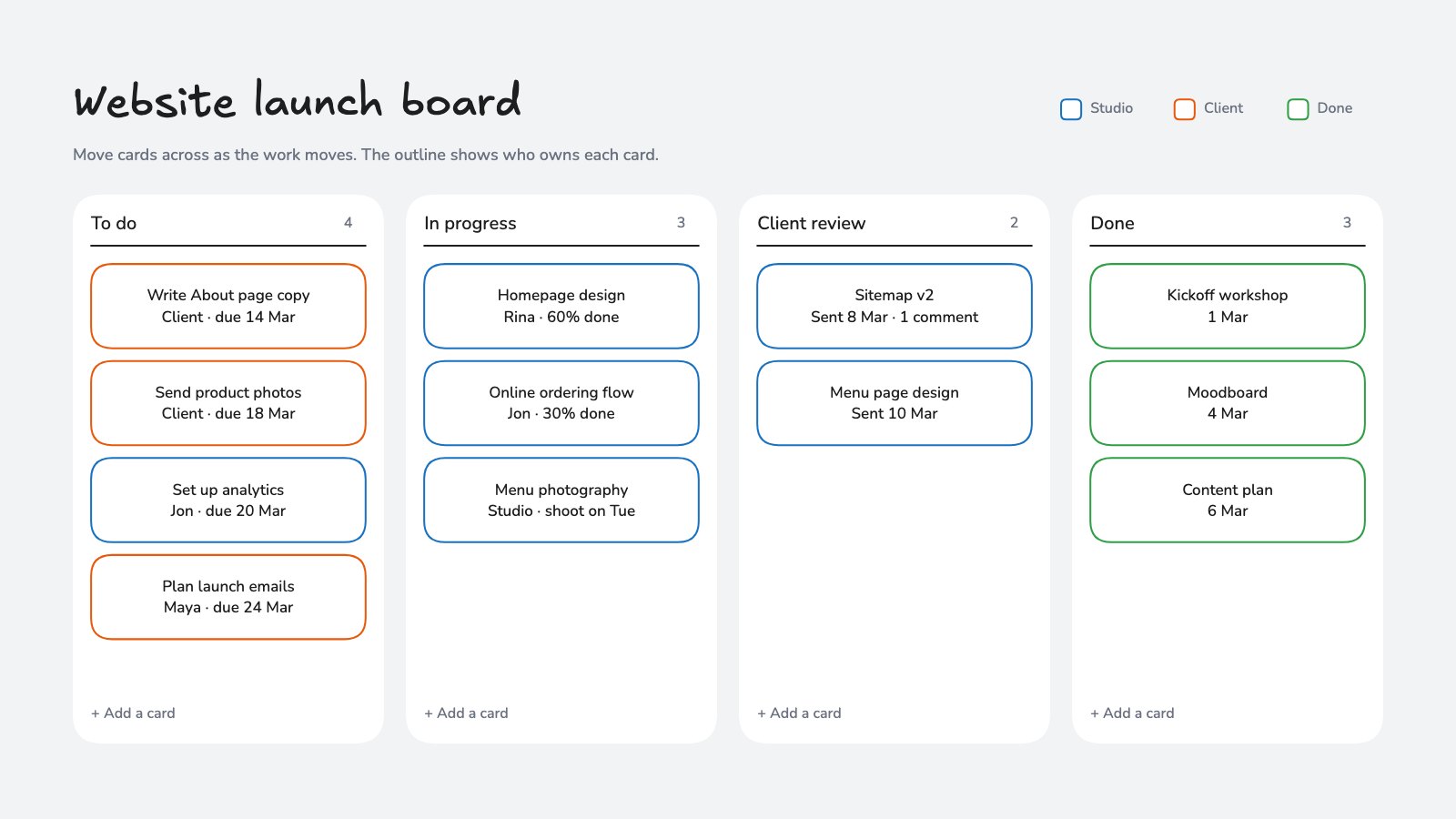
Docsiv works as an MCP server. Once you connect an app such as Claude, ChatGPT, Claude Code, Cursor or VS Code, you can ask it to find your files, write proposals, decks and notes, start from templates and share work, all from that app’s chat. The app writes the content with its own model, so it uses none of your Docsiv AI credits.
Connect an app
- Open Settings › Connectors. Under Connect an app, pick the easiest way for your app:
- Copy setup prompt: paste it into Claude Code, Cursor or another AI agent that can change its own settings, and it adds Docsiv itself.
- Copy & open Claude: copies the server address and opens Claude’s connectors. Choose Add custom connector and paste it.
- Copy & open ChatGPT: copies the address and opens ChatGPT’s settings. In Apps & Connectors, turn on Developer mode, choose Create and paste it.
- Add to Cursor and Add to VS Code open the app ready to add it.
- Copy command (Claude Code), then type /mcp in Claude Code to sign in. Copy JSON is for other apps.
- When the app sends you to Docsiv, sign in, pick the Workspace it should use and select Allow. Select Cancel to refuse.
- Ask the app to use Docsiv, for example “make a one-page proposal in Docsiv”. The file appears in your workspace’s Files, and the app gives you a link to open it.
What a connected app can do
- Find and read your files, including uploaded PDFs, Word, Excel and PowerPoint files.
- Create proposals, reports, decks, designs, notes and forms, from scratch or from a template, and edit them in place.
- Organise files into projects.
- Share a file or publish it to the web only when you ask it to.
It works as you, in the one workspace you chose, and sees only what you can see. Every change it makes is kept in the file’s version history.
Disconnect an app
Open Settings › Connectors, find the app under Connected apps and select Disconnect. It loses access straight away. Leaving the workspace ends its access too.