Keep clients in the loop
See who has opened their space, remind people, message them and post updates.
On this page
See who’s engaged
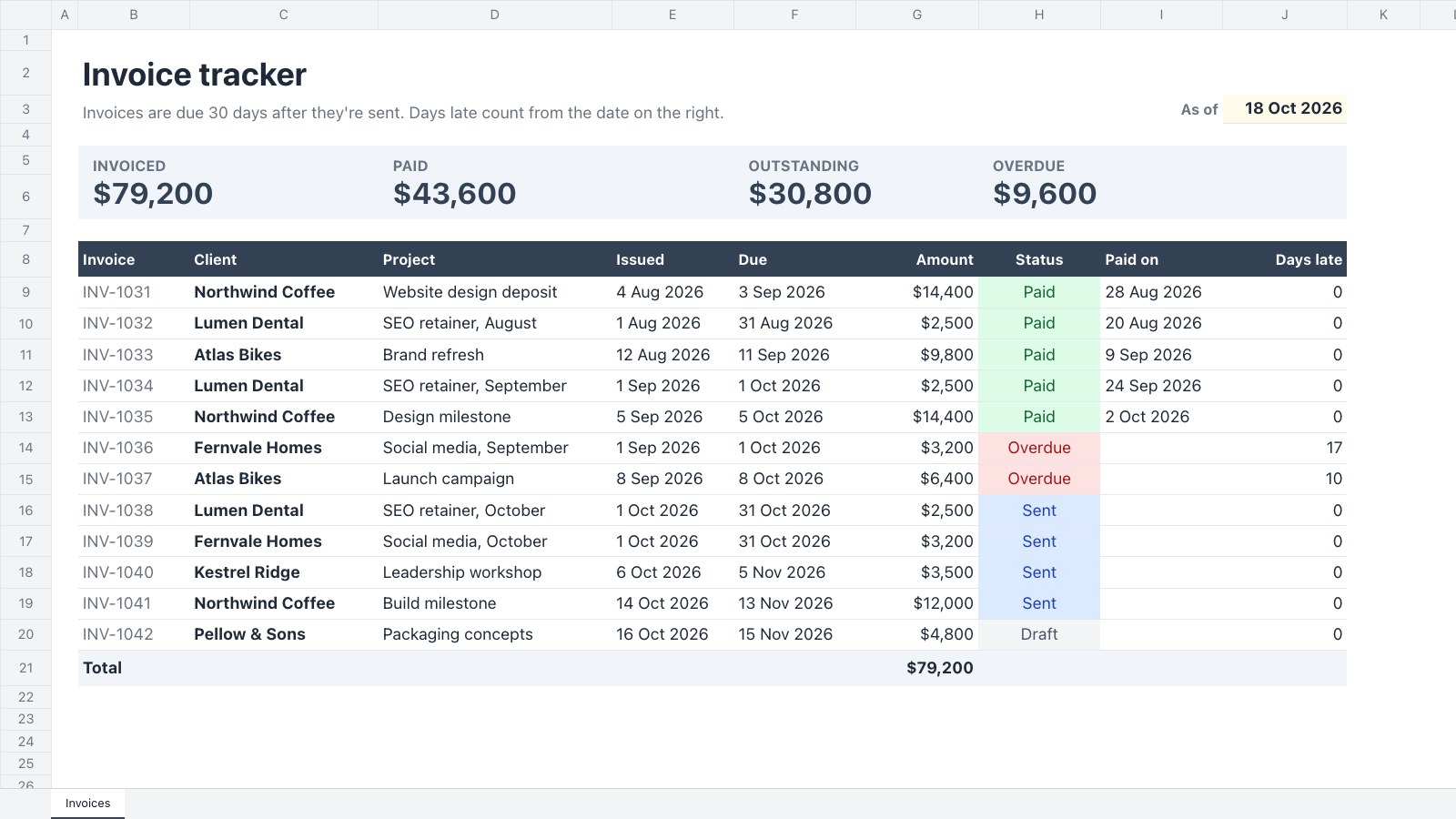
Open Client portal. The Overview shows Client engagement, grouping people as Never opened, Quiet, Not invited yet or Active, with a Remind button. It also lists Approvals waiting on clients (oldest first), Outstanding invoices, Approval turnaround and Recent activity. The views on the left, All clients, Waiting on client, Waiting on you, Quiet and Archived, filter the list. A space’s Activity tab shows what each person did and when.
Remind people
- Remind (in the Overview, or on a space’s Settings › People) emails one person. Someone who never opened their space gets the invitation again; anyone else gets a list of what’s waiting on them. You can remind each person once an hour.
- On an overdue item, choose Send a reminder from its ⋯ menu to send a message about it. Rewrite with AI opens a chat with your draft.
- To remind clients automatically, open the space’s Settings, go to Reminders and choose Remind the client: Off, Every 2 days, Every 3 days or Every week. It covers requests and approvals with a due date, a few times at most, and you’re told once when something goes overdue.
Message them
Open the space’s Messages tab. Conversations are by subject. Their people reply from Messages in their space, and each message you send reaches them by email. Switch on Internal note to write a note only your team sees.
Post an update
- Open the space’s Updates tab and select New update.
- Enter a Title and what moved, what’s next and anything you need from them. Choose a Project if it’s about one.
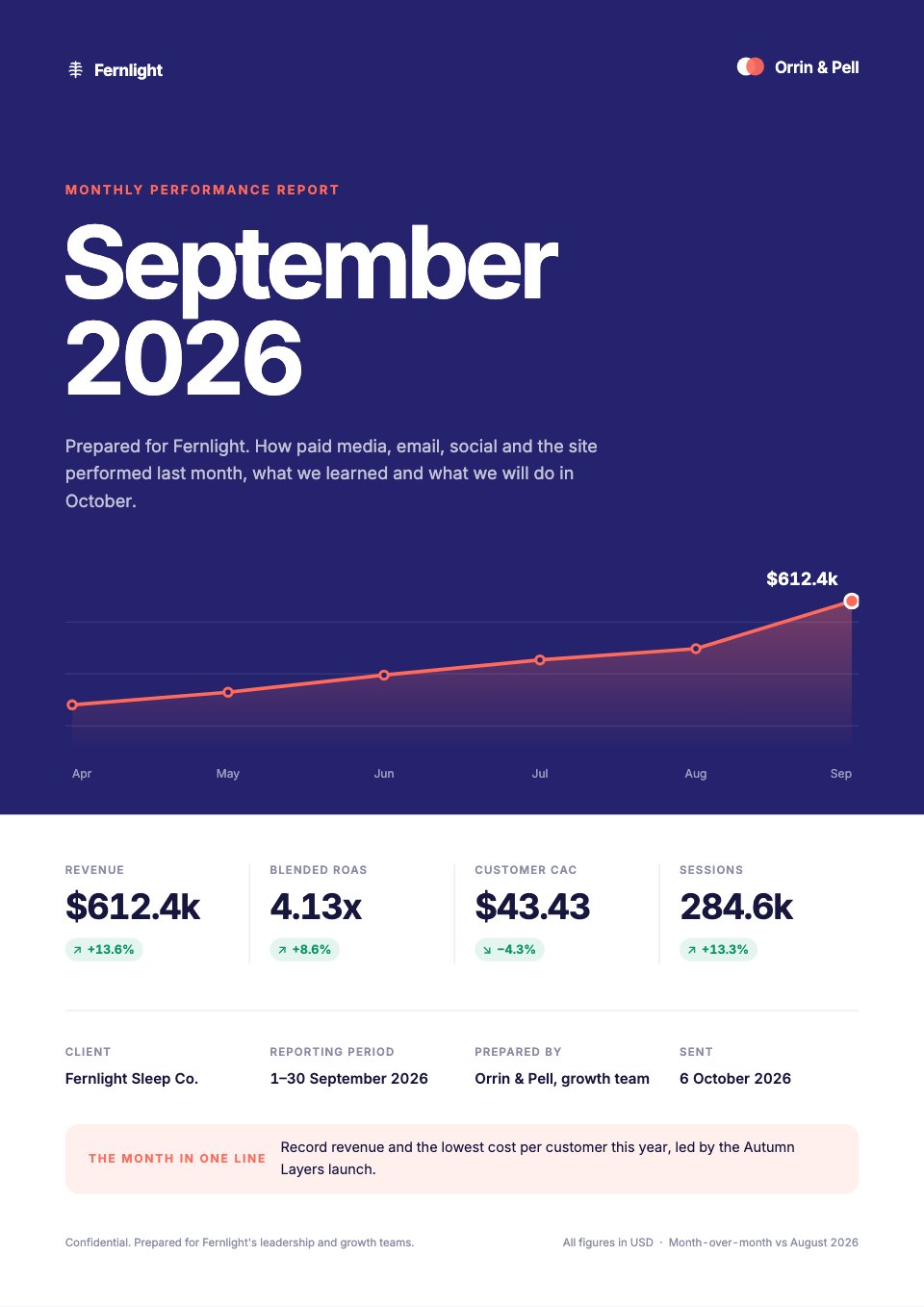
- Select Save draft, then Publish. Everyone at the client gets an email, and it shows under Updates in their space. Unpublish takes it back.
Ask Docsiv AI to “draft an update for” a client: it reads what has happened since your last update, shows you a plan and publishes after you approve.
Projects and time
The Projects tab sets each project’s status, due date, visibility and steps. Clients can tick off steps that are theirs. The Time tab sets a monthly retainer in hours and logs time, which the client sees as a meter on their home page.
Your own emails
In Settings › Notifications, the Client spaces topic emails you when a client sends files, answers a request, approves, asks for changes or messages you: one email per space every few minutes at most.