Get signatures and payments in a client space
Show a signing request or an invoice in a client’s space so they can sign with no second code, pay, or tell you they’ve paid.
Sign in the space
- Prepare the document for signature as usual. See Send a document for signature.
- In the send dialog, choose the client under Show in a client space. Docsiv picks it for you when every signer is in the same space.
- Select Send.
Signers still get an email. In the space, the document is under Documents, marked Needs your signature. The client signs there, already signed in, so there’s no email code. Other people at the client can follow along and see who has signed. Statuses are Waiting for signatures, Signed, Declined, Cancelled and Expired.
Sending counts as one signature request on your plan, however many people sign.
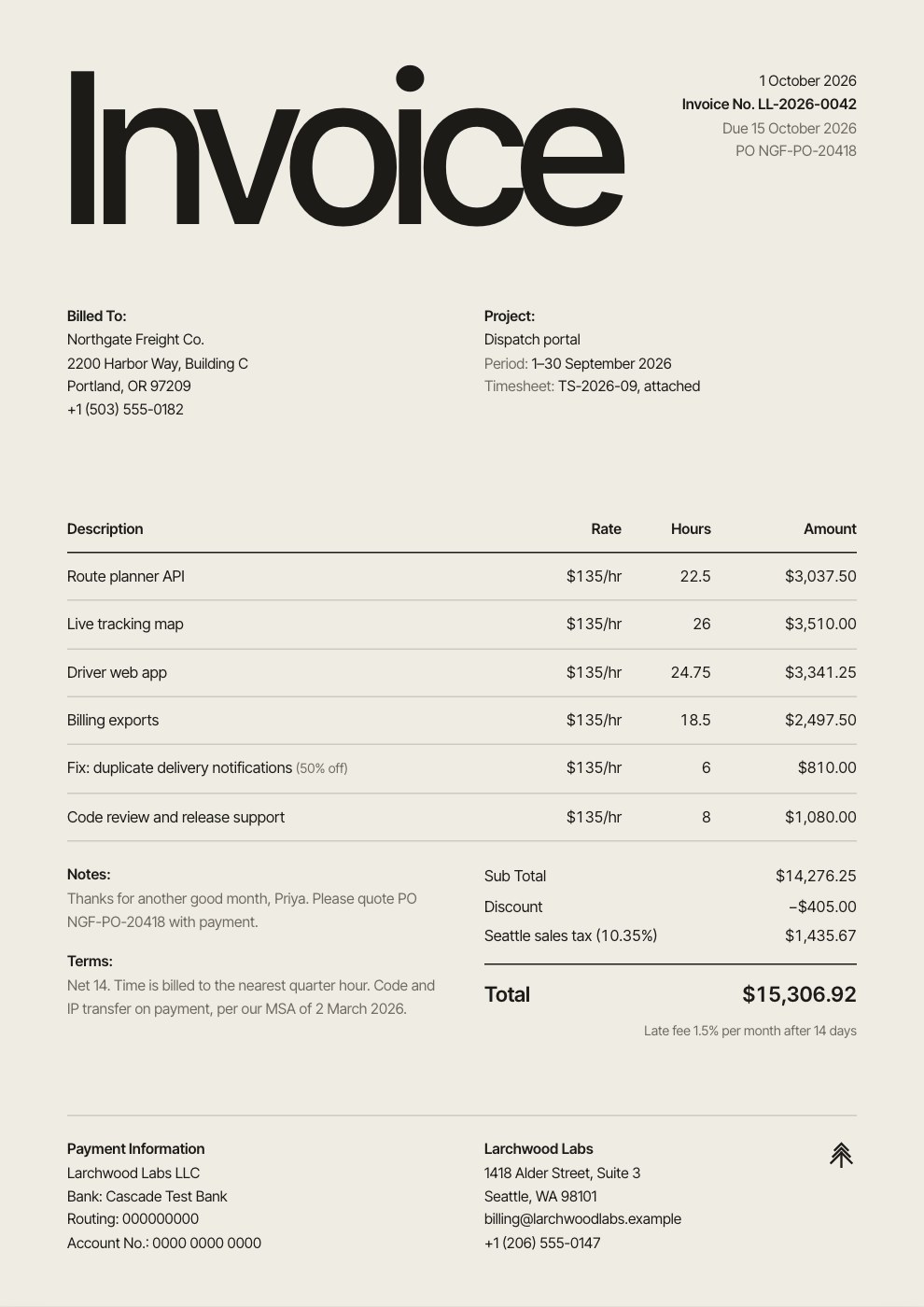
Send an invoice into a space
- Make the invoice in Invoices. Add a Payment Link in the invoice if you want a pay button.
- Select Send and choose the client under Show it in a client space. Leave Not in a client space to send it by email only.
- To add an invoice you’ve already sent, open the space’s Space tab, select Add item and choose Invoices. An invoice sits in one space at a time.
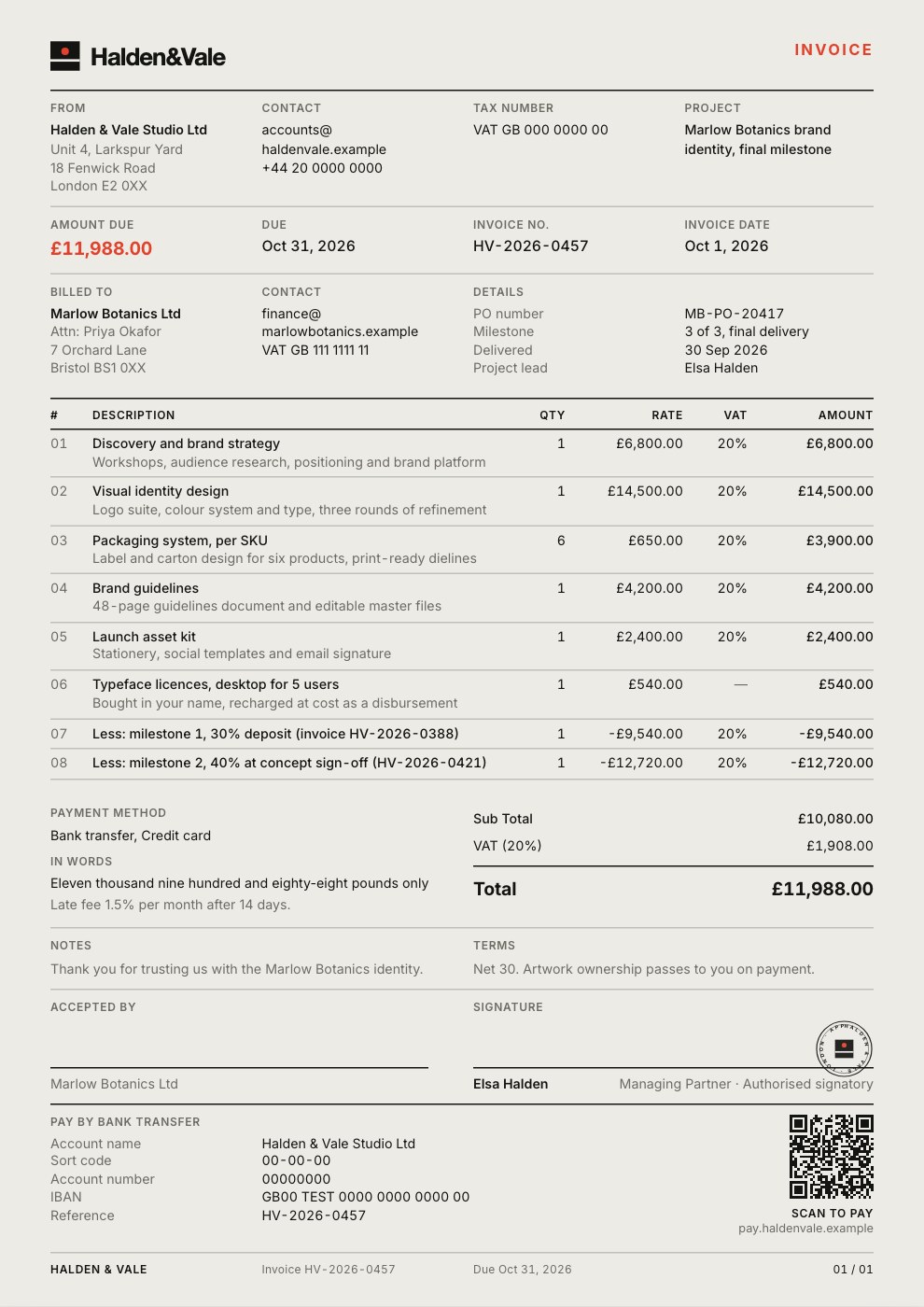
The client gets an email about the invoice and finds it under Invoices with the total and due date. If the invoice has a payment link, they see a pay button (Pay invoice, or the label you set). They can always select Download. Without a payment link, it says the bank details are on the invoice.
When the client says they’ve paid
The client selects I’ve paid, picks the Date paid, adds a Reference or Note if they like, and selects Mark as paid. Their invoice then shows Payment reported · awaiting confirmation, and your team is told.
On the invoice’s ⋯ menu in the space, open Payment claims:
- Confirm marks the invoice paid, stops its reminders and tells the client.
- Send back needs a note, such as what’s missing. The client sees it and can tell you again.
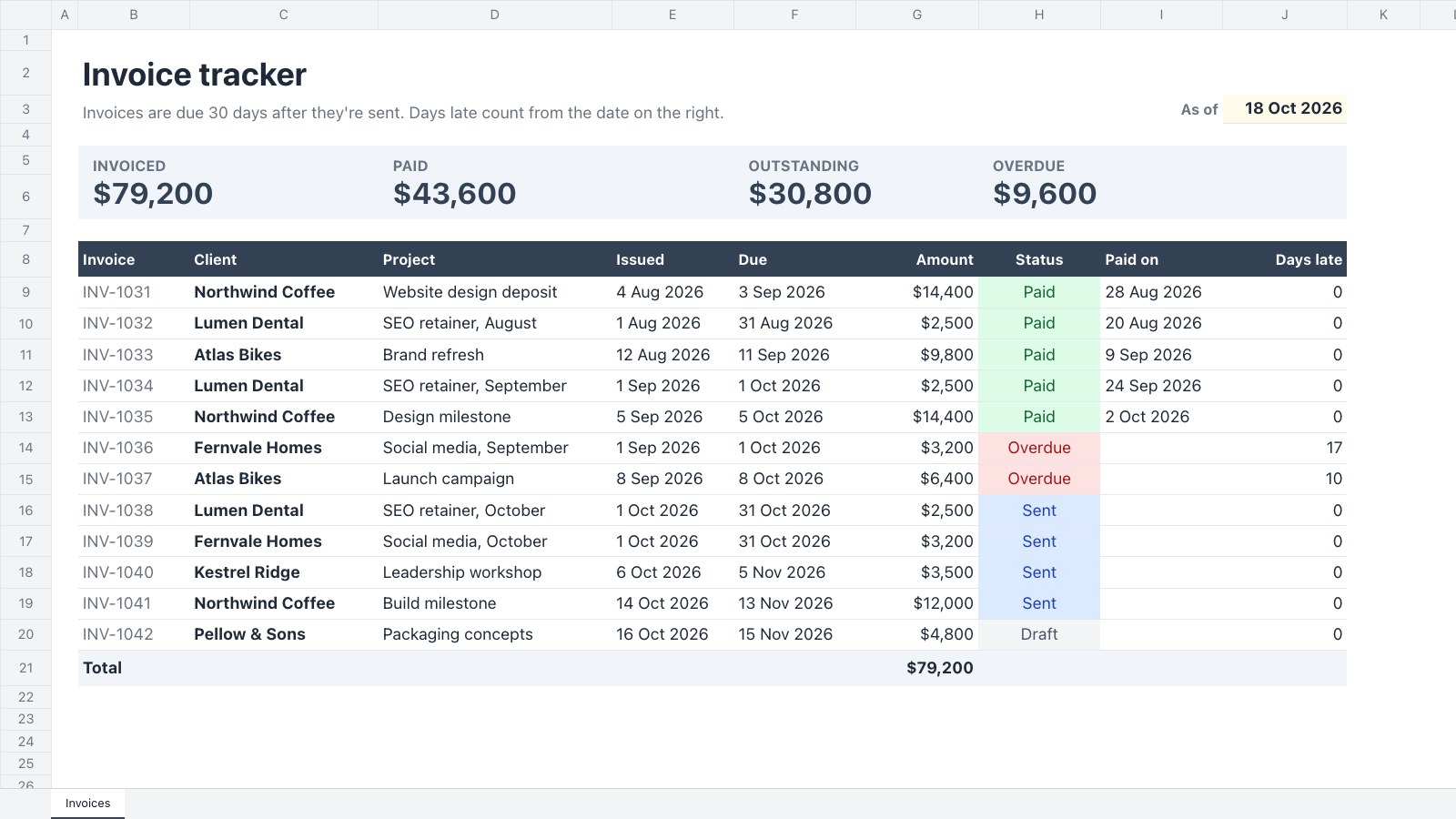
The Overview on Client portal lists Outstanding invoices across all your clients, with any that are overdue.