Open and use your client space
For clients: sign in with a code or link, see what needs you, approve, send files, sign, pay and ask questions. No account needed.
Your team has given you a space: one page with everything they share with you. You don’t need a Docsiv account or a password.
Sign in
- Open the invitation email and select Open your space, or go to the address your team sent you.
- Enter the email your team invited, then select Email me a code.
- Enter the 6-digit code from the email, or select the link in it. Both work for 10 minutes, and the link works once.
You stay signed in on that browser, about 30 days after your last visit. On a shared computer, sign out from the account menu at the foot of the sidebar. If you already use Docsiv with the same email, choose Continue as your email to go straight in.
If it says the code is wrong or has expired, choose Send a new code. Only the email your team invited gets a code.
What you’ll see
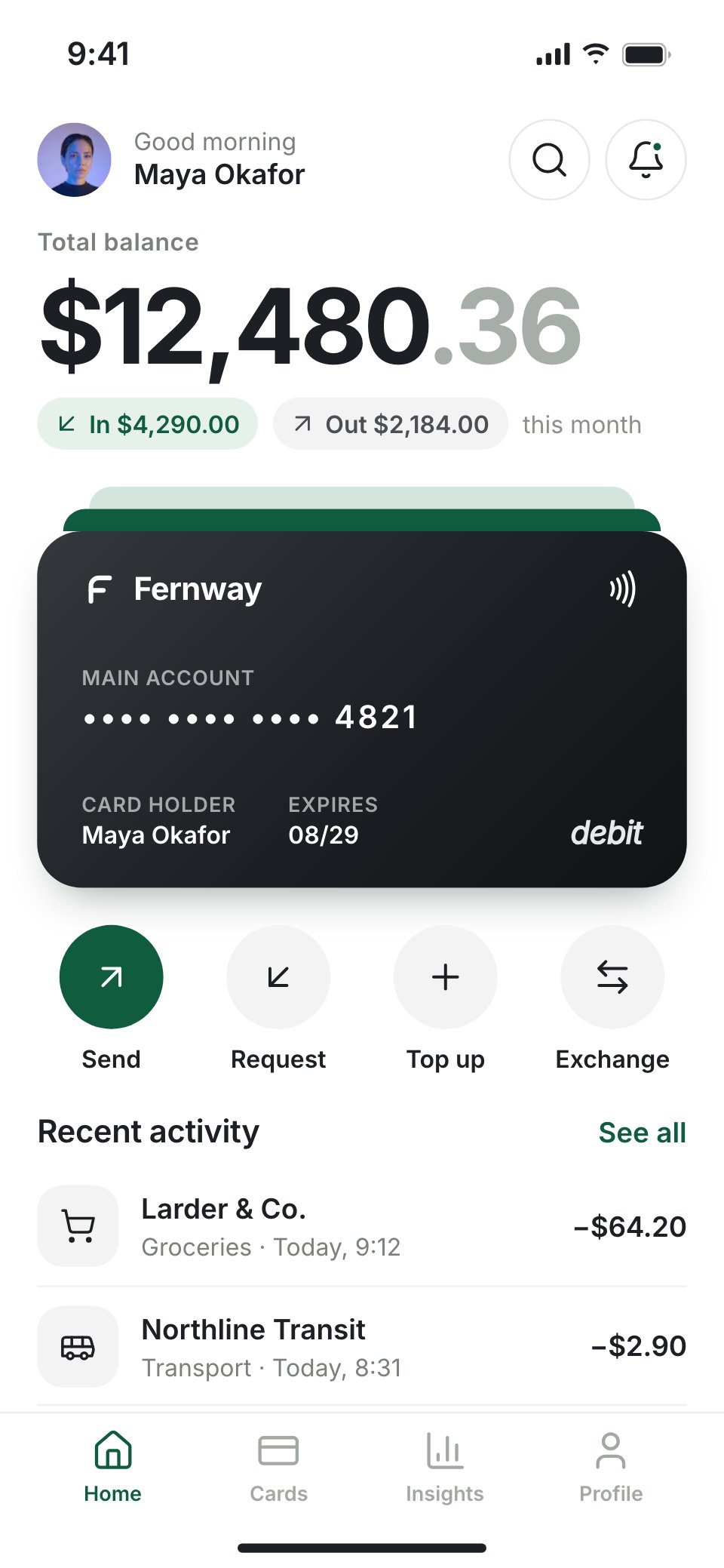
The home page opens with what needs you, soonest first. The sidebar lists Home, Projects, Documents, Files, Requests, Onboarding, Messages, Invoices, Updates and Ask AI, with a count of what needs you, and shows only what your team has switched on. Press ⌘K (Ctrl K on Windows) to search the space.
Do what’s waiting
- Approve a document, or select Request changes and say what should change. You can comment on a document too.
- Open a Request and answer it line by line. It saves as you go. Select Send to the team when the required lines are done.
- Select Send a file any time to send files up to 5 GB each. They appear for your team straight away.
- Open a document marked Needs your signature and sign it there. No email code is needed.
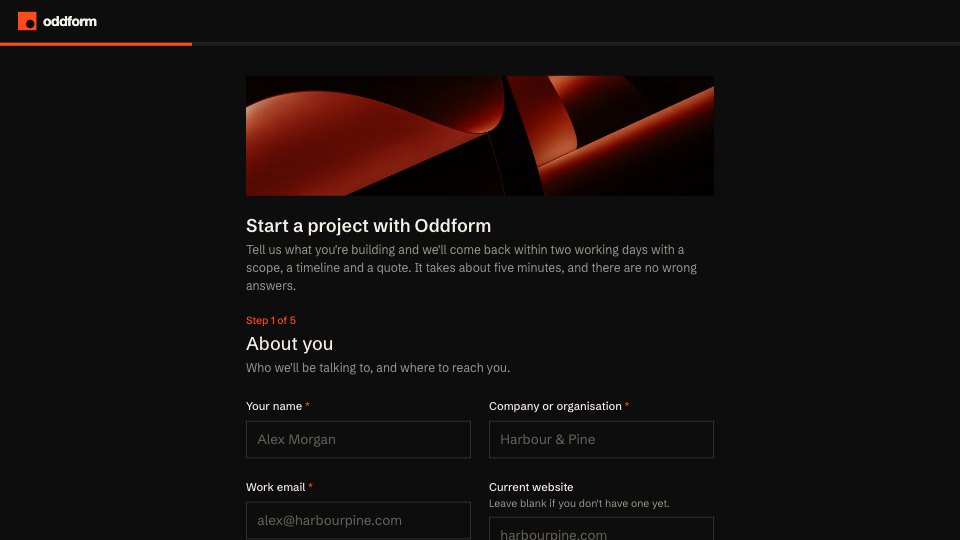
- Fill in a form with Fill in the form.
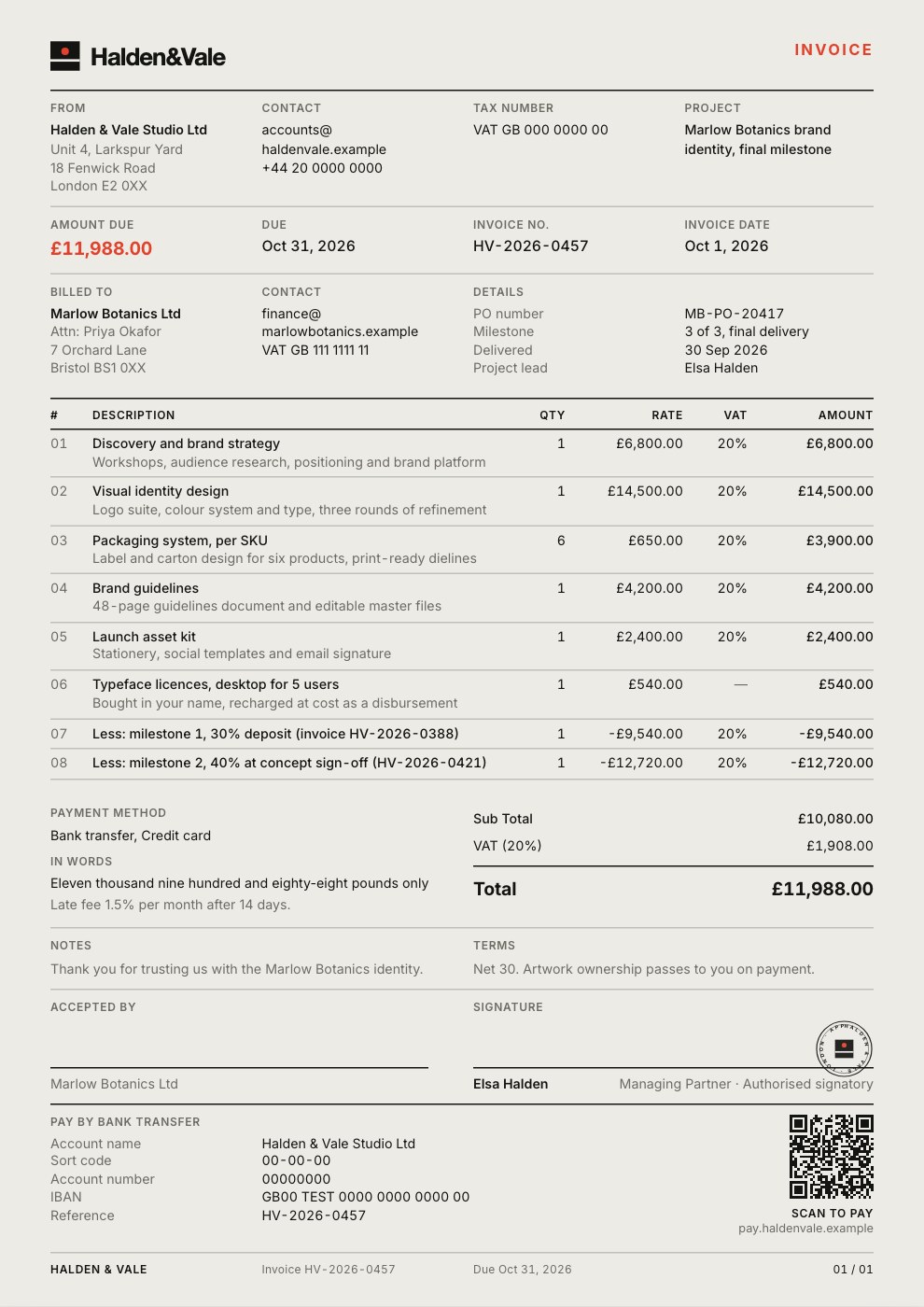
- On an invoice, select Pay invoice if it has one, or I’ve paid to tell your team you have.
- Select New message to write to your team.
Ask AI
If your team has turned it on, Ask AI answers questions about the documents in your space, names the document and page it used, and lets you select Send to the team to pass the question and answer on. There’s a monthly allowance for each space. When it’s used up, message your team instead; it starts again next month.
For your team: client AI
Client AI is on by default for plans that include it. Owners and admins can switch it off in Client portal › Portal settings › Client AI (Let clients ask about their documents), where each space’s use this month is listed. Each space may spend up to 1,000 credits a month on Pro and 3,000 on Team, taken from the workspace’s credits. It isn’t included on Free.