

What’s inside the Project Management App.
10 screens with real content in place. Rewrite them, reorder them, or add your own.
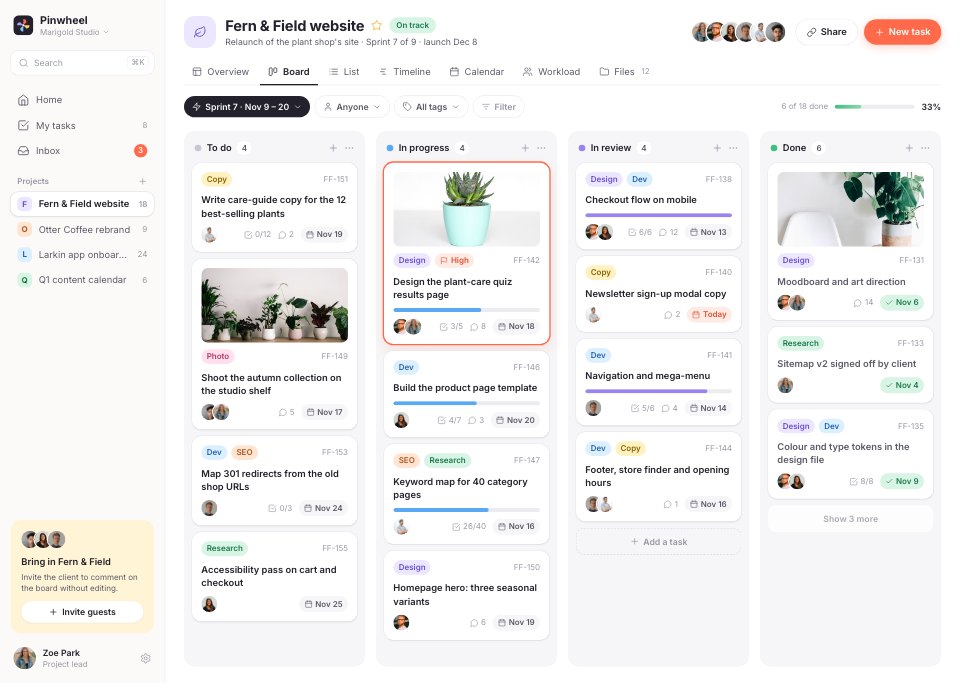
- 1Screen 1Board: four status columns of task cards with pastel tags, plant photos, avatars, subtasks, comments and due dates, and sprint progress
- 2Screen 2List: the sprint's tasks grouped by status with assignees, due dates, tags, priority and subtask progress
- 3Screen 3Task detail: a task open over the board with status, assignees, due date, priority, tags, description, subtasks, files and the comment thread
- 4Screen 4Timeline: a six-week Gantt chart by phase with progress fills, milestones and a today line
- 5Screen 5Calendar: November as a month grid of deadlines, meetings and the shoot, with today's agenda and tasks due this week
- 6Screen 6My work: the signed-in person's tasks for today, this week and later
- 7Screen 7Project overview: goal, progress, milestones, the team and recent activity
- 8Screen 8Team workload: each person's hours per day across the sprint, with a reassignment suggestion and unassigned tasks
- 9Screen 9Inbox: mentions, assignments and replies to act on
- 10Screen 10New project: a dialog over My work with name, colour, template, dates, client and team
When to use it.
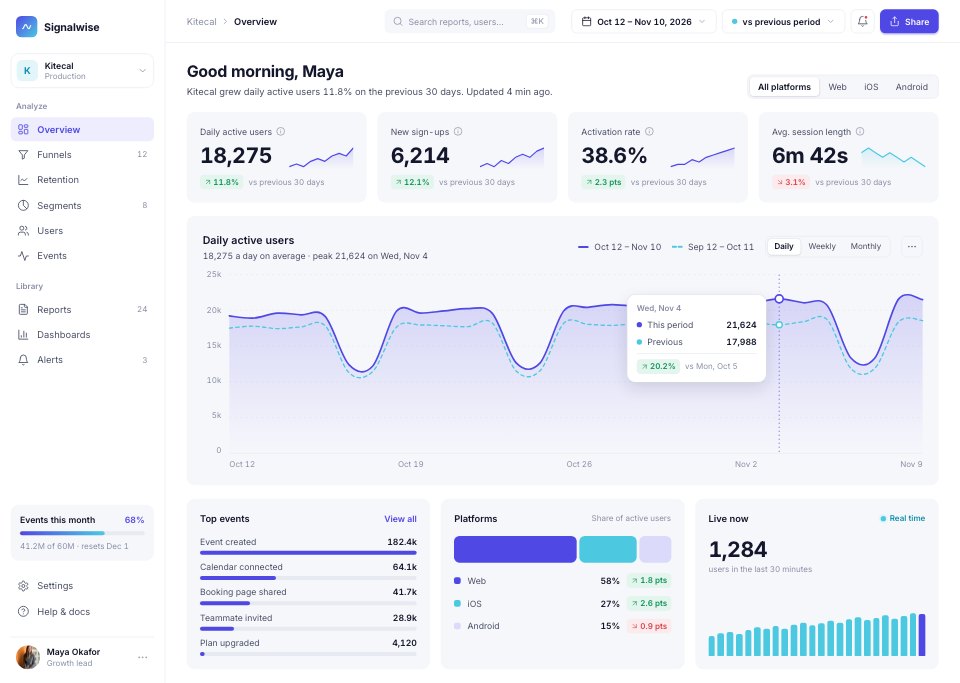
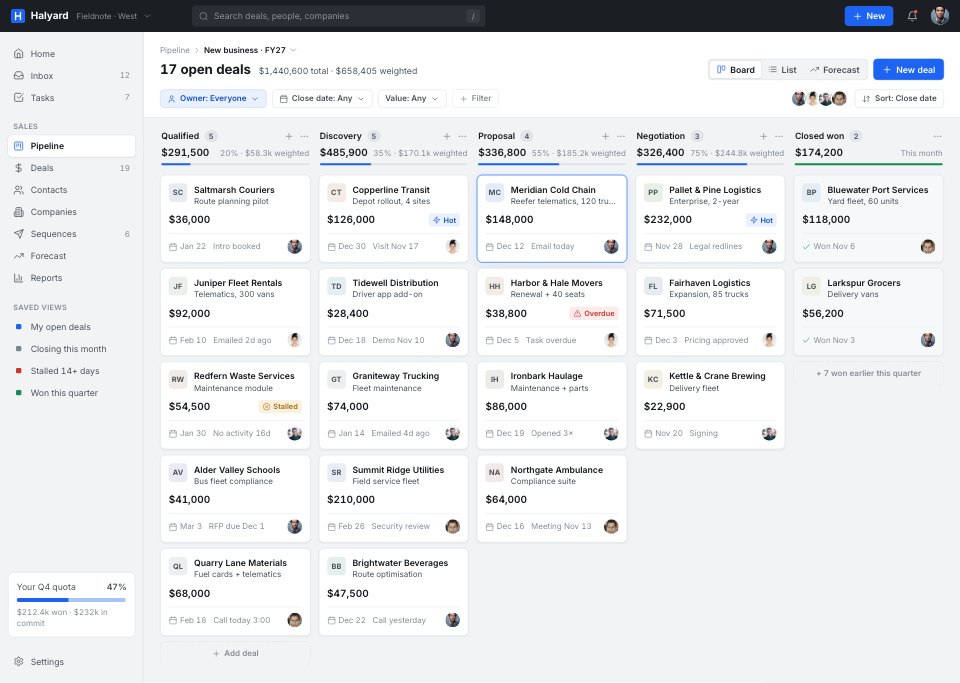
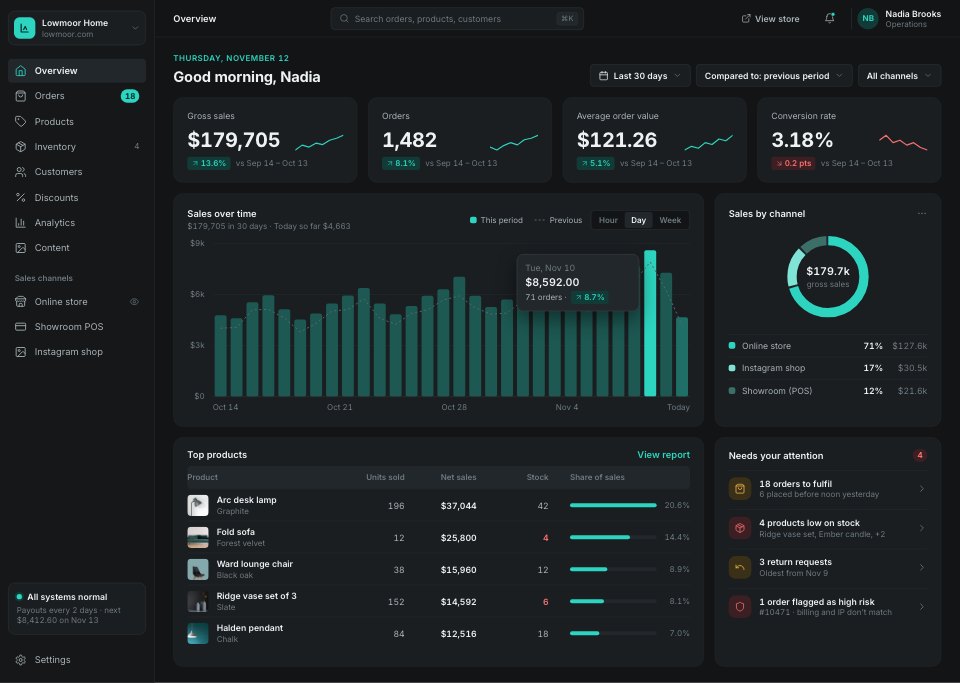
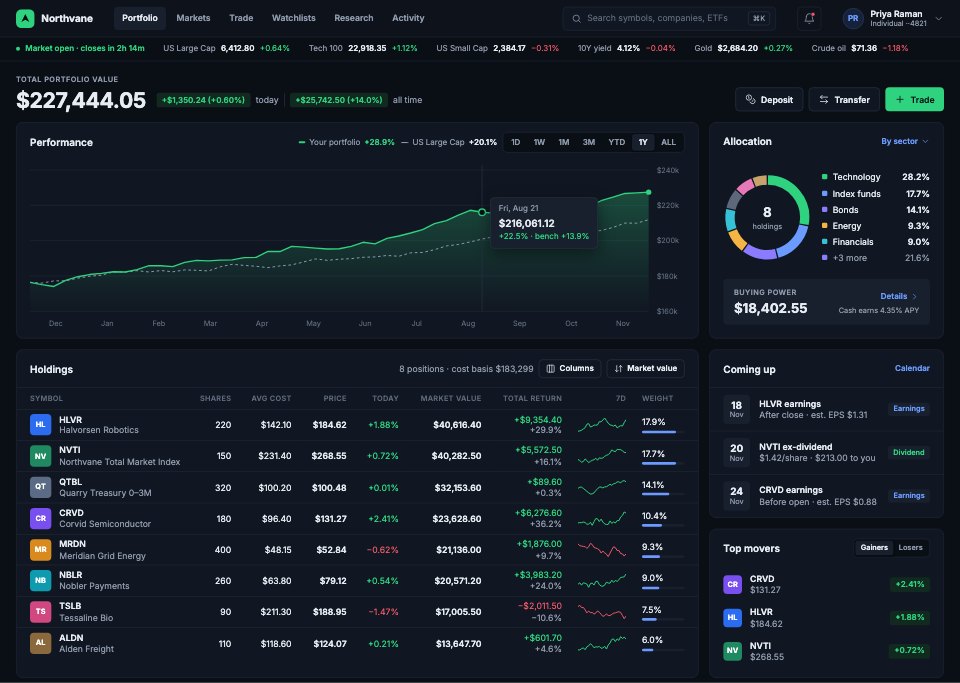
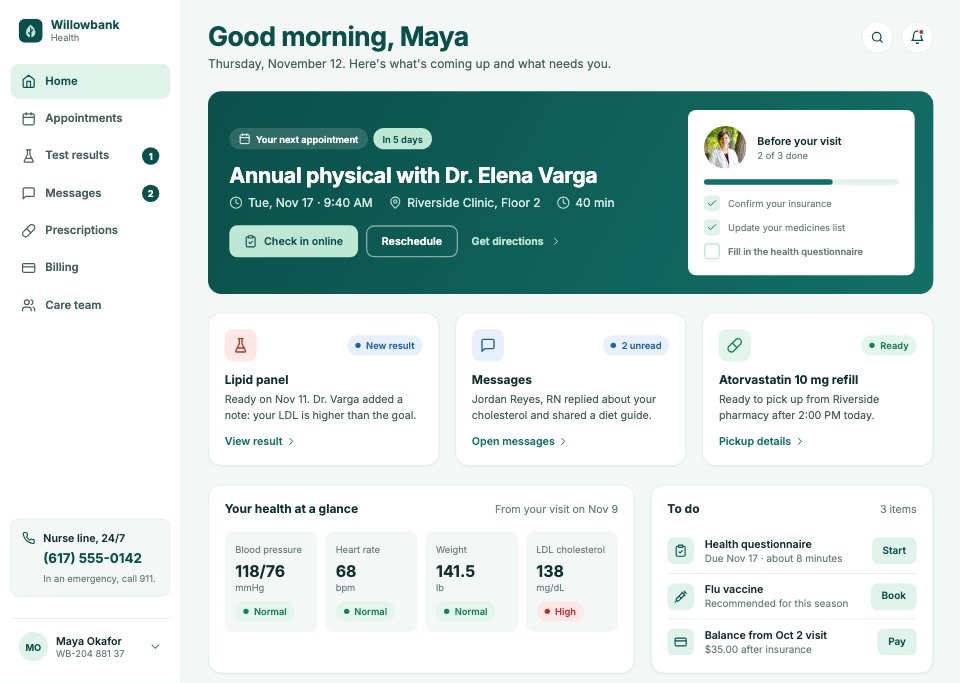
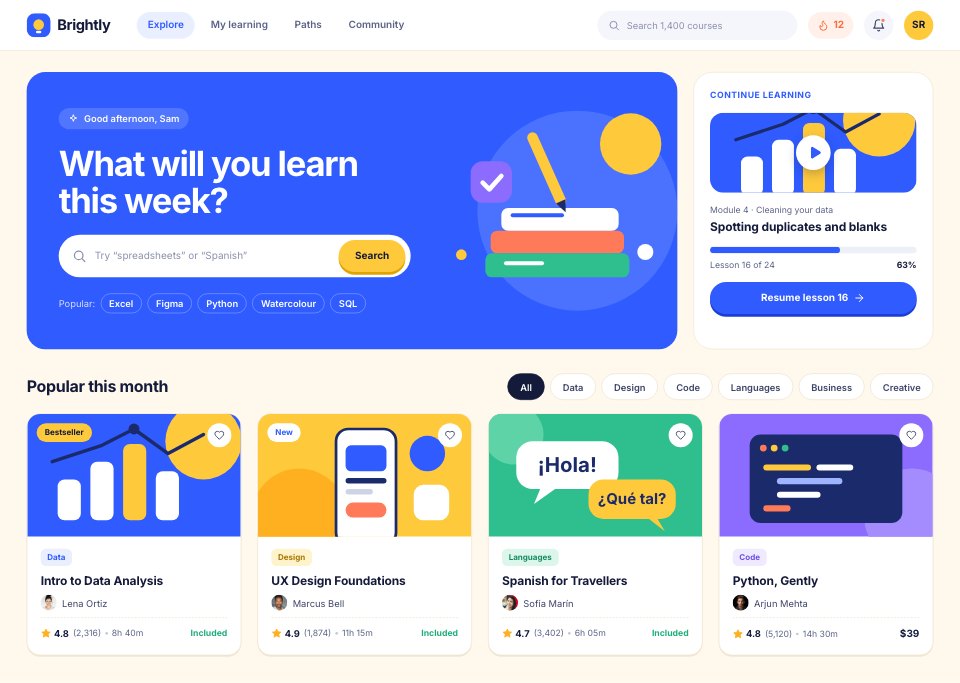
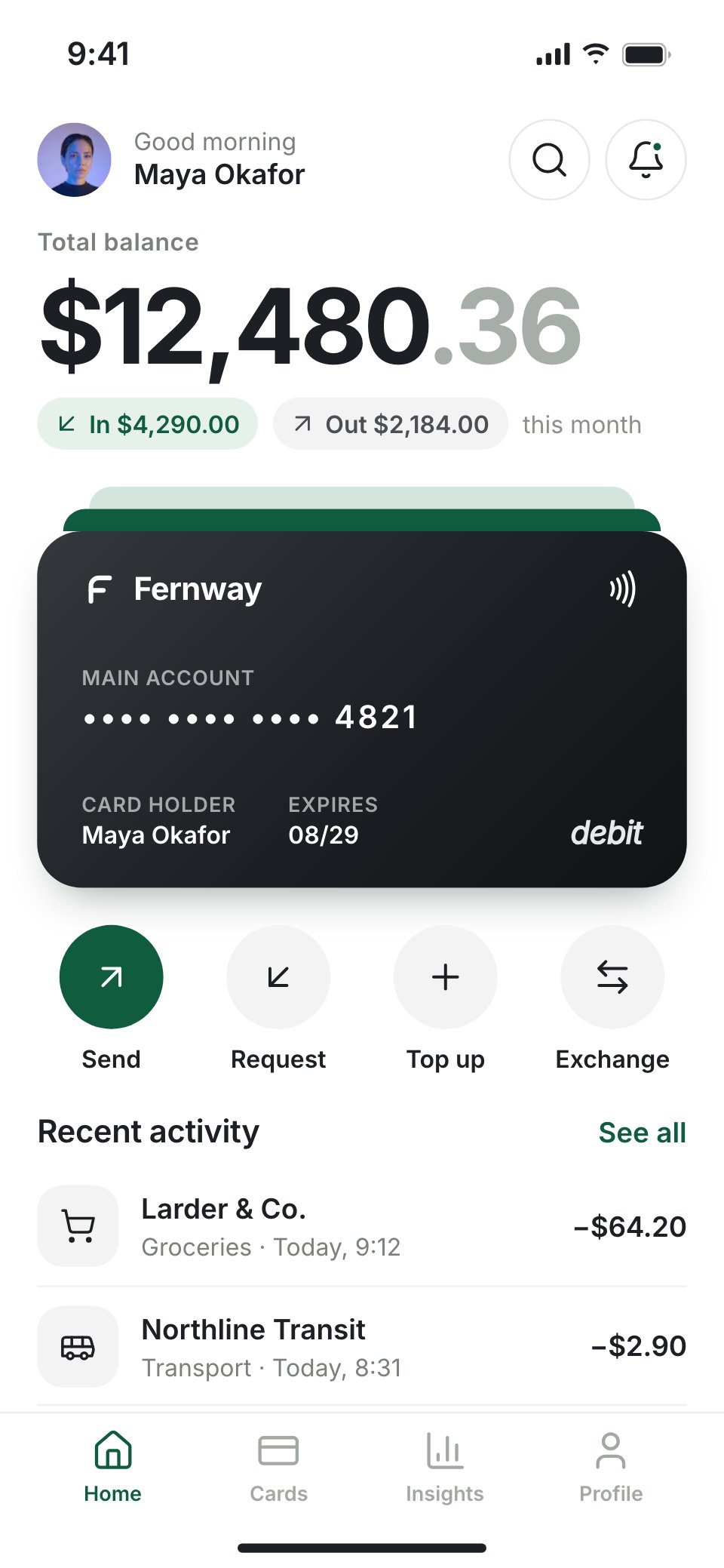
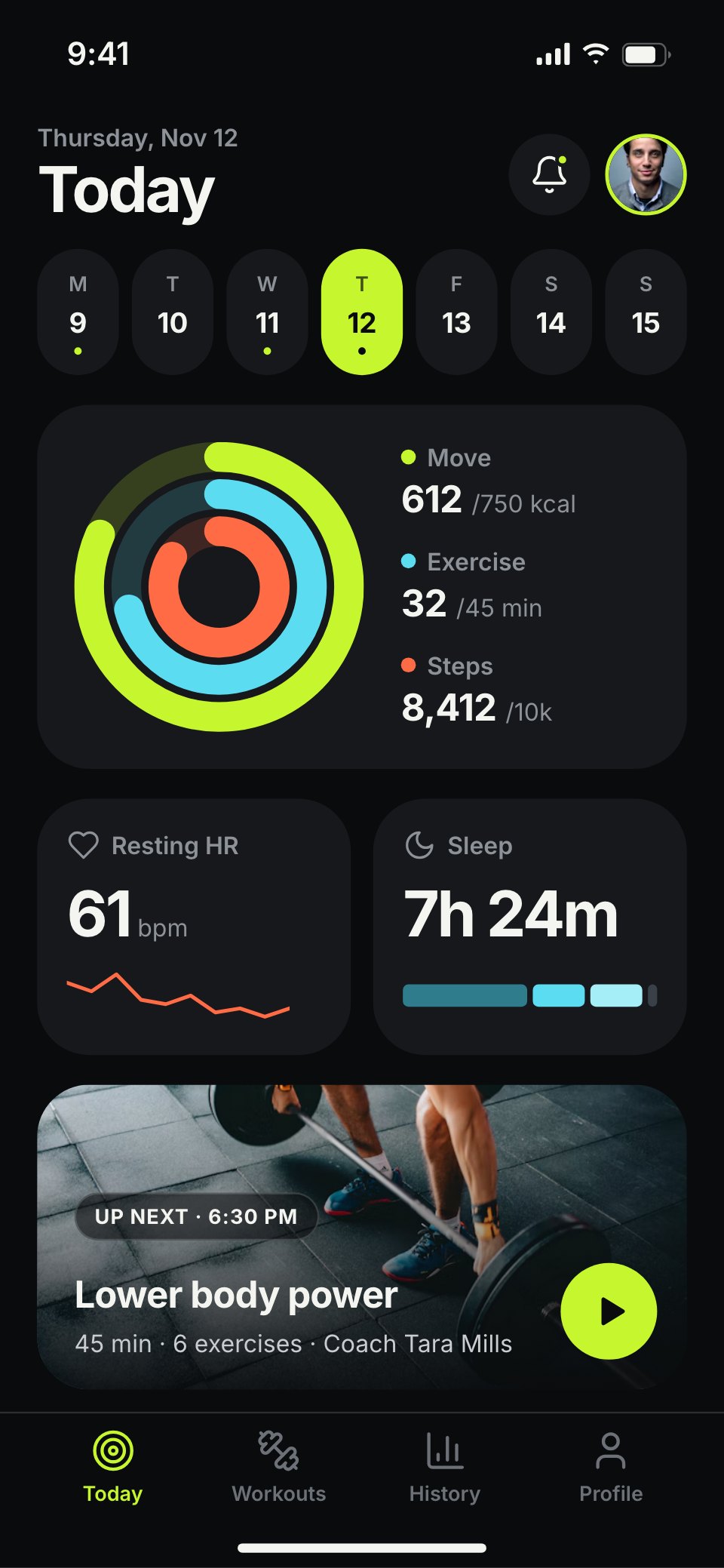
Project Management App is a 10-screen desktop design for a project tool, made for SaaS teams, studios and designers working on task software. It shows a sprint board of task cards with pastel tags, a list view, a task opened over the board with subtasks, files and comments, a six-week Gantt timeline, a month calendar with today's agenda, my work, a project overview, team workload, an inbox and a new project dialog. White and soft grey columns, round photo avatars and a coral main action keep it friendly.
Made for
- SaaS founders and product teams
- Product designers working on dashboards
- Agencies building admin tools for clients
- Developers prototyping a new feature
Make it yours in four steps.
Open it in UI design and work through it, or let Docsiv AI do the first pass with your details.
- Step 1
Rename Pinwheel and change the coral accent and pastel tags to your palette.
- Step 2
Edit the task cards, columns and tags to fit your workflow.
- Step 3
Update the timeline phases, calendar events and team members for your example project.
- Step 4
Link the screens into a clickable prototype, or export them as FIG, SVG, PNG or PDF.
Start from the Project Management App now.
Questions about this template.
Something else on your mind? Ask us in the chat, bottom right of the page.
Is the Project Management App template free?
Yes. Create a free account and it opens in Docsiv's UI design app, ready to edit and share. The Free plan includes every Docsiv app and 500 AI credits a month.
Can I change the colours, fonts and text?
Yes, all of it. The template uses Inter with #ffffff, #f6f6f8, #23212b, #ff6b4a, #ece6ff, #fff1c2, #dcefff, #d8f4e5, and you can change any of them, rewrite every word and add or remove screens and layers.
What can I export it as?
UI design in Docsiv offers: FIG, SVG, PNG and PDF files. Once it's saved, you can also share it with a link.
Can Docsiv AI change it for me?
Yes. Tell Docsiv AI what you need, such as your brand's colours, new wording or another screen, and it makes the changes in UI design for you to review. AI uses credits; the Free plan includes 500 a month.

Start your dashboard design with Docsiv AI
Describe the client or the project and Docsiv AI writes a first draft of your project management app UI for you to edit, share and send.